-1.png?width=240&height=100&name=Heading%20(2)-1.png)
Guests are assigned to tables on the Table Management page. You can access this page in two ways: via the Manage Tables option in the Action Center, or directly from the Guest Check-In page.
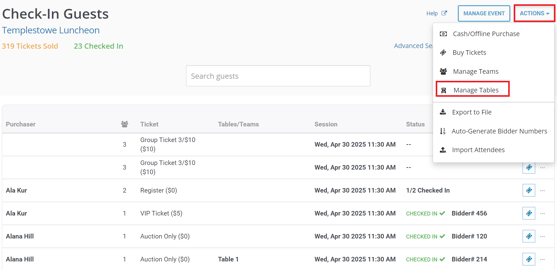
- On the Check-In page, select Actions > Manage Tables.
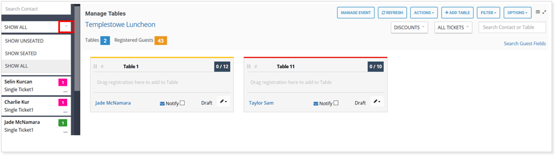
- On the Table Management page, all registrants are listed on the left side. You can filter this list by table placement, assignment status, and other criteria.
- Once you locate the registration you want to place at a table, you can simply drag the registration over to the table and drop it in the table. This will move the registration to the selected table.
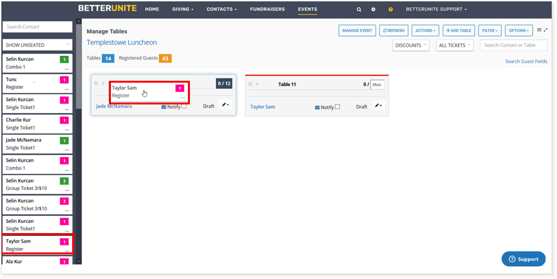
- At any point, you can also click on the registration in the table and drag it over to another table as well. You can click on the registration to view all the guests included in this purchase.
- If there are multiple guests in a registration, you also have the option of moving individual guests within a registration to another table.
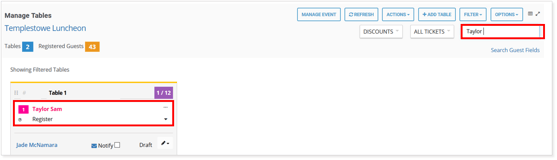
- To find a specific guest and their assigned table, use the search box in the top-right corner of the page to search by guest name.
How to Assign Guests to Tables
Need Additional Help?
We're here to assist you in any way we can. Don't hesitate to reach out to support@betterunite.com
Let's go do some good.