-1.png?width=240&height=100&name=Heading%20(2)-1.png)
When recording payments in BetterUnite, you can easily apply a donation or offline payment to an existing membership subscription. This ensures the payment is properly associated with the correct subscription for reporting, renewal tracking, and member history.
BetterUnite automatically detects when a donor has one or more active subscriptions and provides convenient options to apply payments.
Important notes before you begin
-
Payments can only be applied to subscriptions that belong to the same donor
-
A payment can be applied to one subscription at a time
-
This feature is commonly used for:
-
Offline payments (cash, check, external credit card)
-
Late or replacement membership payments
-
Manually recorded renewals
-
Option 1: Apply a payment while adding an offline donation
When adding an offline payment, BetterUnite automatically checks whether the selected donor has any existing subscriptions.
How it works
-
Go to Donations and click Add Donation (or Add Offline Payment).
-
Select the donor.
-
If the donor has one or more subscriptions, a Subscription dropdown will appear.
-
Choose the subscription you want to apply the payment to.
-
Complete and save the donation.
The subscription dropdown will display the subscription name and start date, making it easy to select the correct one.
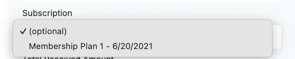
✅ If the donor has no subscriptions, this field will not appear.
Option 2: Apply an existing donation to a subscription
If a donation already exists and has not yet been applied to a subscription, you can link it afterward.
How it works
-
Open an existing donation for a donor.
-
Click the Actions menu.
-
Select Apply to a subscription.
-
Choose one of the donor’s available subscriptions.
-
Confirm the action.
Once applied, the donation will be linked to the selected subscription.

✅ If the donor has no subscriptions, this option will not appear.
What happens after a payment is applied
When a payment is applied to a subscription:
-
The subscription reflects the payment in its history
-
Membership status and renewal tracking stay accurate
-
Reporting correctly associates the payment with the subscription
-
The donor’s record shows a complete, connected activity timeline
When should I use each option?
| Scenario | Recommended option |
|---|---|
| Recording a check or cash payment | Option 1 |
| Entering a late membership payment | Option 1 |
| A donation was entered without a subscription | Option 2 |
| Correcting or linking an existing donation | Option 2 |
Troubleshooting
-
I don’t see the subscription dropdown
The donor does not have any existing subscriptions, or the donation donor does not match the subscription donor. -
I don’t see “Apply to a subscription”
The donation may already be linked to a subscription or the donor has no active subscriptions.