-1.png?width=240&height=100&name=Heading%20(2)-1.png)
The Auction Showcase View is a live, public-facing URL designed to display your auction items on a large screen during an event. This view is ideal for projecting onto a TV or screen in your venue so guests can easily follow along with active auction items in real time.
What the Auction Showcase View Displays
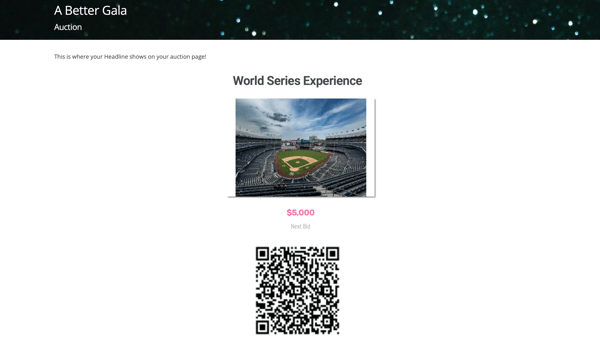
As the showcase cycles through your active auction items, it highlights key details for each item, including:
-
Main item image for visual impact
-
Item-specific QR code so guests can quickly scan and bid from their own device
-
Next bid amount, updating live as bids are placed
The showcase automatically rotates through all active auction items, making it a hands-free way to keep bidders engaged throughout your event.
How the Auction Showcase View Is Used
-
Project it on a TV, projector, or large display at your event
-
Encourage guests to scan the QR codes to place bids instantly
-
Use it to create excitement and visibility around live bidding activity
Because it is a live URL, any updates to bids or item status are reflected immediately on screen.
Where to Find the Auction Showcase View
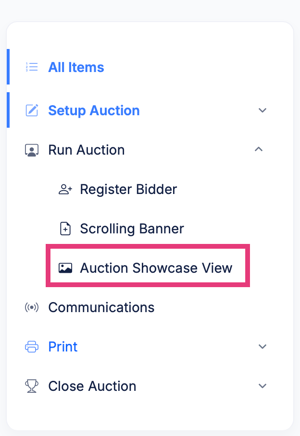
To access the Auction Showcase View:
-
Navigate to your Auction within your campaign.
-
On the left side, select Run Auction.
-
Locate the Auction Showcase View option.
Open the showcase on the computer driving the screen. It takes over the whole display and rotates through your auction items one at a time. Press f for full screen. Move the mouse to reveal the operator controls: previous, play or pause (space), next, and full screen. A countdown shows when bidding closes.
What each item shows
- The lot number and a Live or Silent tag
- The item name and description
- The next bid and the buy-now price
- The estimated value (or "Priceless")
- A "Scan to bid" QR code so guests can bid from their own device
Choosing which items to show
The showcase can display all items, only live auction items, or only silent auction items. The Auction Showcase View tab gives you a link for each:
- All auction items (the default): everything, live and silent together.
- Live auction only: for the main screen during the live auction.
- Silent auction only: for the screens near the tables while silent bidding is open.
Each link has a Copy this link button, so you can point a specific screen at exactly the items you want.
Customizing the look
Open the showcase settings from the gear icon on the showcase page (it appears only to you while you are logged in) or from the Appearance section of the showcase tab. You can set:
- Background: a gradient, your own image as a full background or as a banner across the top (with a focal point picker so the right part of the image stays visible), or none.
- Text: light or dark text, with optional custom title and body colors, so text stays readable on your chosen background.
- Display: how many seconds each item stays on screen, whether to show the bid QR code, and whether to show the estimated value.
Changes to the timing and the display switches take effect the next time the showcase is loaded.
Building your own showcase page
The auction showcase is also available as a component you can drop into a custom page design, alongside your own headings, sponsor logos, giving levels, and anything else you want on screen. Use the full-screen showcase for a quick, ready-made display, or the component when you want to build a fully custom experience page.
Need Additional Help?
We're here to assist you in any way we can. Don't hesitate to reach out to support@betterunite.com
Let's go do some good.