-1.png?width=240&height=100&name=Heading%20(2)-1.png)
Admins can now take bulk actions on peer-to-peer fundraising pages, making it faster to manage large campaigns with many participants. Available bulk actions include hiding pages, deleting pages, emailing all fundraisers, and sending invitation emails.
Accessing Bulk Actions
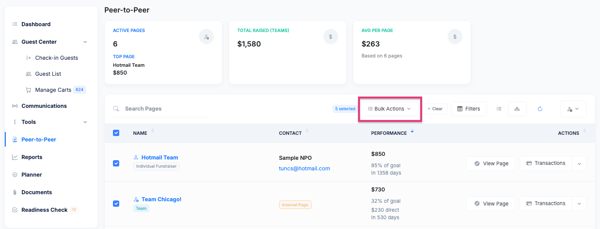
- Navigate to your campaign’s Peer-to-Peer section in the admin dashboard.
- Select one or more fundraising pages using the checkboxes.
- The bulk action menu will appear at the top of the list.
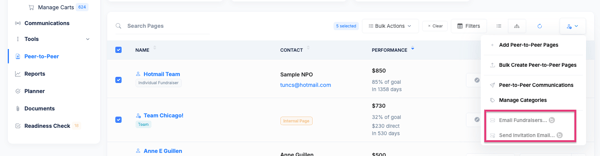
- To access the bulk email feature, click on the person icon to the right.
Available Bulk Actions
- Bulk Hide — Hides selected pages from the public campaign page without deleting them.
- Bulk Delete — Permanently deletes selected fundraising pages.
- Email All Fundraisers — Sends a custom email to all fundraisers on selected pages. Merge fields are available to personalize the message.
- Bulk Send Invitation — Sends the invitation email to participants of selected pages, prompting them to log in and edit their page.
Frequently Asked Questions
Can I bulk hide a page without the fundraiser knowing?
Yes. Hiding a page removes it from the public campaign listing but does not notify the fundraiser. You can un-hide pages at any time.
What happens when I bulk delete a page?
Deleting a page is permanent. Any donations already collected through the page are retained in the campaign, but the fundraising page itself is removed.
Can I email all fundraisers without selecting them individually?
Yes. Use the select-all checkbox at the top of the list to select every page, then choose Email All Fundraisers from the bulk action menu.
Need Additional Help?
We’re here to assist you in any way we can. Don’t hesitate to reach out to support@betterunite.com
Let’s go do some good.