-1.png?width=240&height=100&name=Heading%20(2)-1.png)
The Bulk Edit in Excel tool lets you download your event’s guest list as a CSV file, make bulk changes in Excel or Google Sheets, and upload the file back to apply updates across many guests at once. This is useful for assigning paddle numbers, updating table assignments, combining guests, or making other bulk changes without editing each record individually.
Please note: This feature is currently in beta. Use it carefully and review the preview before applying changes. No notifications are sent to guests when changes are made via bulk edit.
Step 1 — Download the Guest List
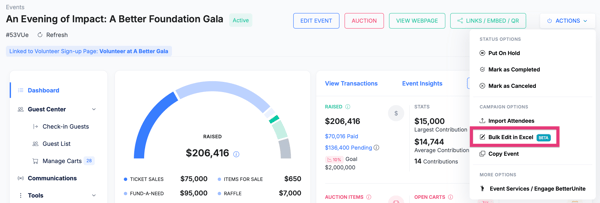
- Navigate to your Event Dashboard and open the guest list.
- Click Actions (or the relevant menu) and select Bulk Edit in Excel.
- A CSV file will download to your computer containing your current guest data.
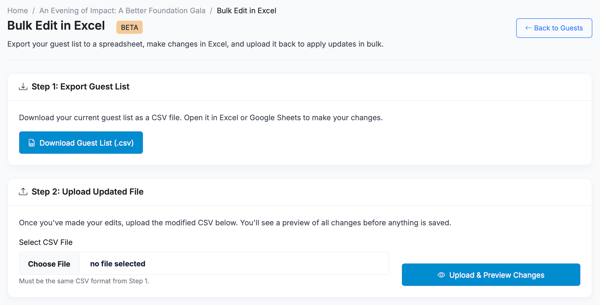
Understanding the CSV File
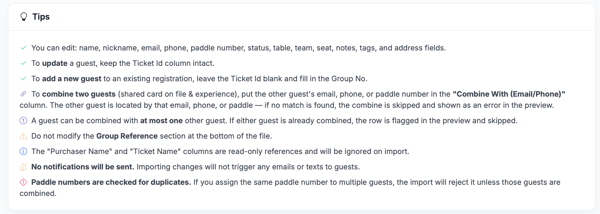
- The CSV has one row per guest registration. The fields you can edit are: name, nickname, email, phone, paddle number, status, table, team, seat, notes, tags, and address fields.
- Each row includes a Ticket ID — this is the internal identifier BetterUnite uses to match your edited rows back to the correct guest. Do not modify the Ticket ID column.
- The Purchaser Name and Ticket Name columns are read-only reference fields. Any changes to these columns will be ignored on import.
- The bottom of the CSV contains a Group Reference section with a key for registration types in your event. Do not delete or modify this section.
Step 2 — Make Your Changes in the Spreadsheet
Edit the rows in your spreadsheet to reflect the changes you want to make. Common use cases include:
- Update guest fields: Edit any supported column for a guest row — name, nickname, email, phone, paddle number, status, table, team, seat, notes, tags, or address fields.
- Assign paddle numbers: Enter paddle numbers in the Paddle Number column. Paddle numbers are checked for duplicates — if you assign the same paddle number to multiple guests, the import will reject it unless those guests are being combined.
- Combine guests: To combine two guest registrations (for example, combining a buyer and the guest they purchased a ticket for), enter the other guest’s email address, phone number, or paddle number in the Combine With (Email/Phone) column. BetterUnite looks up the other guest using that value — if no match is found, the combine is skipped and flagged as an error in the preview. Each guest can be combined with at most one other guest; if either guest is already involved in a combine, the row is flagged and skipped.
- Add a new guest to an existing registration: Leave the Ticket ID blank and fill in the Group No column to add a new guest to an existing group registration.
- Update guest status or other fields: Edit any other supported columns as needed.
Important rules when editing the file:
- Do not modify the Ticket ID column — this is how BetterUnite matches rows to existing guest records. To add a new guest, leave it blank.
- Do not modify or delete the Group Reference section at the bottom of the file.
- Do not edit the Purchaser Name or Ticket Name columns — these are read-only and will be ignored on import.
- Do not add, remove, or reorder columns.
- Save the file in CSV format before uploading.
Step 3 — Upload and Preview Changes
- Return to the Bulk Edit in Excel area in your Event Dashboard and upload your edited CSV file.
- BetterUnite will parse the file and show you a preview summary before anything is saved. The summary shows:
- Unchanged: Rows with no differences from the current data.
- Updated: Rows where one or more fields were changed.
- New Guests: Rows where a new guest was added to a slot.
- Combined: Rows where two guests will be merged.
- Click on any row to expand it and see exactly what the value was before and what it will change to. This lets you catch any unintended changes before applying them.
- Use the Show Changes Only toggle to filter the list to only rows that have updates, making it easier to review what will be affected.
Step 4 — Apply the Changes
- Once you have reviewed the preview and are satisfied with the changes, click Apply (or the equivalent confirm button) to commit the updates.
- All changes are applied at once. No notifications are sent to guests during this process.
Please note: Bulk edits cannot be automatically undone. If you need to reverse changes, you would need to re-download the guest list, restore the original values, and re-upload.
Frequently Asked Questions
Will guests receive a notification when I update their records via bulk edit?
No. Bulk edits are applied silently — no emails or text messages are sent to guests as a result of the changes. If you need to notify guests about updates (for example, a new table assignment), you can send them a message separately from the Event Dashboard.
Can I use bulk edit to check guests in?
No. Bulk edit is for data updates (names, paddle numbers, tables, combining) and does not trigger check-in logic or associated notifications. Use the check-in tools in the Event Dashboard for guest check-in.
What happens if I accidentally enter a duplicate paddle number?
The import will reject duplicate paddle numbers and flag them in the preview. The exception is when two guests are being combined — in that case, the same paddle number on both records is allowed.
Can I combine more than two guests at once?
No. Each guest can be combined with at most one other guest. If a guest is already involved in a combine, any additional combine rows for that guest will be flagged in the preview and skipped.
What happens if the guest I’m trying to combine with can’t be found?
If BetterUnite can’t find a matching guest using the email, phone, or paddle number you entered in the Combine With column, the combine is skipped and shown as an error in the preview. No change will be applied for that row.
Can I delete a guest using this tool?
No. Bulk edit does not support deleting guest records. Use the individual guest management tools in the Event Dashboard to remove or cancel a guest registration.
What does the Group Reference section at the bottom of the CSV mean?
The Group Reference section contains a key showing what each registration type in your event corresponds to. It helps you understand the data in your file and is used by BetterUnite when validating the upload. Do not delete or modify it.
Does this work for all ticket types?
Yes. The CSV export includes all guest registrations for the event, across all ticket types.
Need Additional Help?
We’re here to assist you in any way we can. Don’t hesitate to reach out to support@betterunite.com
Let’s go do some good.