
Check-in Location
- For the best guest experience, position your tables in a quiet space and make sure there's plenty of room between each check-in person. These two factors help prevent guests from needing to shout their details.
Fee Options
-
You can set this up under Funding in the Edit event menu, in the Platform fees section.
-
The default and recommended option is Give donors the option to pay the platform fee. Under it you choose either Donors are default opted-in to pay the BetterUnite fee or Donor fees set to zero by default. Donor will need to opt-in to cover fees. If you choose the second one, your check-in team can ask guests whether they would like to cover the fees. A guest's choice shows as 'Guest has opted-in to cover transaction fees' on their checkout.

- If you make these fees optional for your guests to cover, your check-in team can ask them if they'd like to cover any transaction fees during the check-In process.
Choose your Devices
- Ask yourself what devices you will be using for check-in? Will you be using laptops, iPads, or iPhones? Make sure your team knows what they'll be working with and what they'll need to bring with them.
Collect Credit Card Information
- Are you collecting credit card numbers for pre-authorization at check-in or will your guests handle this before the event?


- You can also use a combination of both in-person check-in and pre-authorization.

- If you're using Stripe, you'll have more pre-authorization options on mobile devices. This is why we recommend Stripe over PayPal.

Pre-authorization Demonstrations
- When using Stripe, there are several ways to collect credit card information. On a laptop you can manually enter the information.

- On an iPhone you can use the Tap to preauthorize function within the BetterUnite check-in app.


- On an iPhone or iPad you can use the camera scanner feature.

- Additionally you can use the Bluetooth Scanner that is available for purchase within your BetterUnite account.

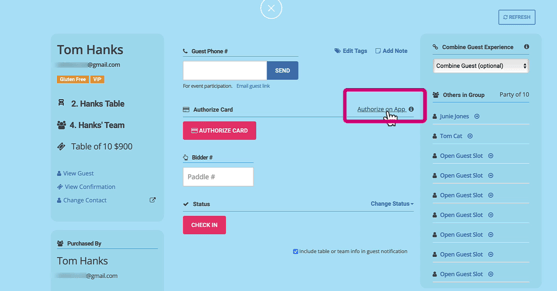
- The app can also be used in conjunction with a laptop. To do this, select authorize on app, scan the QR code that appears, and proceed to authorize the credit card with the iPhone.
- When using PayPal, cards can only be manually entered on a laptop.
- Guests can also pre authorize their cards themselves through the link that you text them.

Assign Bidder Numbers
- Are you assigning bidder numbers for a live auction or paddle raise?
- If you are decide whether these numbers will be pre-assigned or assigned during check-in.

-
There are two ways to assign numbers ahead of time. (1) On a ticket, turn on Auto-assign paddle numbers starting at(under that ticket's options, in the Guests & check-in group). Each ticket purchased gets the next available number from there up. (2) On the Guest check-in page, open the menu and choose Auto-Generate Bidder Numbers, enter a Starting Number (it opens at 100), optionally set a filter (all guests with no paddles, pre-authorized guests with no paddles, or guest slots with a name provided, plus ticket and tag filters), then click Generate & Assign Paddle Numbers. Numbers go out in alphabetical order by last name, existing numbers are skipped and never changed, and you can run it again any time. We recommend starting at 100.

Check-In Script
- Lastly, determine any additional information your team needs to provide to your guests.
Example
- Greeting or welcome language (ie. Welcome to our Angel Gala)
- Pre-authorizing credit card ask
- Covering fees language
- Bid numbers and other handouts (ie. programs, drink tickets, etc.)
- Where are they directing guests to after check-in? (ie. table number, cocktail hour, restrooms, etc.)
- After finalizing these details, create a short script for your registration team to follow. We've provided a basic script for the BetterUnite Flow, which you can find in your check-in instructions article.
Need Additional Help?
We're here to assist you in any way we can. Don't hesitate to reach out to support@betterunite.com
Let's go do some good.