-1.png?width=240&height=100&name=Heading%20(2)-1.png)
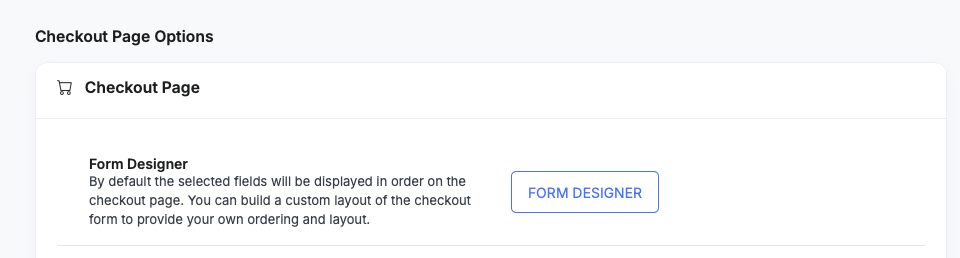
- You can make your check out requirements more specific by clicking on Form Designer as shown below.
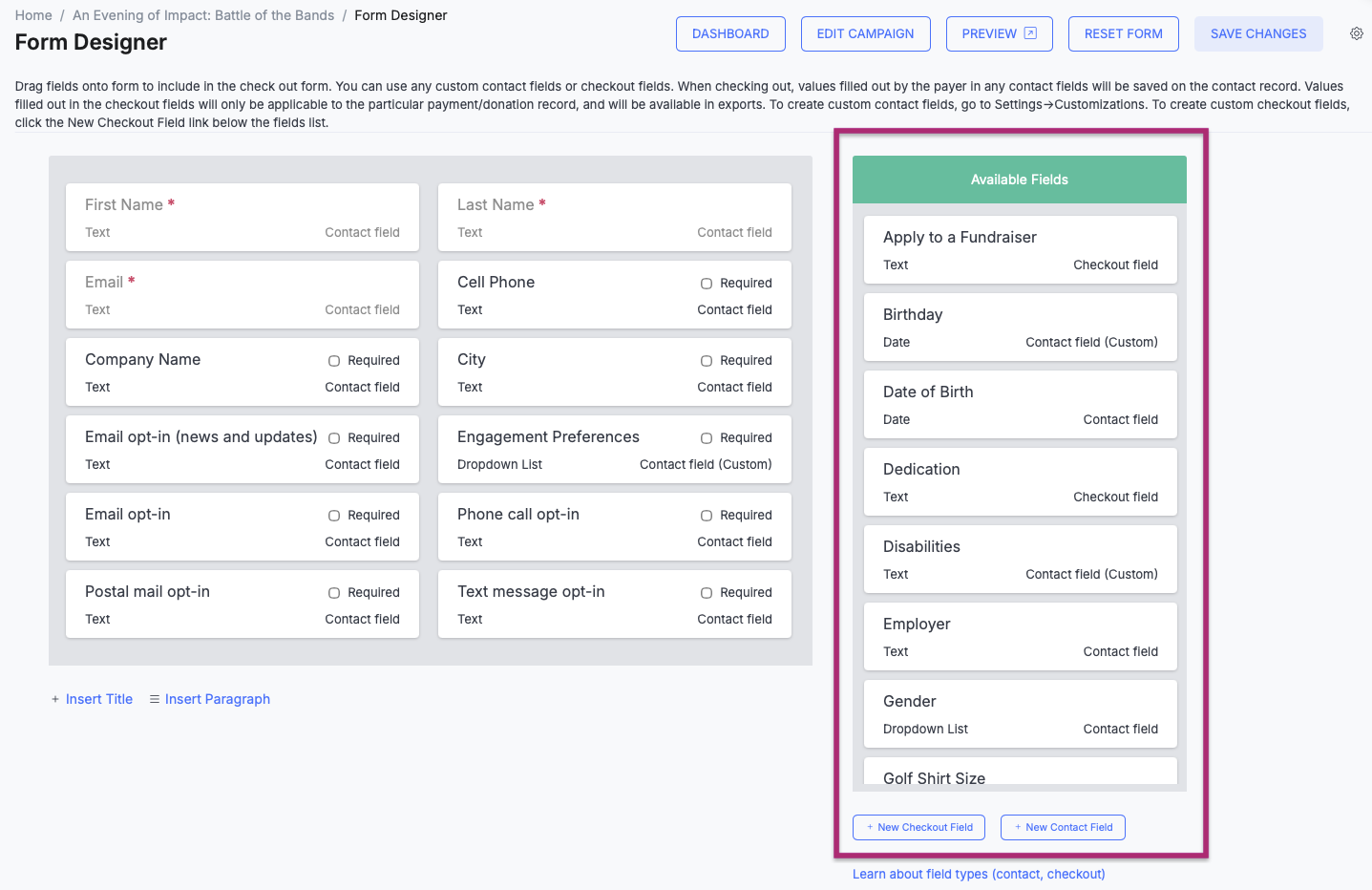
- Form Designer allows you to add fields to include in the check out form. You can either choose from the Available fields or you can select New check out field or New Contact Field to enter in a new field of your choosing. See Custom Fields for more information.
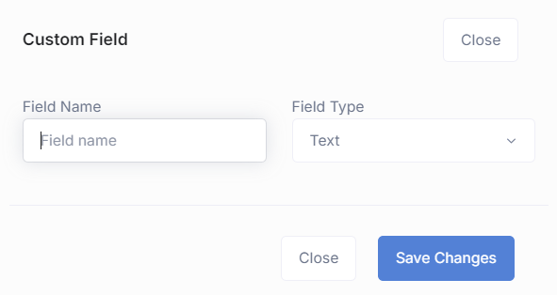
- Once you click on New Check out Field the below pop up window will show. You can enter the Field Name and the Field Type here and click on Save Changes. The new field will now show in your Available Fields Section.
- Once you are done adding new fields to your Available Fields section then drag the fields you want onto form to include in the check out form.
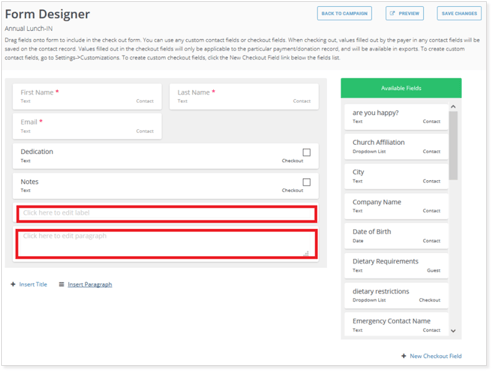
- To add a Title to your check out form click on Insert Title and if you want add more detailed information in your check out form click on Insert paragraph as shown below.
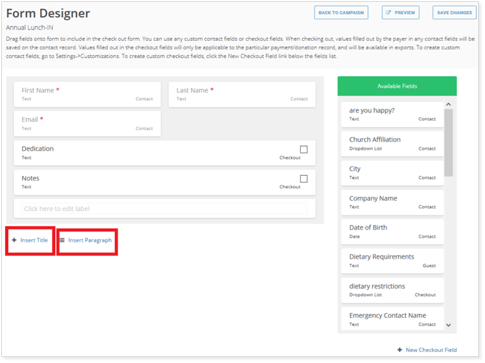
- Once you click on Insert Title and/or Insert paragraph, you will have two empty fields appear in your check out form to fill out as shown below. Once you are done with your Check out form click on Save Changes.
Need Additional Help?
We're here to assist you in any way we can. Don't hesitate to reach out to support@betterunite.com
Let's go do some good.