-1.png?width=240&height=100&name=Heading%20(2)-1.png)
The email marketing tools are all two-way integrations, meaning that contacts that you have in them can be brought into your BetterUnite system and contacts you have in BetterUnite can be exported to existing or new mailing lists in your email marketing tool.
The setup instructions for each email marketing tool is similar, so the following instructions will apply to all email marketing platform connections.
- Go to settings (click the link on top navigation menu)
- Click Integrations
- Choose the email marketing platform you would like to connect to (you can connect to multiple platforms by performing similar setups for each)
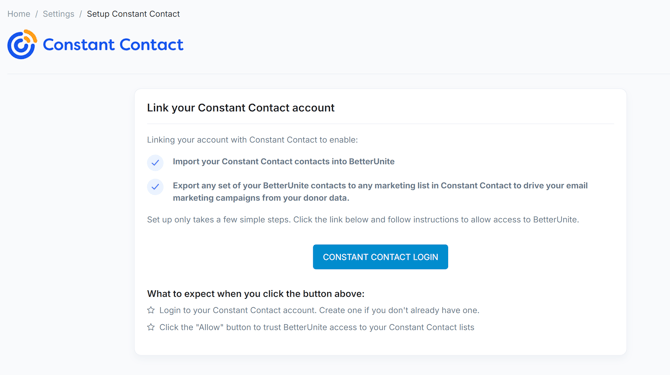
- The very first time you try to setup a connection, you will see a button to "Log in" to the email marketing platform.
- Click the login button to pop open a window that will ask you to log in to the email marketing platform
- Log in to the platform using your existing account credentials with that platform
- The form will now ask you to Trust BetterUnite to access your email marketing platform
- This step is necessary to allow us to read your existing mailing lists and contacts, as well as the ability to export your contacts from BetterUnite to your email marketing platform. So, click the option to Allow BetterUnite access.
- That's it. When you complete this action, the window will close, and the setup page will refresh shortly thereafter.
What can you do with this connection?
Once you have established a connection to you email marketing platform, you can perform multiple actions.
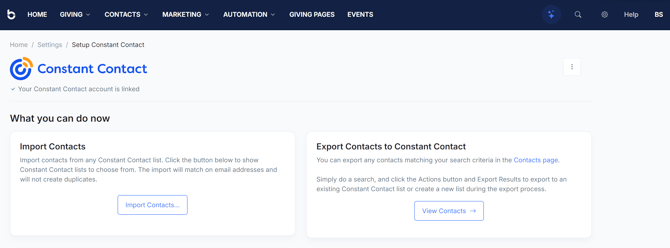
- Import contacts from email marketing platform to BetterUnite
- On the above setup page, you will be shown an option to Import Contacts.
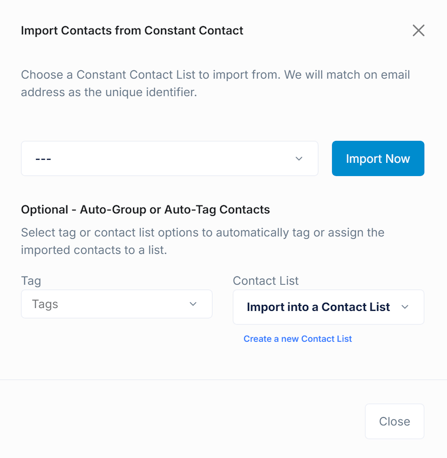
- Click this button to pop open an import window that will list the current mailing lists in your email marketing platform
-
- You will need to choose one of the mailing lists, and click Import Now
- You can select from options to auto-tag imported contacts, or import these contacts into an existing or a new contact list in your BetterUnite account.
- This process may take a few minutes depending on the size of the mailing list
- The import process will check for duplicates based on email address match
- Repeat this process to import other mailing lists into BetterUnite
- You will need to choose one of the mailing lists, and click Import Now
- Export donors / contacts from BetterUnite to a email marketing platform mailing list
- Go to Contacts top navigational menu
- Perform a search (or not) to filter down to the list of contacts you would like to export to the email marketing platform
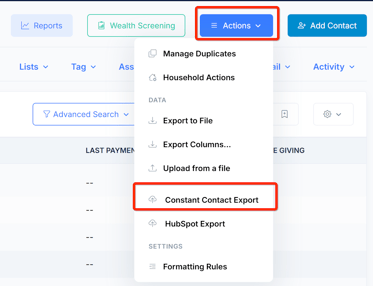
- Once you have your list, click the "Actions" menu above the contacts search grid
-
- You will see an option for each email marketing platform you have setup in your organization, click the one that you will be exporting to now
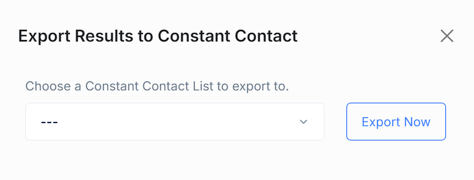
- This action will pop open an export window and ask you to provide the Mailing List to export the contacts. This list will be obtained real time from the email marketing platform.
-
- Click Export Now to initiate the export process. If you have selected to add a new mailing list, this mailing list will first be created in the email marketing platform, and then the contacts will be added to it subsequently.
Note:
When exporting, the following contact fields are synced: Email, First Name, Last Name, Work Phone, Home Phone, Company Name