-1.png?width=240&height=100&name=Heading%20(2)-1.png)
In this scenario, you are the organizer and you are editing peer-to-peer fundraising pages for your participants or teams.
An example might be if you are doing a competition between classrooms or teachers and each class needs their own page and you are going to set up the pages for them.
Another example might be a Dancing with the Stars competition where each couple needs their own page and you want to set them up for them.
- Learn how to activate the Peer-to-Peer functionality on your donation fundraising campaign or event campaign. See this article for instructions.
- Learn how to create or add a Peer-to-Peer fundraising page as the admin. See this article for instructions.
Edit a Peer-to-Peer Fundraising Page as the Organizer
By Default, the page will be the same design as the Main Campaign and have that campaign's content.
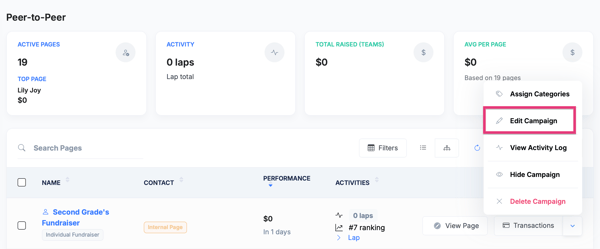
- Select the carrot menu next to the page you would like to edit and select Edit Campaign.
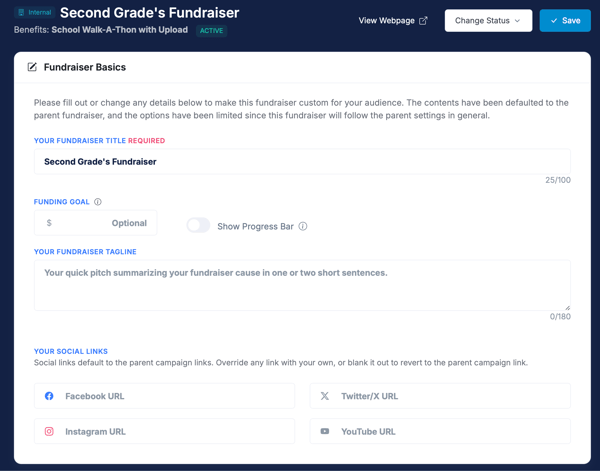
- Input any basic changes needed. Scroll to continue editing any of the following items.
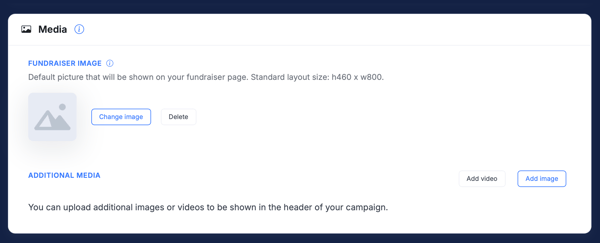
- Add a profile image for the person/team if applicable with your page layout.
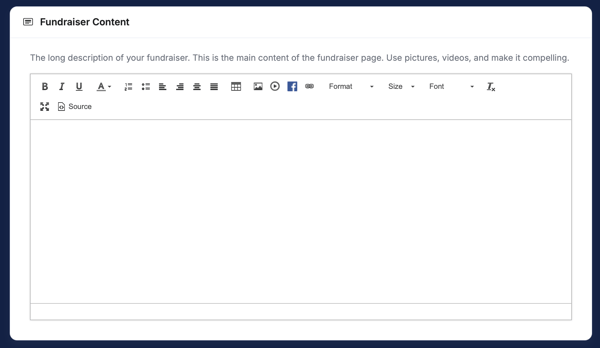
- Make any content changes
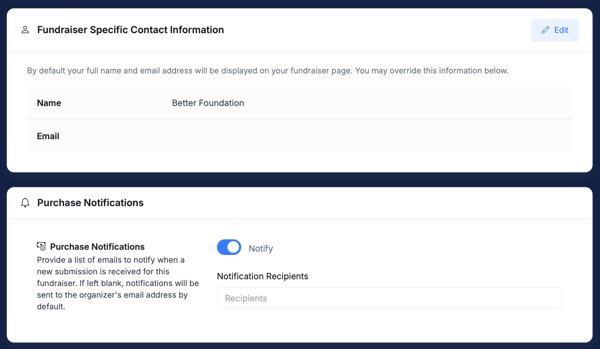
- Display a different contact person's name publicly on the page.
- Add additional email addresses to receive transaction notifications for this fundraising page. (Admins of the main campaign will already receive them as well as the Primary Contact on the account if option is toggled on.)
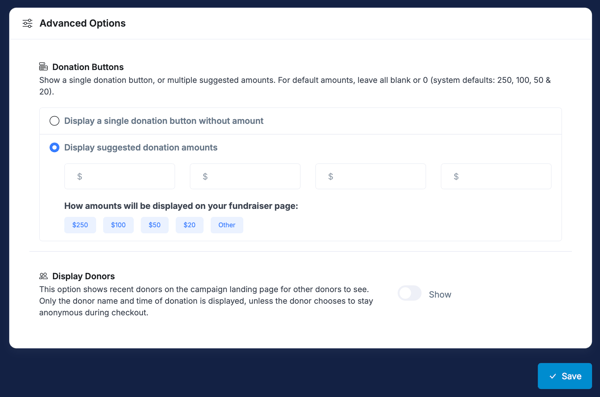
- Advanced Options
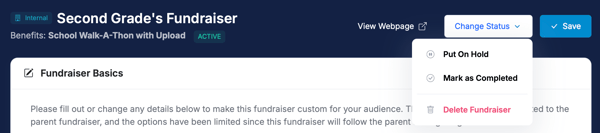
- You can also perform other options such as placing this campaign on hold, marking it as complete, or deleting it under Change Status at the top.
Need Additional Help?
We're here to assist you in any way we can. Don't hesitate to reach out to support@betterunite.com
Let's go do some good.