-1.png?width=240&height=100&name=Heading%20(2)-1.png)
BetterUnite's Custom Access feature lets you control exactly what each user can see and do in your account. Instead of giving everyone full access, you can tailor permissions to fit the role — protecting sensitive donor and financial data while still giving your team everything they need to do their job.
Below are the five common scenarios and the exact permissions to configure for each. For instructions on how to add a user and enable Custom Access, see How to Add Users to Your BetterUnite Account.
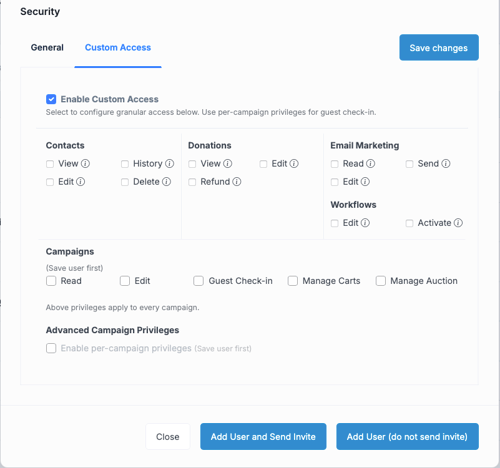
Scenario 1: Event Day Volunteer
Who this is for: Volunteers who will check guests in and/or sell items, raffle tickets, or other offerings at your event using the BetterUnite app.
Permissions to enable:
- Campaigns: Guest Check-in, Manage Carts
- Advanced Campaign Privileges: Enable per-campaign privileges and restrict access to the specific event only
Why this works: Guest Check-in lets the volunteer scan or search for guests and mark them as arrived. Manage Carts lets them process item and raffle sales on the spot. Limiting access to a single campaign via Advanced Campaign Privileges ensures the volunteer can only see that event — not your entire account history.
Important: You must save the user first with custom access enabled and overall Campaign access NOT SELECTED before Advanced Campaign Privileges becomes available. After saving, go back into the user's profile, open the Custom Access tab, enable per-campaign privileges, and assign the specific event.
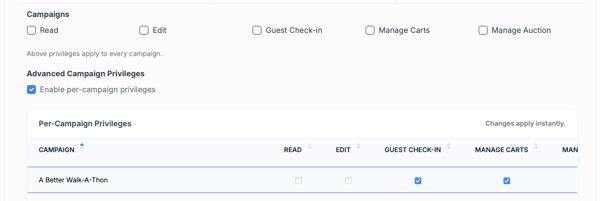
Scenario 2: Auction Team Member
Who this is for: Staff or volunteers who manage your silent or live auction — adding items, updating bids, and closing out winners — but who don't need access to donor records or financials.
Permissions to enable:
- Campaigns: Manage Auction
- Advanced Campaign Privileges: Restrict to the specific event if needed
Why this works: Manage Auction gives this person full control over the auction within the campaign — items, bidding, and checkout — without exposing contact data, donation history, or payment information.
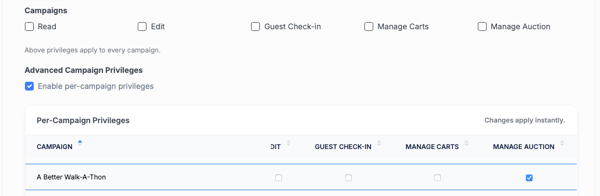
Scenario 3: Communications & Marketing Staff
Who this is for: Team members who handle donor outreach, email campaigns, and automated workflows but should not have access to financial records.
Permissions to enable:
- Email Marketing: Read, Send, Edit
- Workflows: Edit, Activate
Why this works: This setup gives your communications team everything they need to build, send, and automate outreach — without the ability to view, edit, or refund donations, or access sensitive contact details beyond what's needed for messaging.
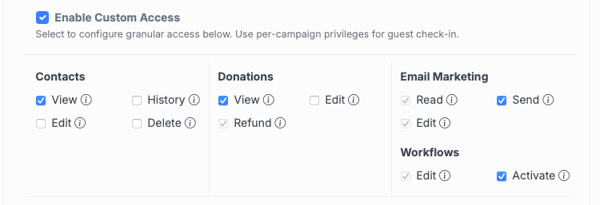
Scenario 4: Development Staff
Who this is for: Fundraising staff who manage donor relationships, track giving history, and update contact records, but who should not have access to refunds or payment processor settings.
Permissions to enable:
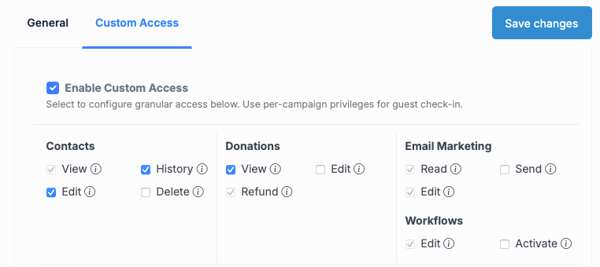
- Contacts: View, History, Edit
- Donations: View
Why this works: Your development team can look up donors, review giving history, update contact details, and track activity — but cannot issue refunds, delete records, or access your payment processor settings. Add Campaigns: Read if you also want them to see campaign-level activity and reporting.
Scenario 5: Board Member or Read-Only Stakeholder
Who this is for: Board members, executive leadership, or external stakeholders who need visibility into your fundraising activity for oversight or reporting purposes, but should not be able to change anything.
Permissions to enable:
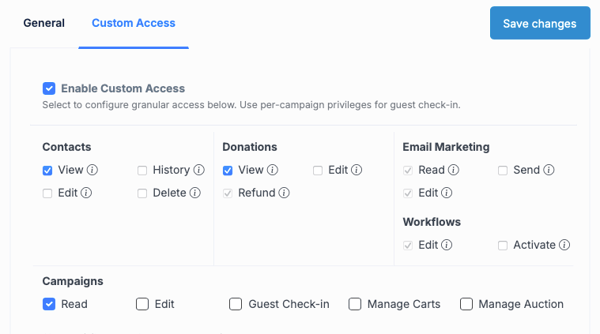
- Contacts: View
- Donations: View
- Campaigns: Read
Why this works: This configuration gives read-only visibility across donors, giving history, and campaign performance. Nothing can be edited, deleted, or refunded. It's the safest way to bring a board member into the platform without any risk of accidental changes.
Quick Reference
| Role | Contacts | Donations | Email Marketing | Workflows | Campaigns |
|---|---|---|---|---|---|
| Event Day Volunteer | — | — | — | — | Guest Check-in, Manage Carts (per-campaign) |
| Auction Team Member | — | — | — | — | Manage Auction |
| Communications Staff | — | — | Read, Send, Edit | Edit, Activate | — |
| Development Staff | View, History, Edit | View, Edit (Optional) | — | — | Read (optional) |
| Board Member / Read-Only | View | View | — | — | Read |
Frequently Asked Questions
Can I mix and match permissions beyond these scenarios?
Absolutely. These are starting points — you can add or remove any individual permission to fit your exact needs. Use the scenarios as a baseline and adjust from there.
Why can't I enable per-campaign privileges right when I add the user?
Advanced Campaign Privileges require the user to exist in the system first. Add the user, save them, then return to their profile to configure per-campaign access.
Can I change a user's custom access later?
Yes. Go to Settings > Users, find the user, click Edit, and update their Custom Access permissions at any time. Changes take effect immediately.
Can a user with Custom Access also have Manage Funding?
No. Manage Funding is only available alongside Full Access (General tab). It cannot be combined with Custom Access.
What if a volunteer needs access to more than one event?
Under Advanced Campaign Privileges, you can assign per-campaign access to multiple campaigns for the same user. Just enable each campaign individually.
Need Additional Help?
We're here to assist you in any way we can. Don't hesitate to reach out to support@betterunite.com
Let's go do some good.