-1.png?width=240&height=100&name=Heading%20(2)-1.png)
BetterUnite allows you to create custom, print-ready auction item cards using Word merge templates. These templates pull live auction item data—such as titles, descriptions, values, images, and bid details—directly into a professionally formatted Word document. ** This feature is only available with Premier Plans**
Step 1: Navigate to Word / Letter Templates
Word merge templates are created and stored globally in your account settings.
-
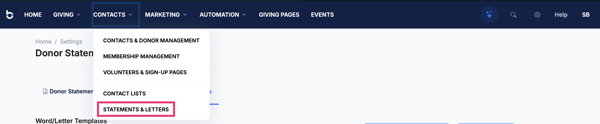
From the top navigation, click Contacts>Statements & Letters
-
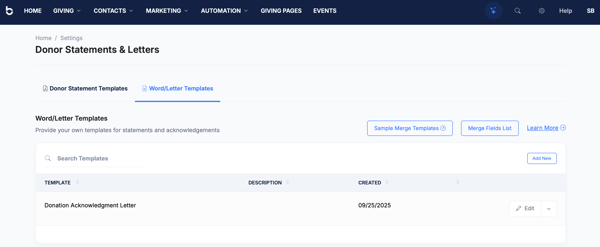
Open the Word / Letter Templates tab
-
Click Add New
This is where you upload and manage all Word merge templates, including auction item card templates.
Step 2: Design Your Auction Item Card in Microsoft Word
Before uploading a template, you’ll create it locally in Microsoft Word (.docx).
Best Practices for Item Card Layout
-
Use tables or sections to control spacing
-
Leave room for item images
-
Keep content concise for tabletop or display use
-
Use merge fields exactly as shown (case-sensitive)
Step 3: Insert Auction Item Merge Fields
BetterUnite provides predefined merge fields for auction items. These placeholders are replaced with real item data when the merge runs.
Commonly Used Auction Item Merge Fields
| Field | Merge Text |
|---|---|
| Item Title | |
| Description | |
| Main Image | |
| Estimated Value | |
| Starting Bid | |
| Minimum Bid Increment | |
| Buy Now Amount | |
| Item Type (Live/Silent) | |
| Provided By Company | |
| Restrictions | |
| Terms & Conditions | |
| Reference Number | |
💡 Tip: You can view the full list at Merge Fields List in the Word / Letter Templates area.
Step 4: Example Auction Item Card Template
Below is a sample Word layout you can copy directly into Microsoft Word and customize with your branding.
-------------------------------------------------


Reference #:


-----------------------------------------------
Estimated Value: $
Starting Bid: $
Minimum Increment: $

Buy Now: $
Auction Type:

Provided By:


Restrictions:


Terms & Conditions:

-------------------------------------------------
You may format this with:
-
Larger font for
-
Borders or shading
-
Your organization’s logo
-
Page breaks to ensure one item per page
Step 5: Upload the Template to BetterUnite
-
Return to Contacts → Statements & Letters
-
Open Word / Letter Templates
-
Click Add New
-
Upload your
.docxfile -
Give it a clear name (example: Auction Item Card – Full Page)
Your template is now available for use in auctions.
Step 6: Generate Item Cards from the Auction
Once your template is uploaded, you’ll apply it inside the auction
-
Go to Edit Event → Auction
-
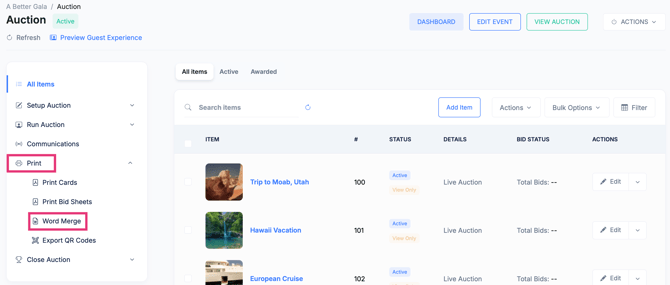
Select Print>Word Merge in the left menu
-
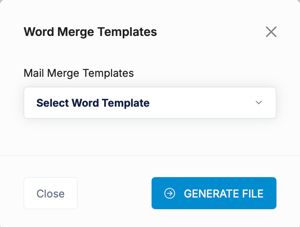
Choose your auction item card template
-
Generate and download the merged Word document
Each selected item will populate its own card using your template.
Tips & Troubleshooting
-
Images not appearing? Ensure
is on its own line. -
Blank fields? Confirm item data is filled in for those fields within your auction in BetterUnite.
-
Formatting issues? Use tables instead of manual spacing.
-
Testing recommended: Run a merge with 1–2 items before printing in bulk.
Summary
Using Word merge templates, you can create polished, reusable auction item cards that automatically pull in live item data. Once set up, generating cards for future events takes just a few clicks—saving time while elevating your event presentation.
Need Additional Help?
We're here to assist you in any way we can. Don't hesitate to reach out to support@betterunite.com
Let's go do some good.