-1.png?width=240&height=100&name=Heading%20(2)-1.png)
Custom Portal Pages let you add your own pages to the left-hand navigation of your members' Supporter Portal. Use them to share member resources, how-to instructions, social media toolkits, event information, or anything else your members need — all in one place inside their portal.
Common examples include:
- A "Member Resources" page with downloadable assets or social media posts
- Instructions for redeeming benefits or accessing perks
- Links to upcoming events or exclusive content
- Welcome information for new members
Where to Find Custom Portal Pages
Navigate to Supporter Portal in your account settings. Scroll down to the Portal Pages section, where you'll see the default portal tabs your members already have access to. Below those, you'll find the option to manage and add custom pages.

Adding a Custom Page
- In the Portal Pages section, click Add New Page (or Manage Custom Pages).
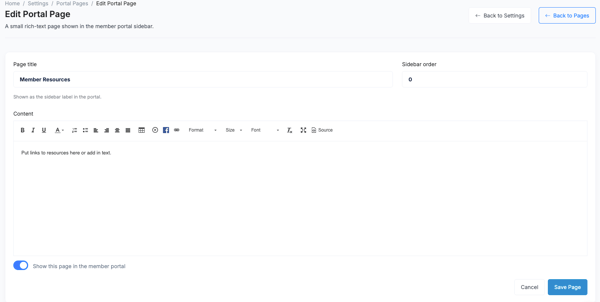
- Give the page a name — this is what will appear in the member's left-hand portal navigation.
- Add your content: links, text, resources, or whatever you'd like members to see.
- Use the visibility toggle to choose whether the page is currently shown in the portal or hidden.
- Save your changes.
Important: Visibility Applies to All Members
When a custom page is set to visible, it appears for all members with portal access — you cannot restrict a custom page to a specific membership plan or tier. If you need to share plan-specific information, consider using the Global Announcements feature, which does support targeting by membership plan.
You can toggle a custom page off at any time to hide it from the portal without deleting it.
Frequently Asked Questions
Where do custom pages appear for members?
Custom pages show up in the left-hand navigation of the Supporter Portal, alongside the standard tabs like Overview, Benefits, and Giving History.
Can I restrict a custom page to certain membership plans?
Not at this time. Custom pages are visible to all members when turned on. To send targeted content to specific plan tiers, use Global Announcements or Alerts instead.
Can I have more than one custom page?
Yes. You can create multiple custom pages and toggle each one on or off independently.
Can I reorder custom pages?
Custom pages appear after the standard portal tabs in the left-hand navigation. Check your portal settings for ordering options.
Need Additional Help?
We're here to assist you in any way we can. Don't hesitate to reach out to support@betterunite.com
Let's go do some good.