-1.png?width=240&height=100&name=Heading%20(2)-1.png)
By default, BetterUnite displays a standard tax deduction statement on all donation receipts and invoices. If your organization requires specific legal language, you can now customize this text directly from your organization profile.
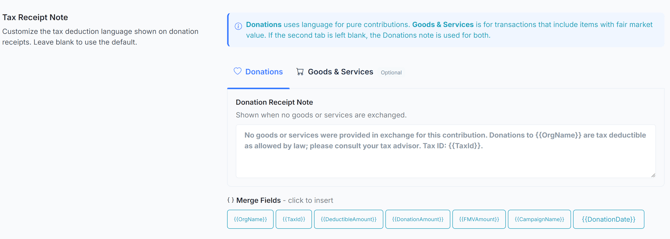
How It Works
BetterUnite supports two separate receipt notes that appear on donor-facing receipts and invoices:
Donation Receipt Note
Used when a donor makes a pure contribution with no goods or services exchanged. An example message could read:
No goods or services were provided in exchange for this contribution. Donations to [Org Name] are tax deductible as allowed by law; please consult your tax advisor. Tax ID: [Tax ID].
Goods & Services Receipt Note (Optional)
Used when the transaction includes items with a fair market value (event tickets, merchandise, auction items, etc.). If you leave this blank, the Donation Receipt Note is used for all transactions. The default message could read:
The estimated tax deductible amount for this transaction is [Deductible Amount]. Donations to [Org Name] are tax deductible as allowed by law; please consult your tax advisor. Tax ID: [Tax ID].
The system automatically selects the correct note based on whether the calculated tax deductible amount is less than the total amount paid (indicating goods or services were part of the transaction).
Setting Up Custom Tax Receipt Notes
- Navigate to your Organization Profile (Settings > Profile).
- Ensure the Tax Deductions checkbox is enabled and your Tax ID is entered.
- Below the Tax Deductions checkbox, you will see the Tax Receipt Note section.
- Click the Donations tab to customize the note for pure donation receipts.
- Click the Goods & Services tab to optionally provide separate language for transactions that include items.
- Use the merge field badges below the text areas to insert dynamic values (click a badge to insert it at your cursor position).
- Click Save to apply your changes.
If you leave both fields blank, the system uses the standard default language.
Available Merge Fields
You can include dynamic placeholders in your receipt notes. These are automatically replaced with the actual values when the receipt is generated.
| Merge Field | Description |
|---|---|
|
Your organization's name |
|
Your organization's Tax ID / EIN |
|
The calculated tax deductible amount |
|
The total amount paid by the donor |
|
The fair market value of goods/services received |
|
The name of the campaign |
|
The date the transaction was made |
Example: Custom Receipt Note
An organization like a hospital foundation might configure their Donation Receipt Note as:
Donations are received by , a 501(c)(3) organization, and are tax deductible as allowed by law. Please consult your tax advisor regarding the deductibility of your contribution. No goods or services were provided in exchange for this contribution. Tax ID: .
And their Goods & Services note as:
The estimated tax deductible amount for this transaction is . is a 501(c)(3) organization. The fair market value of goods or services provided was . Please consult your tax advisor regarding the deductibility of your contribution. Tax ID: .
Using Tax Receipt Notes in Email Templates
You can also include your customized tax receipt note in email templates by using the merge field. When used in an email, it will automatically resolve to the appropriate note (Donations or Goods & Services) with all merge fields filled in.
This merge field is available under Donation Merge Fields when editing email templates in the Communication settings.
Where the Tax Receipt Note Appears
The customized note is displayed in the following locations:
- Purchase Confirmation Page — shown to the donor immediately after completing a transaction.
- Invoice/Receipt Page — the printable receipt accessible via the "View Receipt" link.
- Email Templates — when the
merge field is included.
Frequently Asked Questions
What happens if I only fill in the Donations note and leave Goods & Services blank?
The Donations note will be used for all transactions, regardless of whether goods or services were involved.
What happens if I leave both fields blank?
The system uses the built-in default language, which is the same text that was displayed before this feature was available.
Can I use HTML in the receipt note?
No. The receipt note is rendered as plain text on the receipt pages.
Does the campaign-level "Hide Tax Statements" setting still work?
Yes. If a campaign has the "Hide Tax Statements" option checked, the tax receipt note will not appear on receipts for that campaign, regardless of what you have configured at the organization level.
How does this work with child campaigns / fiscal sponsors?
For child campaigns where the parent organization is a different entity, the system uses the parent organization's tax receipt note and Tax ID on the receipt.
Is there a character limit?
Yes, each note can be up to 2,000 characters.