-1.png?width=240&height=100&name=Heading%20(2)-1.png)
The Form Designer Overview
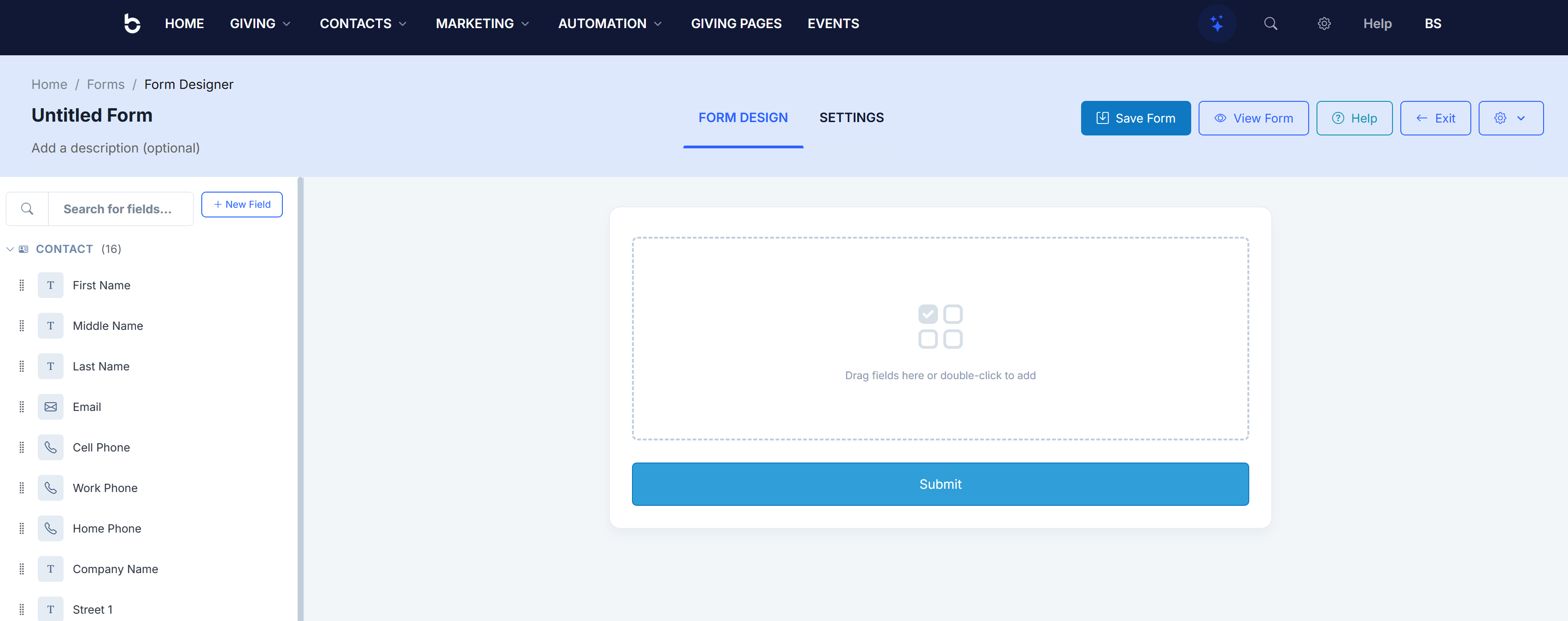
When you open a form for editing, you'll see two main areas:
- Left sidebar — A searchable list of available contact fields (First Name, Middle Name, Last Name, Email, Cell Phone, Work Phone, Home Phone, Company Name, Street 1, and more). You can search for fields using the search bar at the top.
- Form canvas — The center area where you build your form. Drag fields here or double-click them from the sidebar to add them. A "Submit" button is included automatically at the bottom.
- Top toolbar — Across the top you'll find the Save Form and View Form buttons, a Help button for quick guidance, and an Exit button to return to the form dashboard.
Adding Fields to Your Form
There are two ways to add a field:
- Drag and drop — Click and hold a field from the left sidebar, then drag it into the form canvas and drop it where you'd like it to appear.
- Double-click — Double-click any field in the sidebar to add it to the end of your form.
The sidebar includes many built-in contact fields that map directly to your contact records, so any information collected through the form can automatically update your contacts.
Adding Custom Fields
Need a field that isn't in the default list? You can create custom fields to capture any additional information.
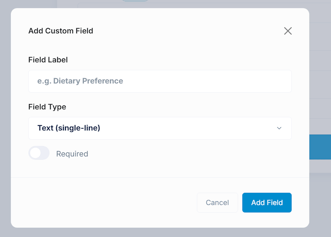
- Click the + New Field button at the top of the left sidebar.
- In the dialog that appears, enter a Field Label (e.g., "Dietary Preference," "T-Shirt Size").
- Choose a Field Type from the dropdown.
- Toggle Required on if the field must be filled out before the form can be submitted.
- Click Add Field.
Available Field Types
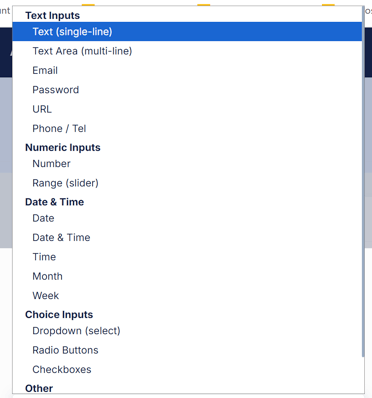
When creating a custom field, you can choose from a wide range of input types:
| Category | Field Types |
|---|---|
| Text Inputs | Text (single-line), Text Area (multi-line), Email, Password, URL, Phone / Tel |
| Numeric Inputs | Number, Range (slider) |
| Date & Time | Date, Date & Time, Time, Month, Week |
| Choice Inputs | Dropdown (select), Radio Buttons, Checkboxes |
| Other | Color Picker, File Upload |
Editing a Field
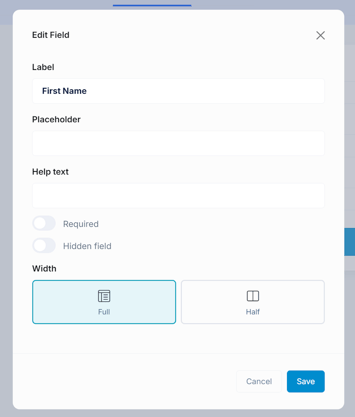
To edit any field that's already on your form, click on it in the form canvas. An Edit Field dialog will appear where you can configure:
- Label — The text displayed above the field (e.g., "First Name").
- Placeholder — Ghost text shown inside the field before the user types (e.g., "Enter your first name").
- Help text — Additional instructions displayed below the field to guide the user.
- Required — Toggle this on to make the field mandatory.
- Hidden field — Toggle this on to include the field in the form data without showing it to the user. Useful for tracking or default values.
- Width — Choose between Full (the field spans the entire row) or Half (two fields can sit side by side).
Click Save when you're done editing the field.
Tips for a Great Form
- Keep it short. Only ask for what you truly need — shorter forms get more submissions.
- Use half-width fields for short inputs like First Name and Last Name so they appear side by side and save vertical space.
- Add placeholder text to give users a hint of what to enter, especially for less obvious fields.
- Mark important fields as required so you always get the data you need — but don't overdo it.
Don't forget to click Save Form in the top-right corner when you're happy with your design!