-1.png?width=240&height=100&name=Heading%20(2)-1.png)
How to Create and Run Donor Statements in BetterUnite
BetterUnite’s Donor Statements tool allows you to generate branded, accurate giving summaries for supporters. You can create reusable templates, run statements for specific individuals, groups, or all donors, preview results, and deliver the statements by email or download. This feature is available in all payment plans.
This guide covers both major steps:
-
Creating a Donor Statement Template
-
Running Statements and Sending Them to Donors
Part 1: Creating a Donor Statement Template
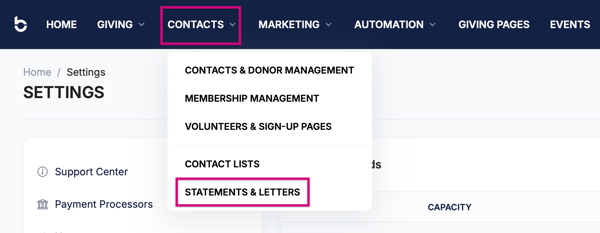
1. Navigate to Donor Statements & Letters
-
From the top navigation menu, click Contacts.
-
Select Statements & Letters from the dropdown.
You’ll land on the Donor Statements & Letters page.
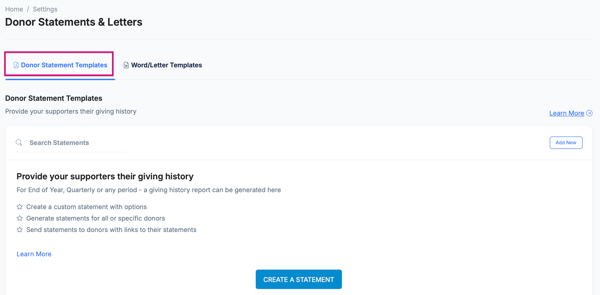
2. Select the Donor Statement Templates Tab
Make sure the Donor Statement Templates tab is selected.
Here you can view, create, and manage statement templates.
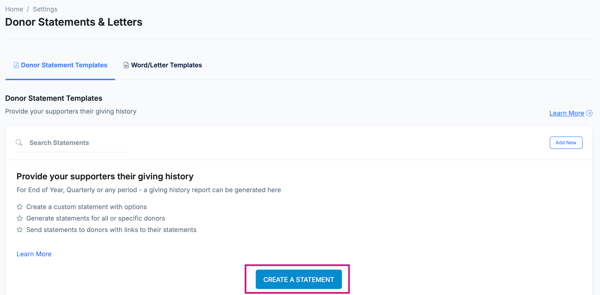
3. Create a New Statement Template
- Click Create a Statement.
This opens the Statement Template Builder.
4. Configure Your Template
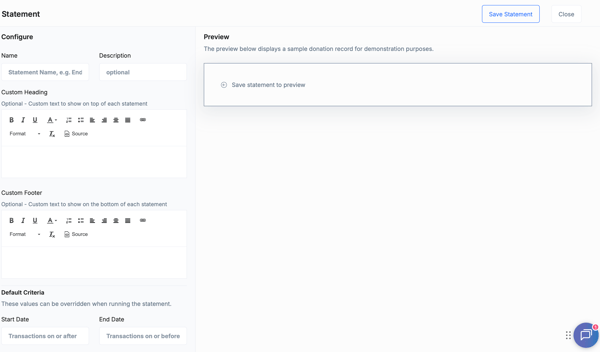
Name & Description
-
Enter a Name (e.g., “2025 EOY Statements”).
-
Optionally add a Description to clarify its purpose.
Custom Heading (Optional)
Add text to be displayed at the top of every statement (e.g., a thank-you message or tax language).
Supports formatting options like bold, alignment, bulleted lists, and links.
Custom Footer (Optional)
Add text for the bottom of every statement (e.g., disclaimers or legal notes).
5. Default Criteria
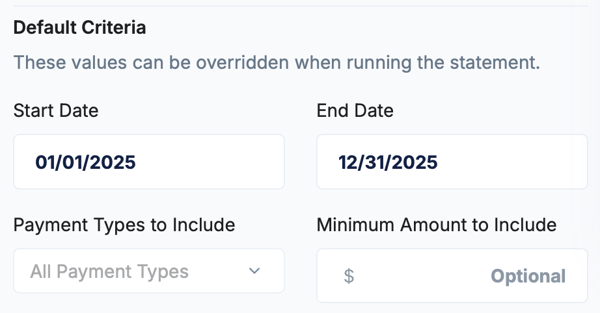
Options include:
-
Start Date – Include transactions on or after
-
End Date – Include transactions on or before
-
Payment Types to Include – Choose all or specific types
-
Minimum Amount to Include – Optional
6. Save the Template
- A sample preview will appear on the right to confirm formatting.
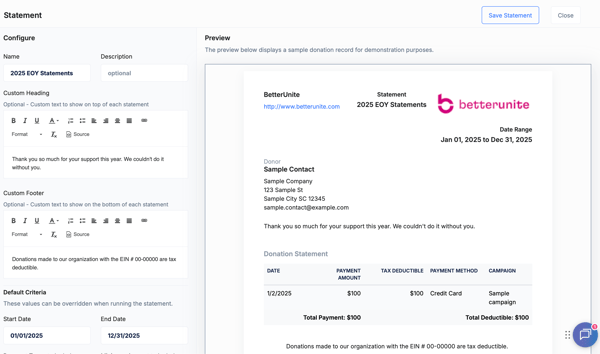
- Click Save Statement.
- Your template will now appear in the list of Donor Statement Templates.
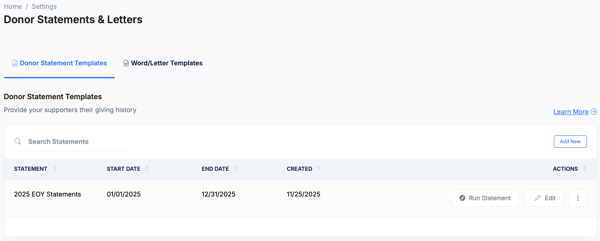
Part 2: Running Statements and Sending Them to Donors
Once your template is created, you can generate actual statements for donors.
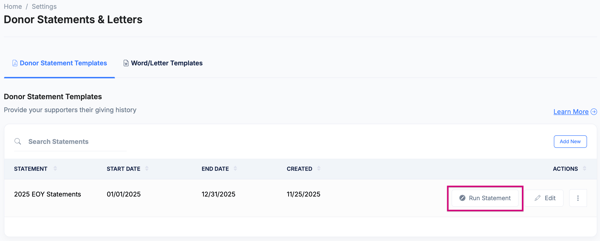
1. Find the Template You Want to Run
- On the Donor Statement Templates page, locate your saved template.
- Click Run Statement.
2. Select Your Target Recipients
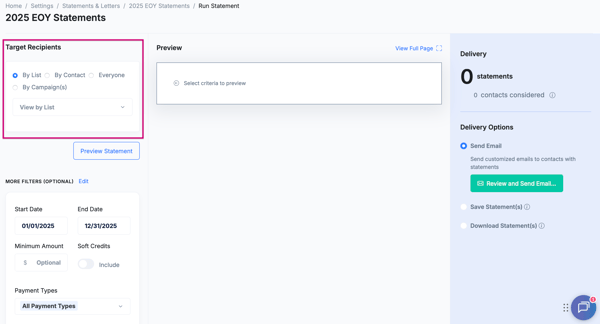
You will see multiple recipient options:
-
By List (select from any of your saved contact lists)
-
By Contact (manually choose specific donors)
-
Everyone
-
By Campaign(s) (include donors who gave to selected campaigns)
3. Set or Adjust Your Filters (Optional)
The filters from your template load automatically, but you can update them.
Available Filters:
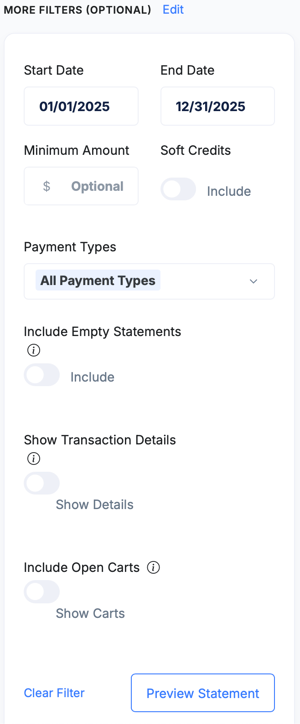
Date Range
-
Start Date
-
End Date
Minimum Amount
Optional field to exclude small transactions.
Soft Credits
Toggle ON to include soft credits.
Payment Types
Dropdown to include:
-
All Payment Types
-
Credit Card
-
Check
-
Cash
-
Offline Giving
…and more.
Include Empty Statements
If enabled, donors with no qualifying transactions will still receive a statement.
Show Transaction Details
Option to expand each donation with more granular detail.
Include Open Carts
Toggle to include unpaid pledge or checkout records.
4. Preview the Statements
Click Preview Statement.
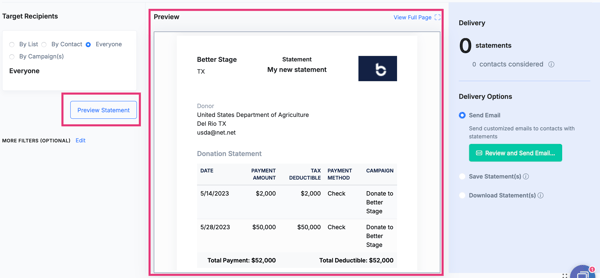
The preview window will show:
-
Example statements for selected donors
-
Whether transactions meet the criteria
-
A count of how many total statements will be generated
This step lets you verify:
-
Dates
-
Donor info
-
Totals
-
Formatting
5. Choose Delivery Options
On the right side, you’ll see Delivery Options:
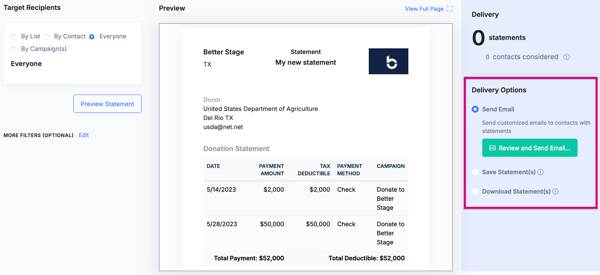
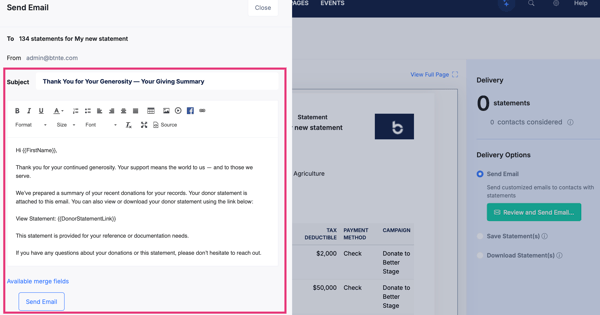
Send Email (most common)
-
Sends customized emails to each donor with a secure link to their statement
-
Click Review and Send Email
-
You may customize email subject and message before sending
Save Statement(s)
-
Saves the generated statements inside the donor’s record
Download Statement(s)
-
Exports all statements in a ZIP file containing individual PDFs
Choose the appropriate option for your workflow.
6. Review and Complete Delivery
If emailing:
-
Click Review and Send Email
-
Confirm final details
-
Send to all selected donors
If downloading:
-
Click Download Statement(s)
-
A ZIP file will be prepared for you
If saving:
-
Choose Save Statement(s)
-
Statements will be stored on corresponding donor profiles
Need Additional Help?
We're here to assist you in any way we can. Don't hesitate to reach out to support@betterunite.com
Let's go do some good.