-1.png?width=240&height=100&name=Heading%20(2)-1.png)
DonorSearch wealth information helps you understand a contact’s estimated giving capacity, likelihood to give, and overall fundraising potential. This data is automatically retrieved and displayed throughout the platform and can be refreshed at any time—either for a single contact or in bulk.
This article explains:
-
Where wealth information comes from
-
Where it appears in the platform
-
How to view detailed insights
-
How to refresh wealth data for one or many contacts
Donor Search Overview
Where Wealth Information Comes From
Wealth data is provided by DonorSearch, a third-party wealth screening service. It combines publicly available data, modeled asset indicators, and predictive analytics to estimate:
-
Net worth and giving capacity
-
Likelihood to give (annual, major, planned)
-
Past giving evidence
-
Overall fundraising potential
When enabled, this information is automatically retrieved based on your organization’s DonorSearch query preferencesin Settings.
Automatic Wealth Retrieval for Individual Contacts
When you open a single contact record, wealth information is automatically retrieved using your saved DonorSearch settings.
This includes:
-
Estimated Net Worth (shown as a range)
-
Composite Donor Score
-
Primary Fundraising Focus
-
Likelihood scores (Annual Fund, Major Gift, Planned Gift)
-
Asset indicators such as real estate and business affiliation
No manual action is required for individual contacts—the data loads automatically when the profile is viewed.
Where Wealth Information Appears
1. Contact Profile Summary
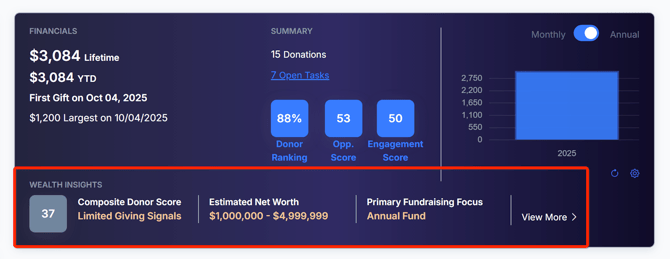
At the top of the contact profile, you’ll see a Wealth Insights summary that includes:
-
Composite Donor Score
A 0–100 score summarizing giving capacity, likelihood, and past giving evidence. -
Estimated Net Worth
Displayed as a range (for example:$1,000,000 – $4,999,999) to reflect modeled estimates. -
Primary Fundraising Focus
A recommendation such as Annual Fund, Major Gifts, or Planned Giving based on available data.
Example below:
2. View More Details
In the Wealth Insights area, click View More to show a deep dive into all the wealth data for this contact. Example below:
Viewing Wealth Score Details
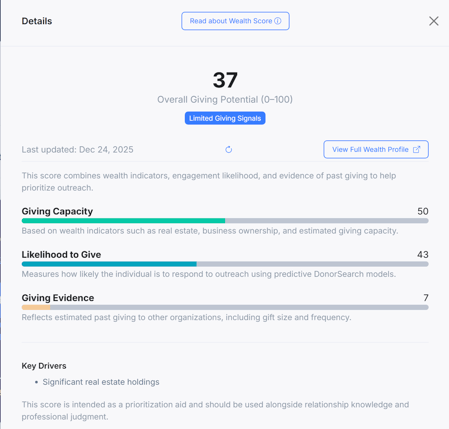
To understand how the Composite Donor Score is calculated, select “Read about Wealth Score” or open the Details view.
In this view, you’ll see:
-
The overall score (0–100)
-
A breakdown of contributing factors:
-
Giving Capacity
-
Likelihood to Give
-
Giving Evidence
-
-
Key drivers influencing the score
-
The date the data was last updated
This breakdown helps explain why a contact is scored the way they are.
Additional Data Points Section
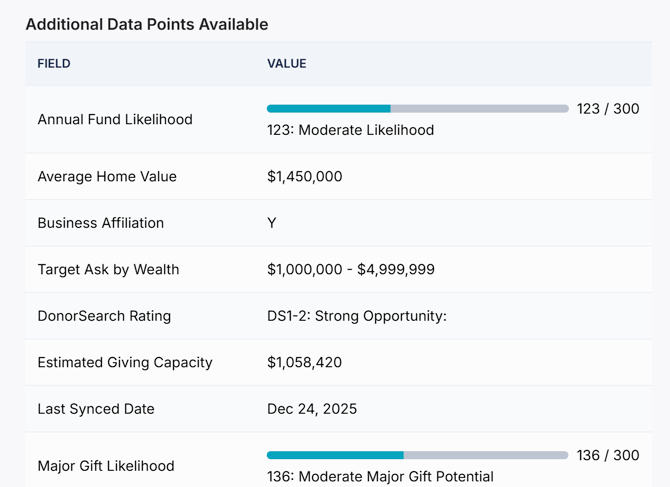
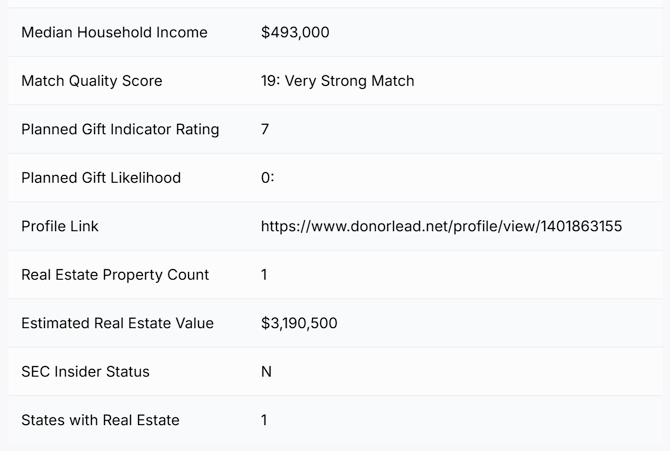
Below the summary, you’ll find Additional Data Points, such as:
-
Annual Fund Likelihood
-
Major Gift Likelihood
-
Planned Gift Indicator Rating
-
Estimated Giving Capacity
-
DonorSearch Rating
-
Real estate values and property counts
-
Business affiliation
-
Match quality score
-
Last synced date
These values provide more context behind the summary insights.
Viewing the Full DonorSearch Profile
If a DonorSearch profile link is available, you can open the full DonorSearch profile directly from the contact.
This allows you to:
-
Review additional DonorSearch-specific details
-
Validate findings
-
Explore deeper wealth and giving indicators
Refreshing Wealth Information for a Single Contact
You can refresh wealth data for an individual contact at any time.
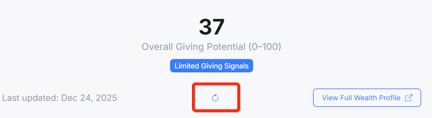
From the contact profile:
- Click View Details in the Wealth Insights section
-
Select Refresh
-
The system will re-query DonorSearch regardless of your current settings, to force a refresh of data
-
Updated data will replace the existing values
This is useful if:
-
A contact’s circumstances may have changed
-
You recently updated DonorSearch settings
-
You want the most up-to-date insights before outreach
Refreshing Wealth Information in Bulk
You can also update wealth information for multiple contacts at once from the Contacts page.
How to refresh in bulk:
-
Navigate to Contacts
-
Use search, filters, or lists to select contacts
-
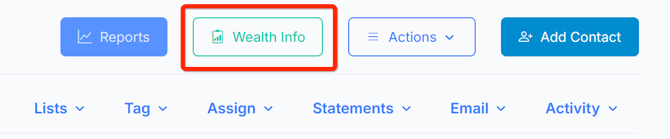
Click Wealth Info
-
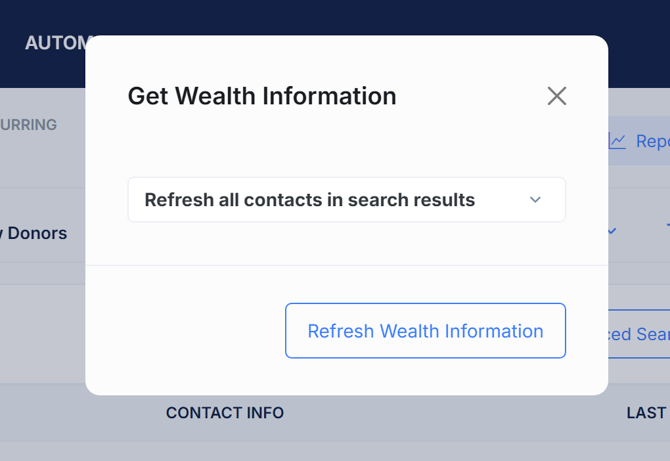
Choose Refresh all contacts in search results
-
Select Refresh Wealth Information
- This action will create a background process that will query the DonorSearch platform for these contacts and perform the updates shortly thereafter. It may take several minutes for the update to complete in the background. You may track the status of the update in your settings->integrations->donor search page.
This is ideal for:
-
Campaign planning
-
Portfolio reviews
-
Periodic data refreshes
-
Large list updates
When Wealth Data Updates
-
Wealth information updates immediately after a successful refresh
-
The Last Synced Date shows when the data was last retrieved
-
Data accuracy depends on DonorSearch availability and match quality
Important Notes & Best Practices
-
Wealth values are estimates, not exact figures
-
Ranges are used intentionally to avoid false precision
-
Scores should be used as prioritization tools, alongside relationship knowledge and professional judgment
-
Not all contacts will have complete data
Summary
-
Wealth data is automatically retrieved when viewing a contact
-
Key insights appear in the contact summary and details sections
-
You can view score breakdowns and full DonorSearch profiles
-
Data can be refreshed anytime—for one contact or many
-
Bulk updates are available directly from the Contacts page
This flexibility ensures you always have the most relevant insights to guide your fundraising strategy.