-1.png?width=240&height=100&name=Heading%20(2)-1.png)
Welcome to our step-by-step guide on setting up your event campaign page using BetterUnite. In this video, we'll walk you through the Basics section, where you'll learn how to customize key details like your event title, date, location, and more.
- After entering the title of your event, you'll be directed to the setup or edit campaign page.
- Start by navigating through the basics tab. You'll move top to bottom through each section, adjusting settings as needed.
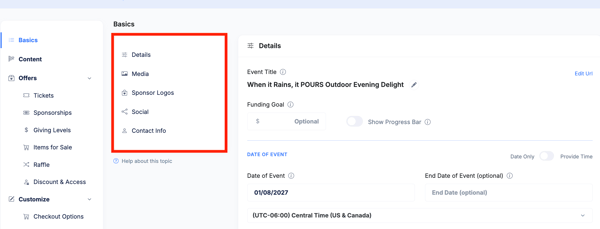
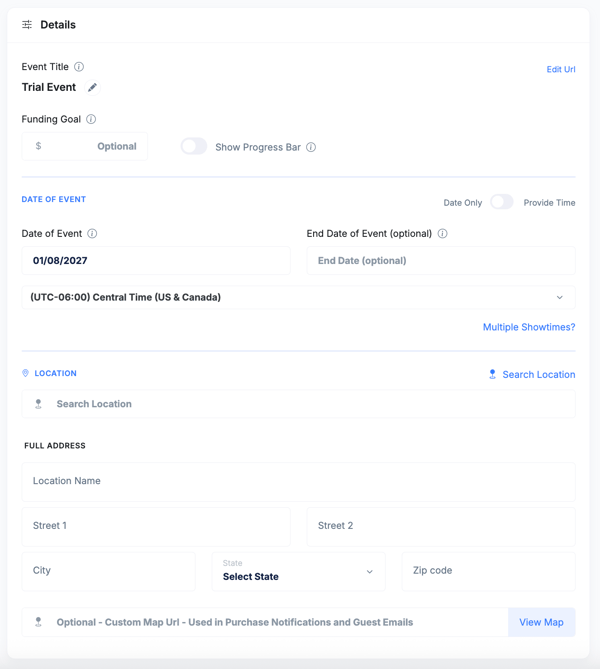
- In the Details section, update your campaign title, customize the URL slug, and set a fundraising goal. You can also enable a progress bar to display on your campaign's main page.
- Select the date and time of your event. You can enter just a date, a date range, or specific start and end times. You can easily add just the date or specific times as well.
- Next, provide the event location. This will automatically include a map in the confirmation email sent to attendees.
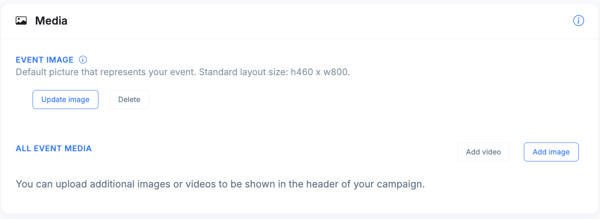
- Upload your main event image — this is the image displayed when sharing your event on social media or via email. You can also upload additional images that will appear as a gallery on your campaign page.
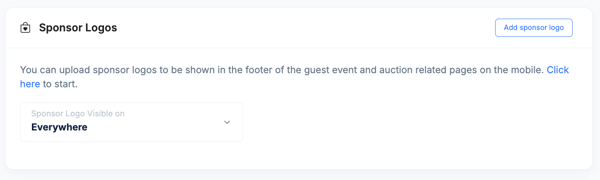
- Add your sponsor logos and link each one to the sponsor's website. Then choose where the logos should appear: on your campaign page only, on the Guest Experience page (where attendees bid or donate during the event) only, or on both.
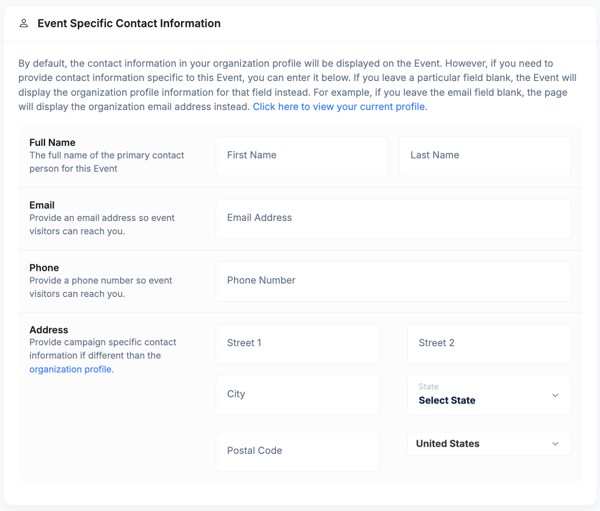
- If you have specific social links or contact information for this one event, input them here.
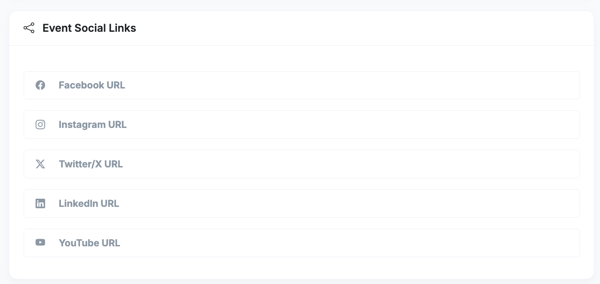
- If you do not enter contact information here, the contact information that you provided on your Profile will show on the page.
When you have finished configuring all settings in the Basics tab, click Save to apply your changes. You have now completed the Basics section of your BetterUnite event campaign page. Continue to the next tab to keep building out your event.
Need Additional Help?
We're here to assist you in any way we can. Don't hesitate to reach out to support@betterunite.com
Let's go do some good.