-1.png?width=240&height=100&name=Heading%20(2)-1.png)
Accessing Embed Options
There are two ways to get to your form's embed options:
- From the Form Designer: Open your form, click the Settings tab, then select Embed Options from the left sidebar.
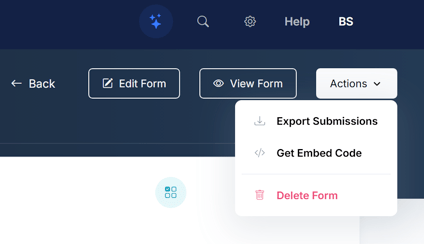
- From the form dashboard: Click the Actions dropdown in the top-right corner and select Get Embed Code.
Option 1: Embed Code (Recommended)
The embed code is the easiest and most flexible way to add your form to any web page. It handles rendering and auto-resizing automatically.
- Under Embed Options, find the Embed Code section (marked as "Recommended").
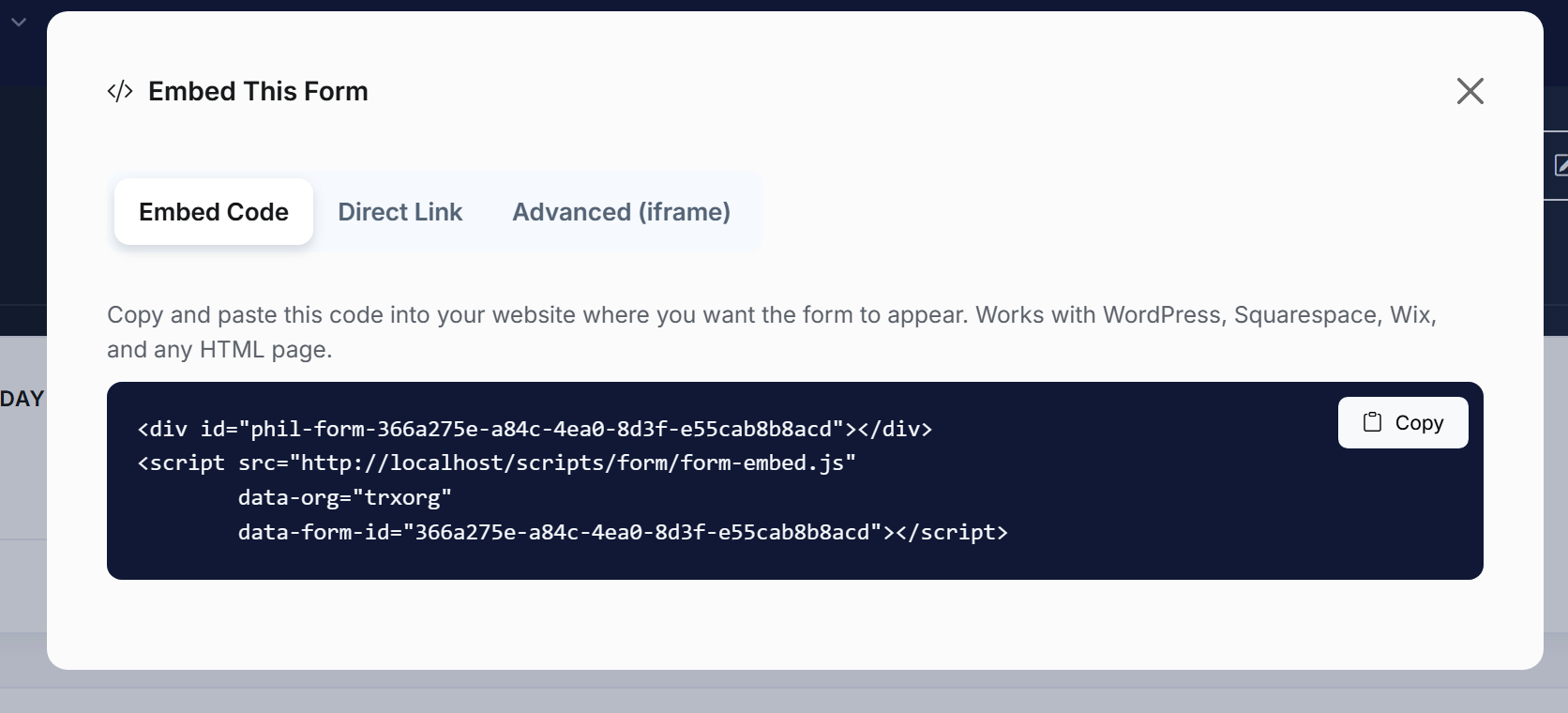
- Click the Copy button to copy the code snippet to your clipboard.
- Paste the code into your website's HTML where you want the form to appear.
The embed code looks like this:
<div id="phil-form-YOUR-FORM-ID"></div>
<script src="https://app.betterunite.com/scripts/form/form-embed.js"
        data-org="your-org"
        data-form-id="YOUR-FORM-ID"></script>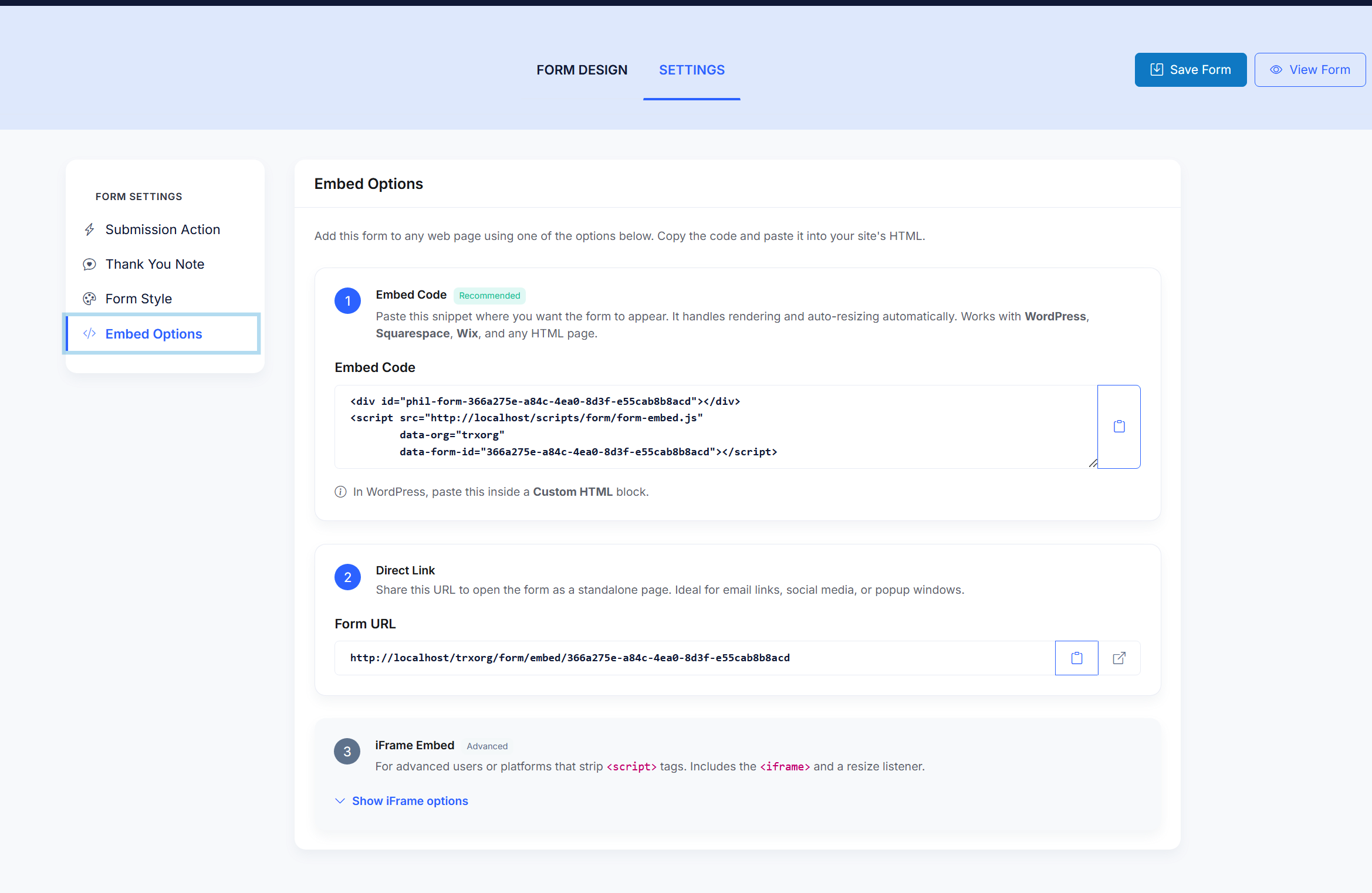
Platform-Specific Instructions
WordPress: Add a Custom HTML block to your page or post, then paste the embed code inside it.
Squarespace: Add a Code block and paste the embed code.
Wix: Use the Embed a Widget > HTML iframe element and paste the code.
The embed code works with any platform that allows custom HTML.
Option 2: Direct Link
If you want to share your form as a standalone page — for example, in an email, on social media, or as a popup link — use the Direct Link.
- Under Embed Options, find the Direct Link section.
- Copy the Form URL provided.
- Share the link anywhere. When someone clicks it, the form will open as a standalone page.
You can also click the external link icon next to the URL to open the form in a new browser tab and preview it.
Option 3: iFrame Embed (Advanced)
For advanced users or platforms that strip <script> tags, BetterUnite also provides an iFrame embed option. This embeds the form inside an <iframe> element with a resize listener to keep the form properly sized.
- Under Embed Options, find the iFrame Embed section (marked as "Advanced").
- Click Show iFrame options to reveal the code.
- Copy the iframe code and paste it into your site's HTML.
Use this option only if the standard embed code doesn't work on your platform.