-1.png?width=240&height=100&name=Heading%20(2)-1.png)
Create Multiple Showtimes
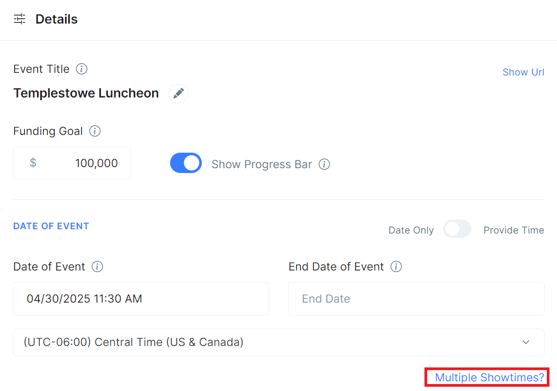
- On the Edit Event page, click the Multiple Showtimes? link on the Basics tab
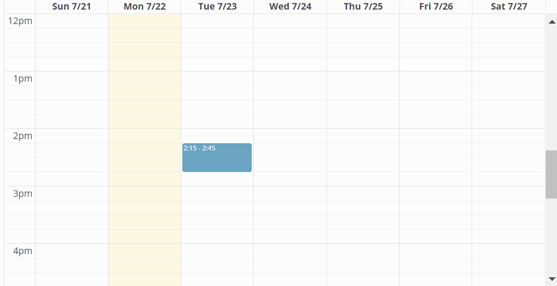
- You can drag the edges of each entry on the calendar to adjust the time frame.
- You can drag the calendar entry to move it to a different date/time slot.
- Every time you click on an empty slot, and new showtime will be created.
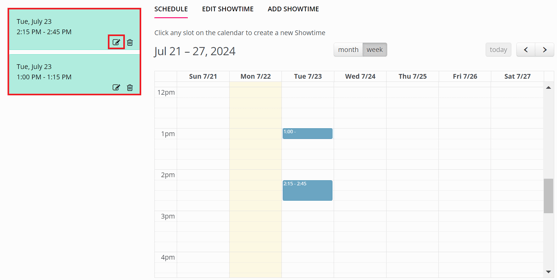
- Once a showtime is created, it will also be displayed on the left side of the pop up window.
- From this list, you can cancel a showtime or click Edit Showtime to add more details.
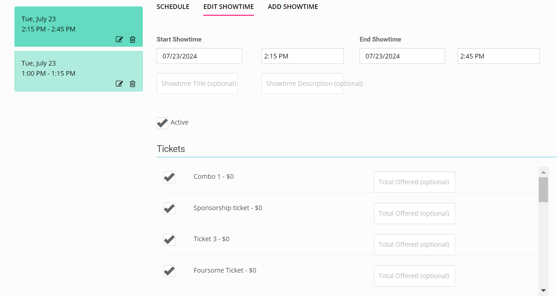
- Clicking Edit Showtime opens the Edit Showtime tab in the pop-up window, replacing the Schedule calendar view.
- On the Edit Showtime tab, you will be able to provide a name, description and a general active/inactive status for the showtime.
- If you have already defined tickets for your event, they will also appear on the Edit Showtime tab. If you have not yet created tickets, navigate to the Tickets tab on the Edit Event page to set them up before configuring your showtimes.
- You can associate one or more tickets types with each showtime and set per-ticket capacity limits on a per-session basis. For example, if your second show is in a smaller venue, you can cap the number of general admissions tickets available for that session.
Buy Tickets for a Show
Once you have set up your showtimes and assigned tickets to each, guests on your event page will see all active showtimes listed. They can select a showtime to view its available tickets, including any per-session capacity limits.
Any purchased showtime information is also displayed on the Manage Event page listing of purchased tickets, as well as on the Manage Guests page for each guest.
Need Additional Help?
We're here to assist you in any way we can. Don't hesitate to reach out to support@betterunite.com
Let's go do some good.