-1.png?width=240&height=100&name=Heading%20(2)-1.png)
Once you've designed your form, you'll want to configure what happens after someone fills it out. The Settings tab lets you set up an automatic action on submission and customize the thank-you message your respondents see.
To access these settings, open your form in the Form Designer and click the Settings tab at the top of the page.
Submission Action
The Submission Action determines what happens in BetterUnite when someone submits your form. You'll find this under Settings > Submission Action.
You have two options:
- Do nothing — The submission is recorded but no additional action is taken. You can still view and export submissions from the form dashboard.
- Add to a contact group — The person who submitted the form is automatically added to a contact group of your choice. This is great for building mailing lists, volunteer rosters, or any other segmented list.

Setting Up "Add to a Contact Group"
- In the After submission dropdown, select Add to a contact group.
- A Contact Group dropdown will appear below. Select the contact group you'd like submissions to be added to.
- If you don't see the group you need, you can use the refresh button next to the dropdown to reload the list, or create a new contact group under Contacts > Groups first.
- Click Save Form to apply your changes.
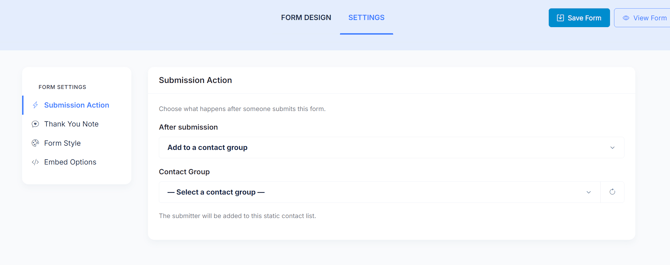
The submitter will be added to the selected static contact list each time they submit the form. If the contact already exists in your database, they'll simply be added to the group. If they're new, a new contact record will be created.
Thank You Note
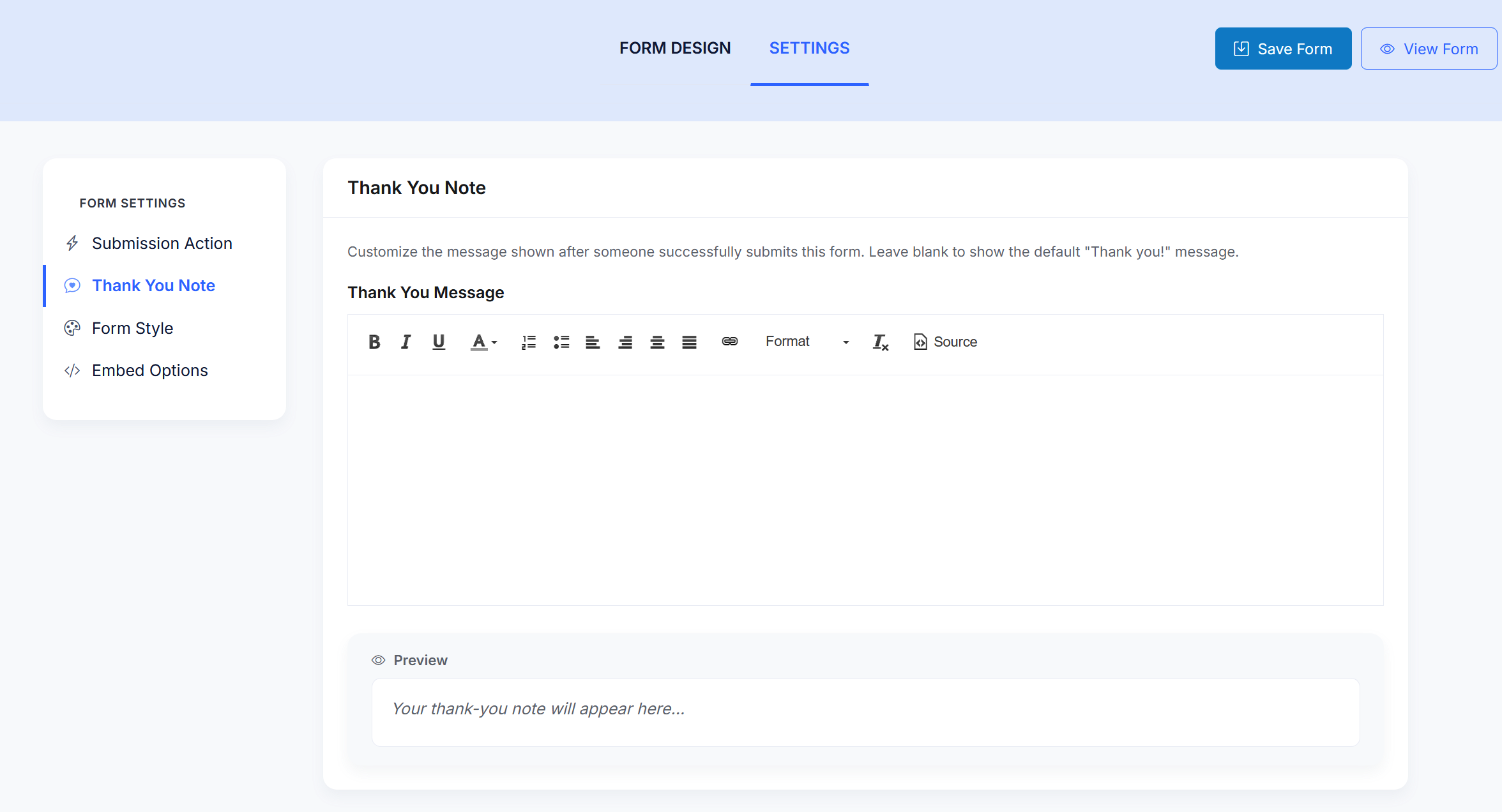
The Thank You Note is the message displayed to the person after they successfully submit your form. By default, a simple "Thank you!" message is shown, but you can customize it to say anything you'd like.
Navigate to Settings > Thank You Note to configure this.
Customizing Your Thank You Message
- In the Thank You Message editor, type your message. You can use the formatting toolbar to add bold, italic, or underlined text, change text color, create lists, adjust alignment, insert links, and more.
- Use the Format dropdown to apply heading styles if needed.
- Click Source if you'd prefer to write the message in raw HTML.
- Check the Preview section below the editor to see how your message will look to respondents.
- Click Save Form to apply your changes.
If you leave the Thank You Message blank, the default "Thank you!" message will be displayed.
Ideas for Your Thank You Note
- Let them know what happens next: "Thanks for signing up! We'll be in touch within 48 hours."
- Include a link to your website or a relevant page: "Thank you! Visit our events page to see upcoming opportunities."
- Keep it warm and on-brand for your organization.