-1.png?width=240&height=100&name=Heading%20(2)-1.png)
Letters in BetterUnite serve as essential tools for nonprofit organizations to engage donors through personalized communications such as thank-you notes, tax acknowledgment letters, and pledge reminders. Utilizing letters not only reinforces donor stewardship and sustains meaningful relationships, but also ensures organizations remain compliant with regulatory standards while supporting consistent engagement and effective fundraising strategies. Also explore how to generate Donor Statements.
To Generate Letters within BetterUnite
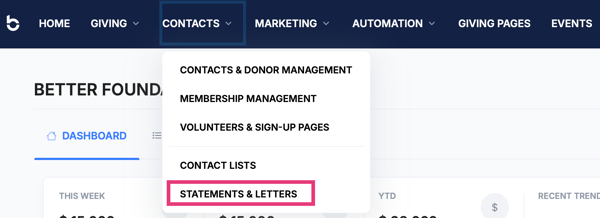
- Navigate to CONTACTS>STATEMENTS & LETTERS
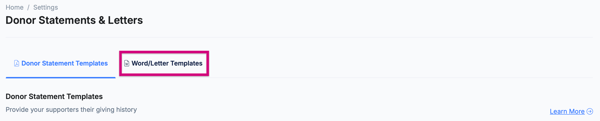
- Select >Word/Letter Templates
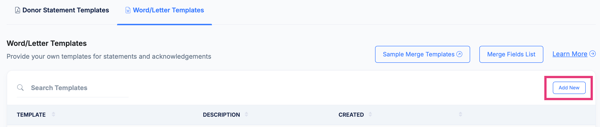
From this screen you can upload an already existing Word Document template that you may have already created by selecting Add New.
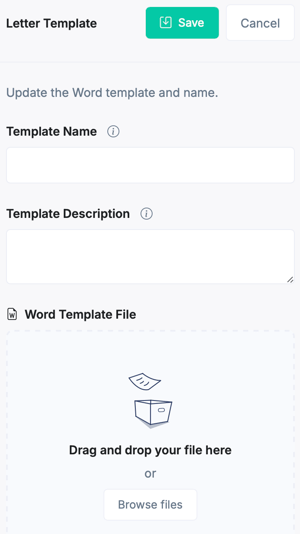
or
You can utilize a pre-built template available within the system as a foundational resource. This template can be downloaded for reference and customized to align with your organization’s communication objectives.
- Select Merge Field Example> Sample Merge Templates
 This allows you to copy and paste different applicable templates into a Word document for you to customize and then upload as a new template into BetterUnite.
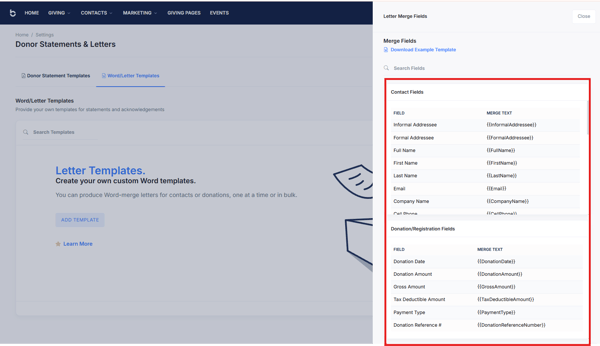
Merge Fields
Explore Word Merge Fields in greater detail in this article.

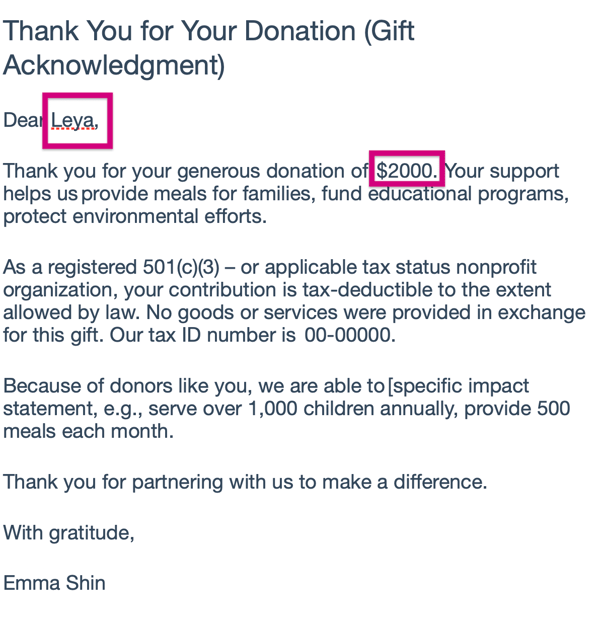
- When creating and editing letters, you can enhance personalization and efficiency by utilizing the merge text fields. These fields enable you to dynamically insert relevant donor or transaction details into your letter.
ie.will insert the contact's first name if it exists. - If the merge field value is blank. You can add double question marks after your merge field name and provide the substitute text.
Here is an example:will insert the contact's first name if it exists, or Friend (i.e. the text within the double quotes) if it does not.
Once you upload your template, you can now Generate your Letters.
- Go to Contacts>Contacts & Donor Management
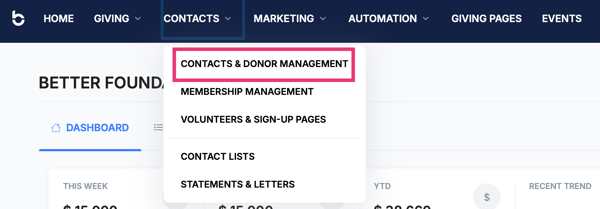
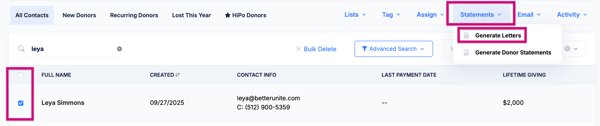
- Select the Contact or Contacts you would like to generate a letter for on the left side.
- Select Statements & Letters>Generate Letter
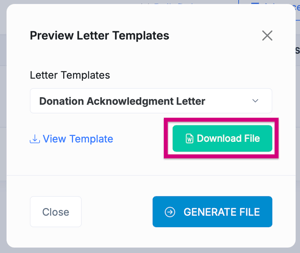
- Choose the letter template from the list and select Generate File
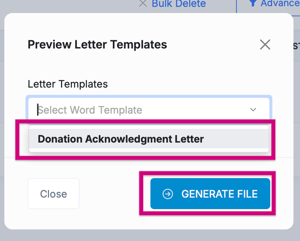
- You can now download your letter/s to be able to print them.
Your document will insert the merge field information like the screenshot below:
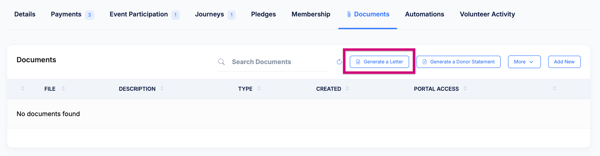
- You can also generate letters within a contacts record by selecting Documents>Generate letter.
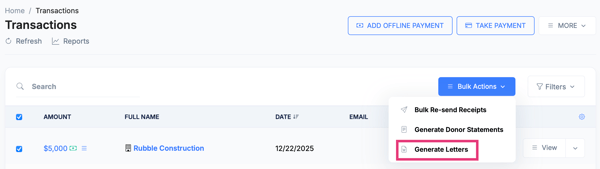
- As well as from within Giving>Transactions>Bulk Actions
Need Additional Help?
We're here to assist you in any way we can. Don't hesitate to reach out to support@betterunite.com
Let's go do some good.