-1.png?width=240&height=100&name=Heading%20(2)-1.png)
What You Can Do with Custom Forms
- Build custom forms with a drag-and-drop designer — no coding required.
- Collect and track submissions from a centralized dashboard.
- Auto-enroll submissions into contact groups so new contacts are organized automatically.
- Map form fields to contact records to keep your database up to date.
- Export submissions to Excel for reporting or offline analysis.
- Embed forms anywhere — on your website, in campaign pages, or as a standalone link.
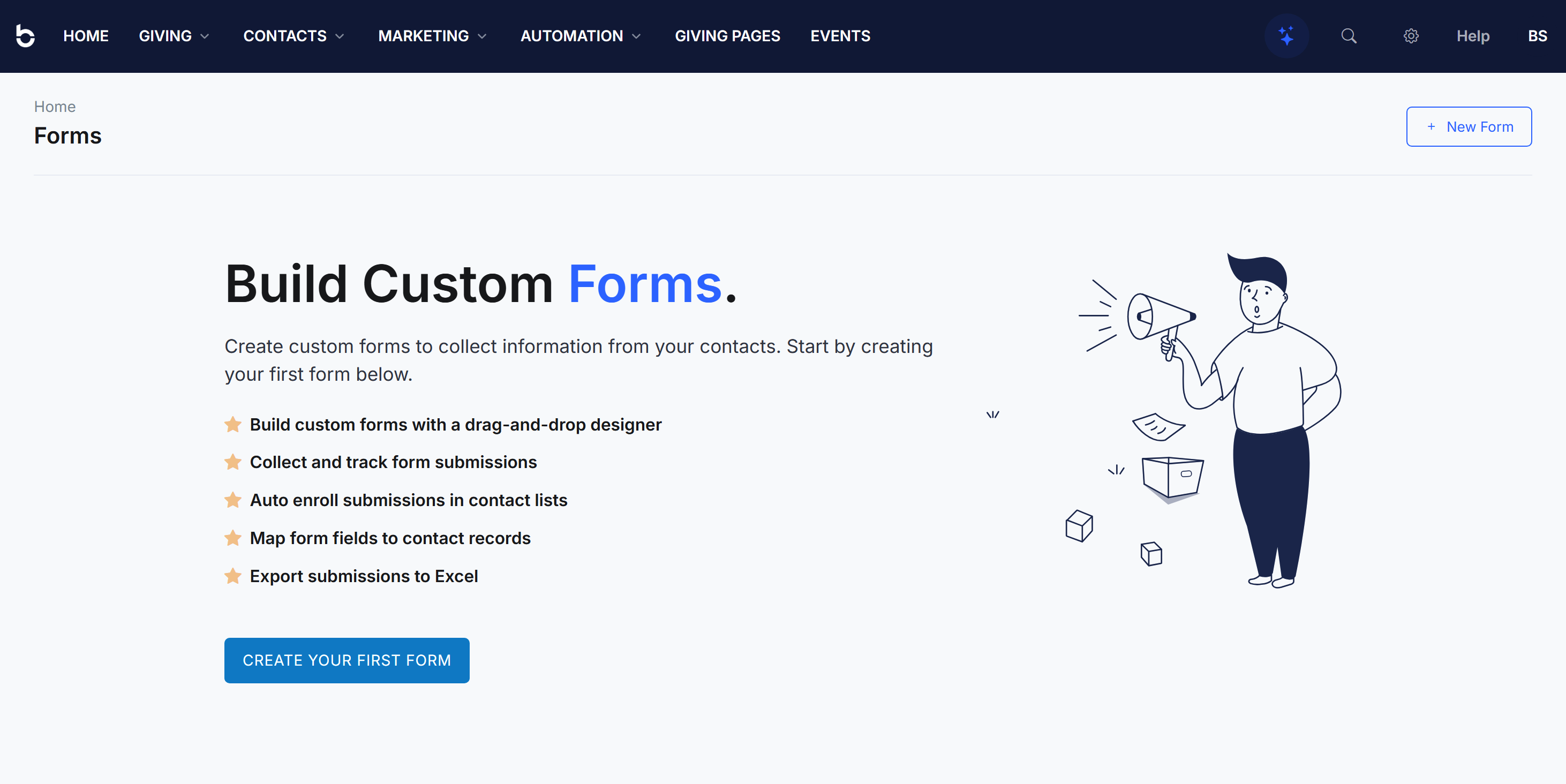
How to Access Custom Forms
To get to the Forms section, navigate to Marketing > Custom Forms from the top navigation bar. If you haven't created any forms yet, you'll see a welcome screen inviting you to create your first one.
Creating Your First Form
- From the Forms page, click the + New Form button in the top-right corner (or the Create Your First Form button if this is your first time).
- You'll be taken to the Form Designer, where you can give your form a name and optional description at the top of the page.
- On the left side, you'll see a list of available contact fields — such as First Name, Last Name, Email, and more. Drag fields into the form canvas, or double-click them to add them.
- Once you've added your fields, click Save Form in the top-right corner.
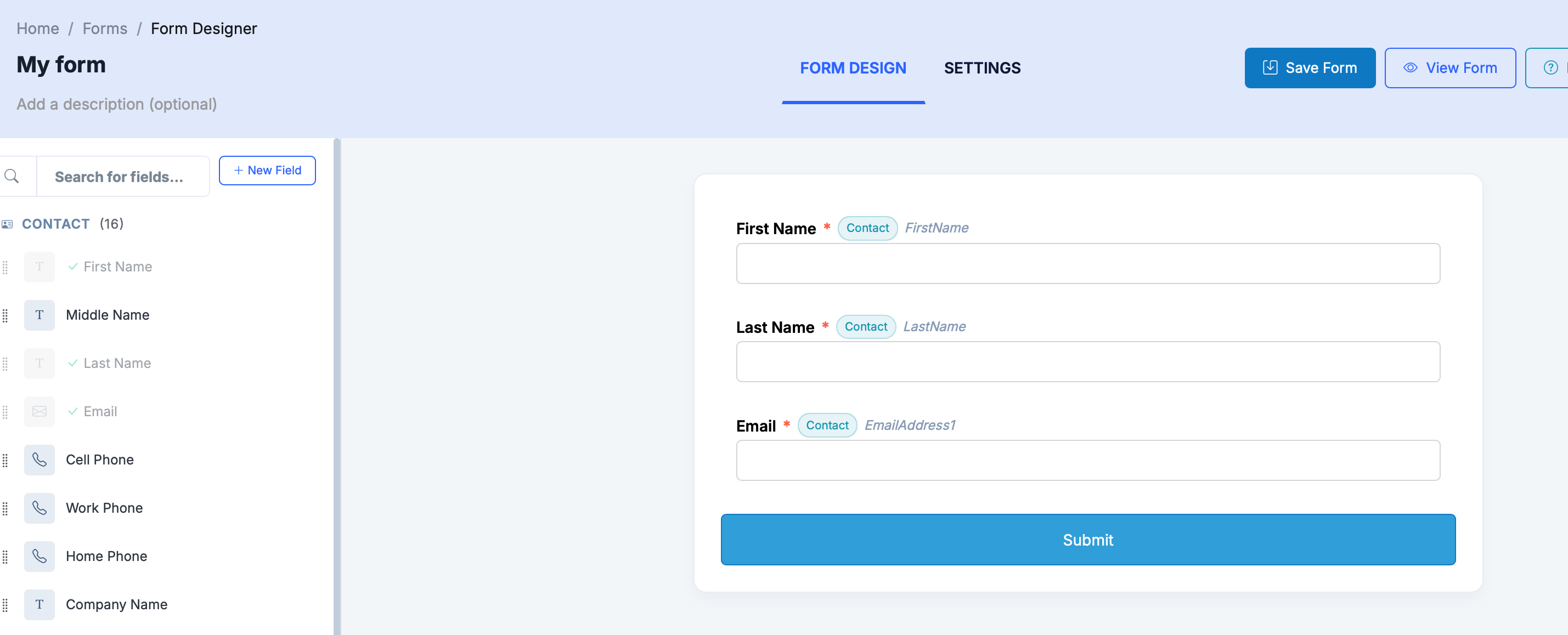
That's it — your form is created! From here you can customize the design, configure what happens when someone submits it, and embed it on your website.