
Available on Membership Pro plans.
Global Communications lets you reach all your members at once — without touching individual records. From the Membership Center, you can post a note that appears in every member's portal Messages tab, trigger a banner alert that appears on their dashboard, or add a benefit to every member on a specific plan. This is useful for announcements, reminders, policy updates, or rolling out new perks to your entire membership base in a single action.
Where to Find It
Go to Contacts > Membership Management and open the Announcements tab. This is where you create and manage global messages, alerts, and benefits.
Note: This feature is available on Membership Pro plans. If you do not see the Announcements tab working, or you see an upgrade prompt, confirm that your organization has Membership Pro, or contact support@betterunite.com.
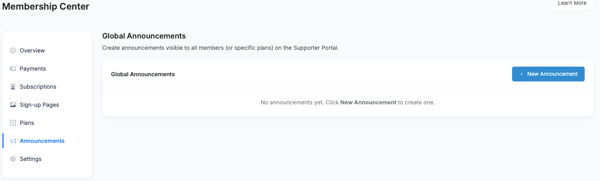
Creating an Announcement
Messages, alerts, and benefits are all created the same way.
- On the Announcements tab, click New Announcement.
- Enter a Title.
- Choose a Type:
- Note: Appears in each targeted member's portal Messages tab. Use it for non-urgent updates such as policy changes, welcome messages, or seasonal notes.
- Alert: Appears as a banner on the member's portal dashboard. Use it for short, time-sensitive information such as event reminders or renewal deadlines.
- Benefit: Adds a benefit for members on the plan(s) you select, so you can roll out a new perk without editing each subscription. [Confirm the Benefit fields shown (title, description, visible to members) and the plan selection.]
- Enter your message in the content field (up to 4,000 characters). Keep alerts short.
- Set a Start Date and End Date if you want the announcement to display only for a limited time. After the end date, it stops appearing.
- Set a Display Order if you have more than one announcement. [Confirm how display order sorts: lowest number first?]
- Under Restrict to Plans, select the plans that should see it. Leave it empty to reach all members.
- Optional: check Email members about this announcement to also send an email to the targeted members. This only sends when you create a new announcement, not when you edit an existing one.
- Click Save Announcement.
Frequently Asked Questions
Can I send a global message to only one plan's members?
Yes — all three global communication types (messages, alerts, and benefits) include a plan filter, so you can target a specific membership tier rather than your entire member base. This is useful if you have multiple membership levels with different perks or communications needs.
Can members reply to a global message?
No — global messages are one-way communications from the organization to members. Members can see them in their portal Messages tab but cannot respond through the platform. For two-way communication, use your standard email tools or reach out to members directly.
Is there a history of global messages and alerts I can review?
Yes — the Global Communications section maintains a log of past messages and alerts you have sent, so you can review what was communicated and when.
Can I remove an alert once posted?
Yes — you can delete or manually expire an alert from the Global Communications section at any time. Setting an expiration date when you first post the alert is the recommended approach to prevent alerts from becoming stale without requiring a manual removal step.
Do members receive an email when I post an announcement?
Only if you choose to. When you create a new announcement, check Email members about this announcement to notify the targeted members (or all members if you did not select any plans). The email is only sent for new announcements, not when you edit an existing one. Otherwise, members see announcements when they sign in to the Supporter Portal.
Need Additional Help?
We're here to assist you in any way we can. Don't hesitate to reach out to support@betterunite.com
Let's go do some good.