-1.png?width=240&height=100&name=Heading%20(2)-1.png)
When a guest registers for your event (purchases a registration ticket), they automatically receive an email — and a text message if enabled — containing a link to their unique guest page. This notification is sent by default unless you have disabled it. A sample email is shown below.
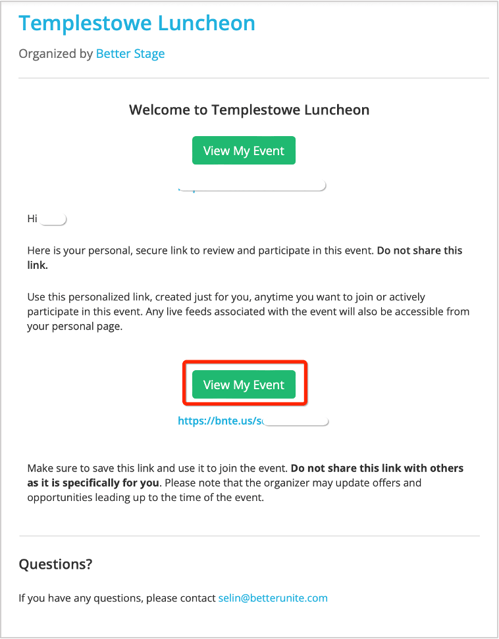
- Once the guest clicks on View My Event, they are taken to their unique guest page. From here, they can:
- Bid on auction items
- Purchase raffle tickets
- Buy items for sale
- Select giving levels
- Make a donation
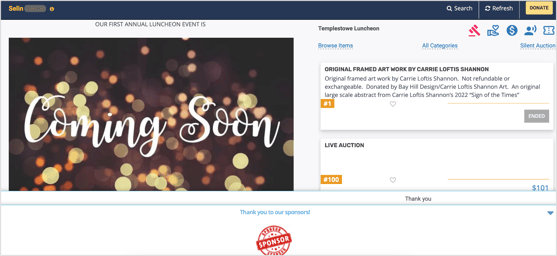
- The icons displayed on the guest page reflect the features you have enabled for your event. For example, if you have a live or silent auction, the auction icons appear; if you have giving levels configured, the giving icon appears.
- There are also separate icons for Items for Sale and Raffle tickets. This is also a page where guests can donate using the Donate button below.
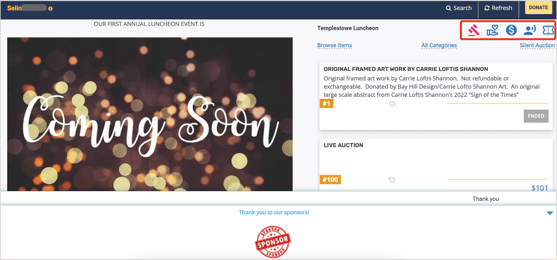
- The guest can also click on Browse Items. This will only be visible for the Live and/or Silent Auction. They can filter it based on Items that they bid on, Items with no bids, Items still available, Items that they purchased, and any items that they marked as their favorite. They also have the option to click on Browse all to see all the items, which is the default view.
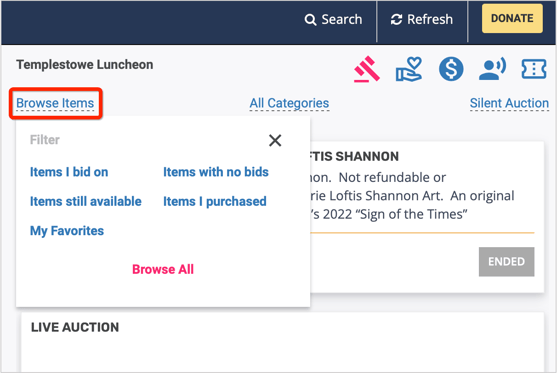
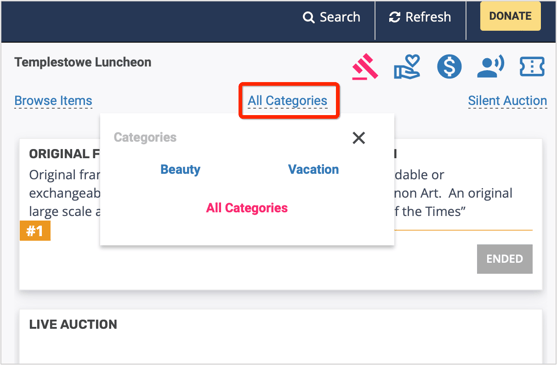
- If you have created Categories for your Auction Items, the guest can also search these items based on categories. They would need to click on All Categories as shown in the below screenshot.
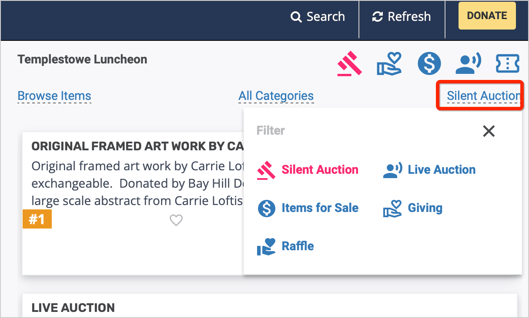
- The guest can either click on the different icons shown or click on the wording under the icons to navigate through to the other offers. The guest is currently on the Silent Auction Items page in the example below. This link also provides the definition for each icon.
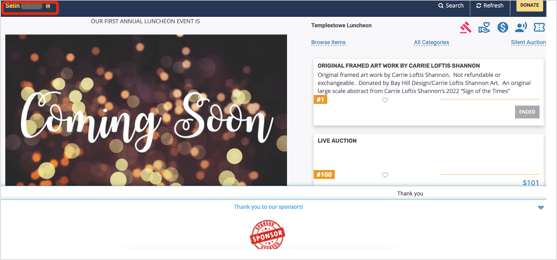
- Guests can click their name at any time to access:
- Items currently in their cart
- Purchase history
- Their tickets
- Raffle ticket allocation (if applicable)
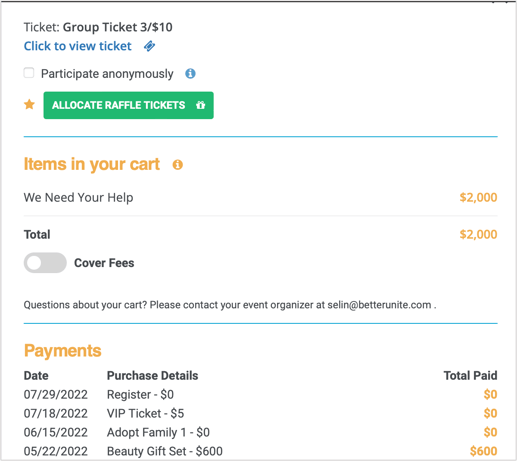
- If you have enabled self-checkout for guests, they can complete their checkout from this window. Guests are also given the option to Participate Anonymously from this same window.
Need Additional Help?
We're here to assist you in any way we can. Don't hesitate to reach out to support@betterunite.com
Let's go do some good.