-1.png?width=240&height=100&name=Heading%20(2)-1.png)
Transfer a ticket from the guest confirmation page
-
Navigate to Guest List
-
Select the ticket icon next to the original guest
-
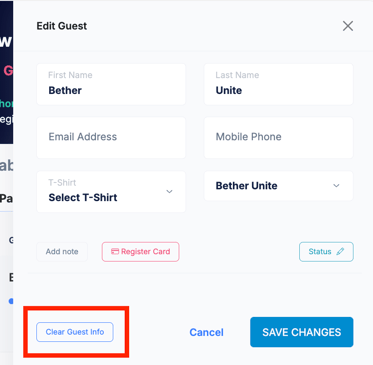
Select Edit Guest > Clear Guest Info
-
Enter the new guest’s name and details
-
Save the changes
Once updated, the ticket will be reassigned to the new guest and reflected across the event.
Transfer a ticket from Guest Check-In
-
Go to Guest Check-In
-
Select the guest name
-
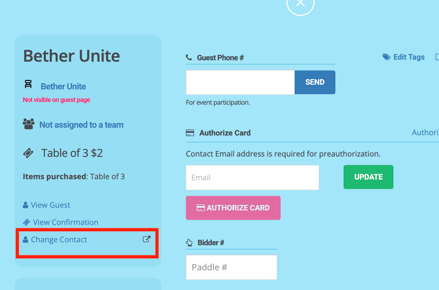
Select Change Contact to clear the ticket
-
Update the guest information with the new attendee’s details
This option is especially helpful for last-minute transfers on the day of the event.
Transfer a ticket using Tables or Teams
-
Navigate to Tools > Tables or Tools > Teams
-
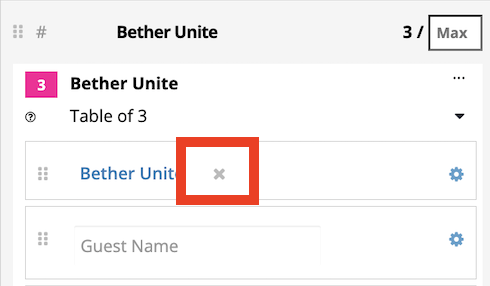
Search the guest you want to update > Select the X icon to remove the original attendee
-
Add guest information to reflect the new attendee in the Guest Name field
What happens after a transfer?
-
The ticket remains valid and searchable by the original purchaser during guest check-in
-
The new guest appears on the Guest List and Check-In list
-
Reports and attendance records update automatically
Need Additional Help?
We're here to assist you in any way we can. Don't hesitate to reach out to support@betterunite.com
Let's go do some good.