-1.png?width=240&height=100&name=Heading%20(2)-1.png)
BetterUnite allows administrators to view exactly what a member sees in their Supporter Portal. This is helpful for troubleshooting, answering member questions, or verifying how memberships, messages, and payments appear to the member.
There are two ways to access a member's portal view. Both options open the same Supporter Portal experience the member would see when they log in.
Path 1 — From the Membership Center
This option is useful when you are already working with a specific subscription.
- Go to Contacts > Membership Management > Subscriptions.
- Find the member's subscription and click the three-dot menu, or open the subscription detail page.
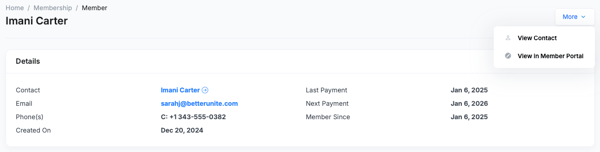
- Click View Member to open the member detail page.
- On the member detail page, click Actions > View Member Portal.
- The member's Supporter Portal opens in a new tab, showing their current portal view.
Path 2 — From a Contact Record
This is the fastest option if you are already working with the contact.
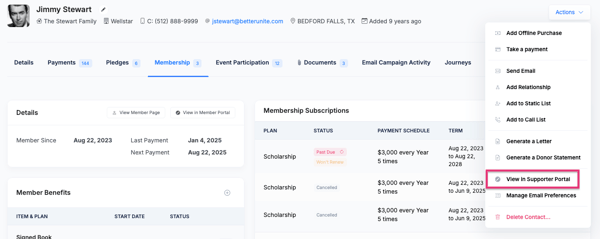
- Go to Contacts and open the member's contact record.
- Click the Actions menu on the contact record.
- Select View in Supporter Portal.
- The member's portal opens in a new tab.
What You'll See in the Portal
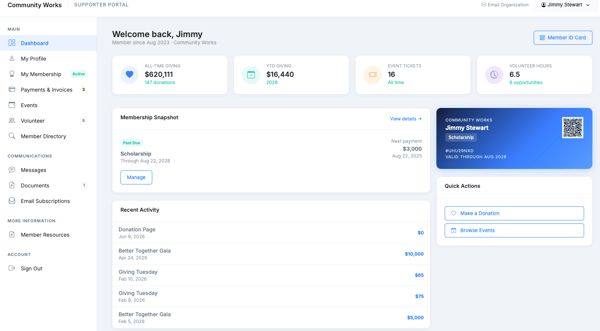
The Supporter Portal was redesigned in June 2026. When you view a member's portal, you see their complete self-service hub as they experience it. This is useful for troubleshooting what a member is seeing, verifying their information, and understanding what they have access to.
The portal includes the following sections:
- Dashboard — The member's home view, featuring their Member ID card with name, membership, status, and a unique QR code.
- Profile — Contact information the member can view and edit based on your portal settings.
- My Membership — Current subscription details, plan information, and household members (if applicable).
- Payments & Invoices — Full payment history, upcoming scheduled payments, and the card on file.
- Events — Events the member has attended or registered for.
- Volunteer — Volunteer hours and history.
- Messages — Notes posted by your organization that are visible to the member.
- Documents — Any documents shared with the member.
- Email Subscriptions — The member's email preferences.
- Custom Pages — Any custom portal pages configured by your organization (Membership Pro).
- Member Directory — A searchable list of other members (Membership Pro).
You are viewing the portal in read-only mode. You see exactly what the member sees, but you cannot make changes from within the portal view itself. To make changes to member data, subscriptions, or settings, return to the admin interface.
Frequently Asked Questions
Can I make changes to a member's data from within the portal view?
No — the admin portal view is read-only. You see exactly what the member sees. To make edits, return to the Membership Center or the contact record.
Will the member know I viewed their portal?
No — viewing a member's portal does not notify the member or create any record on their end.
What if the member doesn't have an active subscription — can I still view their portal?
Yes, as long as the member has a portal account. However, certain tabs (like My Membership) will reflect their inactive status.
Need Additional Help?
We're here to assist you in any way we can. Don't hesitate to reach out to support@betterunite.com
Let's go do some good.