-1.png?width=240&height=100&name=Heading%20(2)-1.png)
When supporters pledge a per-activity amount (such as $0.50 per lap or $2 per lap) in a peer-to-peer campaign, they don't pay upfront — they owe the total once the activity is complete. To collect that payment, you add their pledges to their guest cart and then send them a link to check out.
Step 1: Add Pledges to Guest Carts
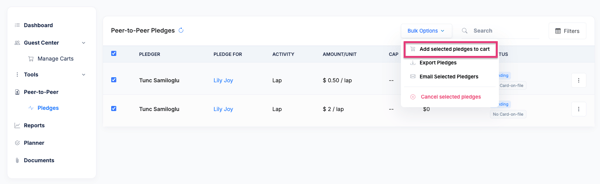
- From within your event, navigate to Peer-to-Peer in the left-hand menu, then click Pledges.
- Select the pledges you want to collect payment for using the checkbox on the left side of each row. To select all pledges at once, use the checkbox at the top of the list.
- Click Bulk Options in the upper right corner.
- Select Add selected pledges to cart.
BetterUnite will calculate the total owed based on the pledge amount and the number of activities completed, then add that total to each pledger's cart.
Step 2: Send Payment Instructions
After adding pledges to carts, you'll be taken to Manage Carts automatically. From there, select the carts you just created and send pledgers a link to complete their payment.
For full instructions on how to send payment instructions — including how to filter by guests without a card on file, customize the email, and choose between email and text/SMS — see How to Send Payment Instructions to Guests.
Other Options from Manage Carts
Once pledges are in carts, you have 3 paths to collect payment:
- Send Payment Instructions — email or text pledgers a link to check out themselves online
- Bulk Checkout — charge all selected carts immediately using the card on file (for pledgers who provided payment upfront)
- Each Cart Checkout- Checkout each cart one by one
Frequently Asked Questions
What if a pledger doesn't have a card on file?
Send them payment instructions via email or text/SMS. They'll receive a link to view their cart and complete checkout online at their convenience.
Can I add pledges from multiple fundraisers to carts at the same time?
Yes — you can select pledges across multiple fundraisers on the Pledges page and add them all to carts in one bulk action. Each pledger's cart will reflect their total owed.
What does the pledger see when they check out?
They receive an email and/or text with a personalized checkout link. Clicking it takes them to their cart, where they can review the pledge total and complete payment.
Can I send payment instructions to just one pledger?
Yes. Instead of using the bulk menu in Manage Carts, click the Options button on any individual cart to send payment instructions to that guest only.
Do pledges get added to a new cart or an existing one?
If the pledger already has a guest cart for this event, the pledge total is added to their existing cart. If they don't have one, a new cart is created.
Need Additional Help?
We're here to assist you in any way we can. Don't hesitate to reach out to support@betterunite.com
Let's go do some good.