-1.png?width=240&height=100&name=Heading%20(2)-1.png)
Payment instructions send guests a direct link to view their cart and complete checkout online. You can send these to all carts, only carts without a card on file, or to individually selected guests — via email, text/SMS, or both.
Where to Find This
Navigate to your event Dashboard Guest Center and click Manage Carts. Make sure you're on the Guest Carts tab.
Sending Payment Instructions in Bulk
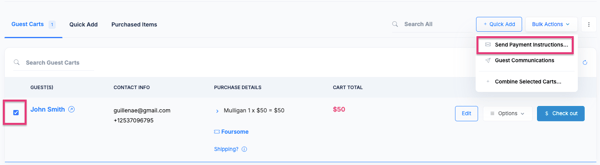
- Select the guest cart(s) you want to contact using the checkbox on the left side of each row. To select all, use the checkbox at the top of the list.
- Click the Bulk Actions in the upper right corner of the Guest Carts view.
- Select Send Payment Instructions…
Configuring the Message
A modal will appear with the following options:
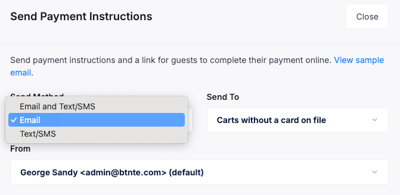
Send Method — choose how to reach guests:
- Email — sends the payment link by email only
- Text/SMS — sends a text message only
- Email and Text/SMS — sends both (recommended for guests without a card on file)
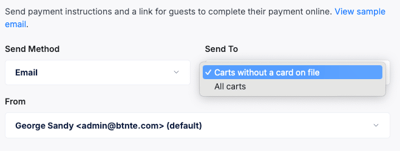
Send To — filter who receives the message:
- Carts without a card on file — only reaches guests who haven't yet provided payment (default and recommended)
- All carts — sends to every selected cart, including those with a card on file
From — select the sender email address. The default is your organization's admin email on file.
Customizing the Email
The default email includes a Check out button, the guest's checkout link, and a View Invoice link. If you'd like to personalize the subject line or message body, click Customize in the upper right of the Email section. You can edit the text directly and use available merge fields to personalize it.
If you do not wish to message guests in bulk, you can instead send payment instructions to individual guests by clicking the Options button on a specific cart and selecting the appropriate action.
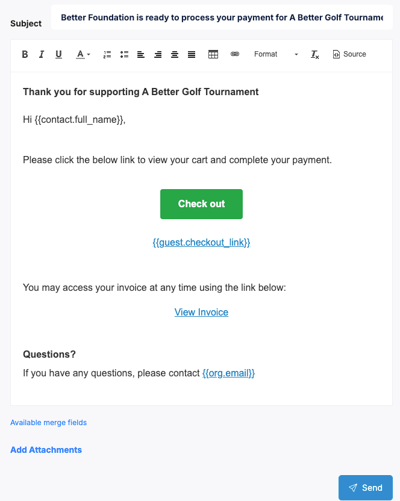
Available Merge Fields

Sending
When you're ready, click Send. Guests will receive a link to view their cart and complete their payment online.
Frequently Asked Questions
Can I send payment instructions to guests who already have a card on file?
Yes — choose All carts in the Send To dropdown. By default, the tool filters to only guests without a card on file to avoid sending unnecessary messages to guests who will be auto-charged.
What does the guest receive?
Guests receive a message with a personalized checkout link and a View Invoice option. Clicking the link takes them directly to their cart to review and complete payment.
Can I customize what the message says?
Yes. Click Customize in the email section of the modal to edit the subject line and message body. Merge fields like and are available to personalize the message automatically.
What's the difference between Email and Text/SMS?
Email sends a formatted message with a button and invoice link. Text/SMS sends a shorter message with a link. "Email and Text/SMS" sends both at once — useful for increasing response rates before an event closes.
Can I send to just one guest instead of all?
Yes. Instead of using the bulk menu, click the Options button on any individual cart row to send payment instructions to that guest only.
Need Additional Help?
We're here to assist you in any way we can. Don't hesitate to reach out to support@betterunite.com
Let's go do some good.