-1.png?width=240&height=100&name=Heading%20(2)-1.png)
The Donation Item Form lets your supporters submit auction items or items for sale directly to your event - complete with photos, estimated values, and delivery details. Once you review each submission, you can import it as an auction item, item for sale, or in-kind donation in just a few steps:
1) Create and activate your form on your event
2) Share the link to the donation form on your event
3) Donor submits item, including pictures
4) Review submissions and import as auction item and/or item for sale and/or in-kind donations
1) Setup your donation form
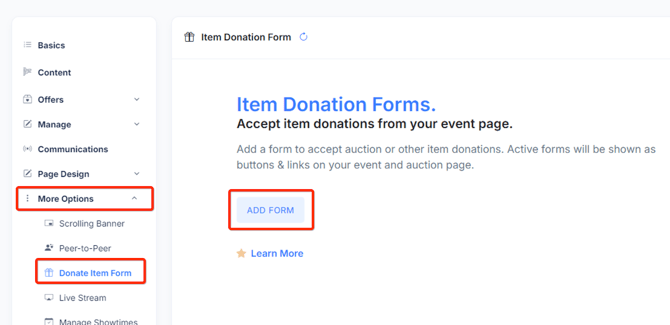
Click Add Form in your Edit Event page -> Donate Item Form tab.
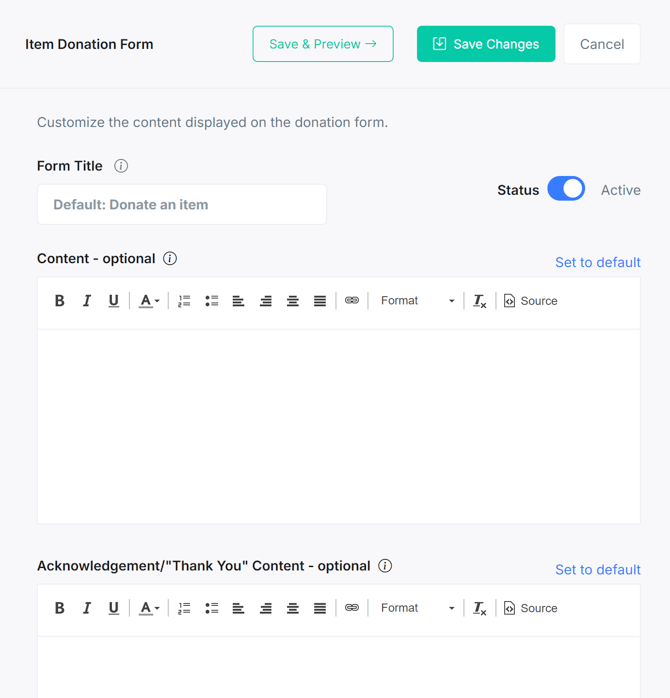
Configure your form: you typically don't have to make any modifications and the system will display the default content.
Once you have configured your form, activate it by toggling the form status to Active. The donation form link will not be accessible to donors until the form is activated.
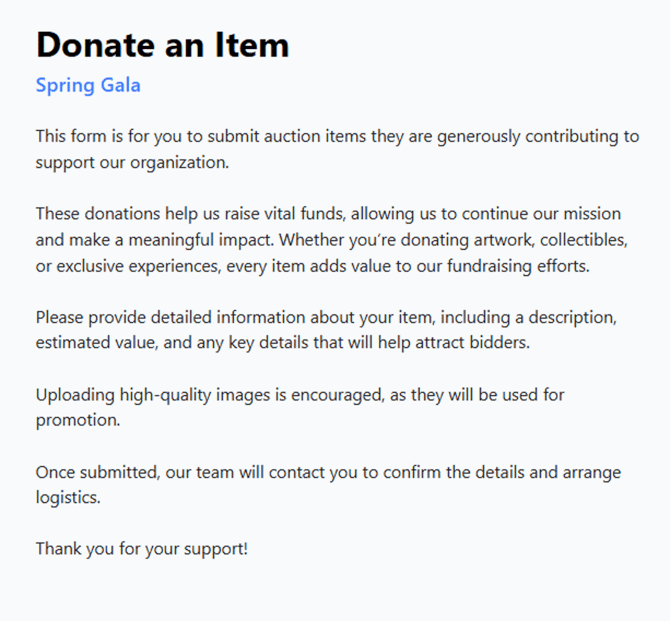
Here is the default text that will be displayed if you don't customize the form. (where Spring Gala is an example event name).
2) Share the link to the donation form on your event
To preview your form before sharing, click the Save & Preview button. Copy the form URL and add it anywhere in your event content - your event page, and email campaign, or a social post.
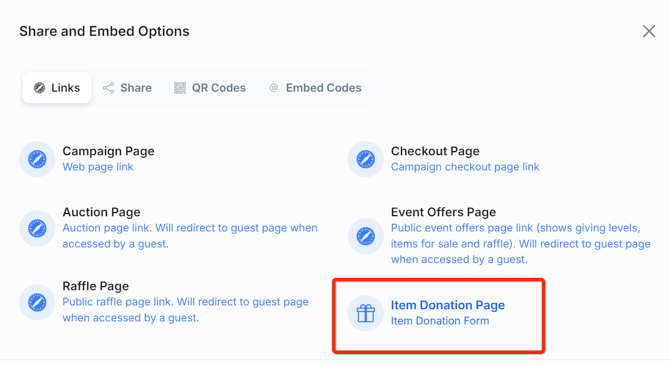
The url for the form can be obtained from multiple places:
a) in your Edit Event page > Donate Item Form tab, click the listed form's action button and select Copy Form URL.
b) In your event dashboard, open the Share & Embed options panel - including the QR code under the QR codes tab (shown below)
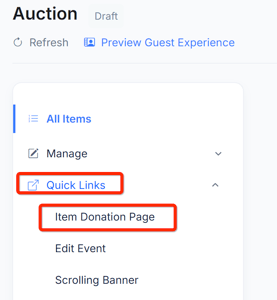
c) In your Manage Auction page, under the Quick Links tab on the left menu (shown below)
3) Donor submits item, including pictures
Donors can provide:
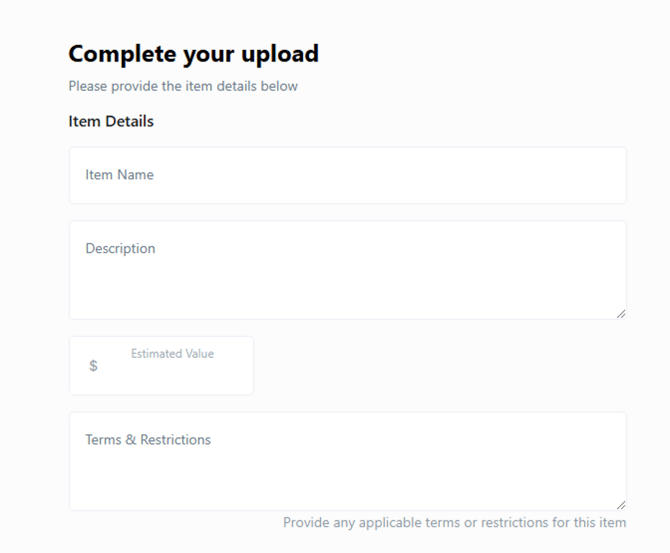
a) Item name, description, estimated value, terms & restrictions
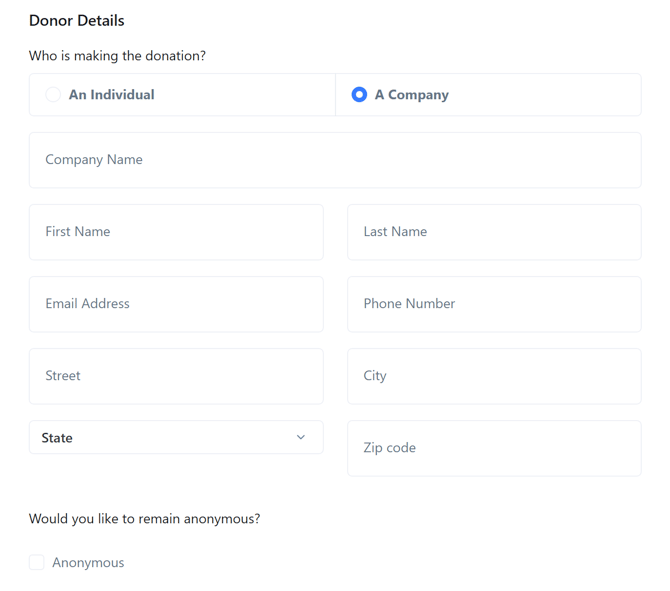
b) Donor contact information: email, phone, address. Donor can indicate if they'd like to remain anonymous, in which case the donor is marked as anonymous.
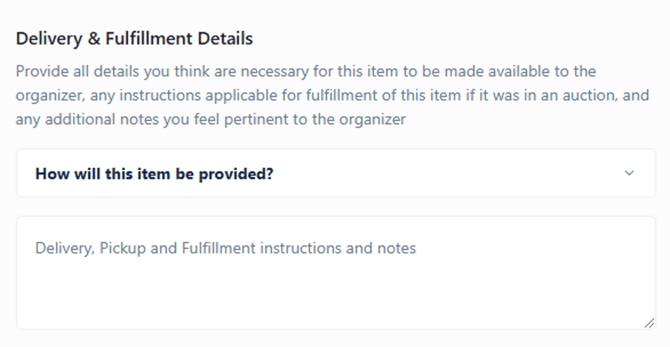
c) Item delivery/pickup instructions and additional notes
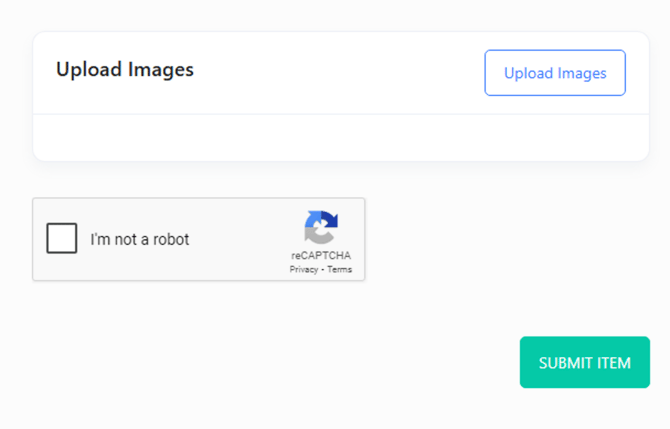
d) Add multiple images associated with the item
Donors can also continue to upload multiple items.
4) Review submissions and import as auction item or item for sale
When a submission is processed, the organizer will get a notification of the new submission and it will also be viewable on the event dashboard page.
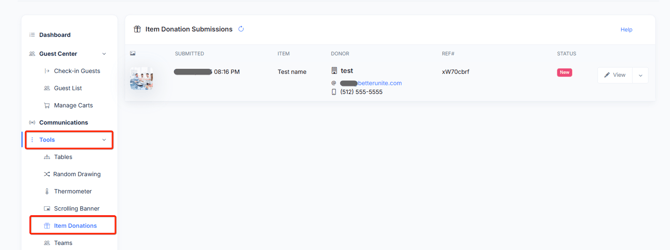
Click View to manage full details of the submission.
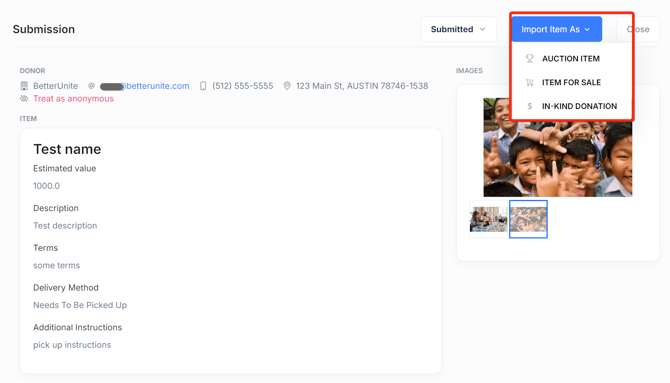
You can import the submission as an auction item or an item for sale.
After you complete the import, you will need to review the imported item and finalize its details before activating the item. You can import multiple times.
You can also manage the status of the submission internally as you see fit.
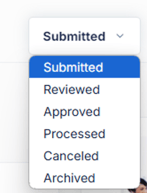
Typically once you have reviewed the submission, you would process it by importing it or canceling it or archiving it.