-1.png?width=240&height=100&name=Heading%20(2)-1.png)
Overview
Connect to your LGL account
Follow these steps to go to your Little Green Light setup screen:
- Click Settings on your top navbar to go to settings
- Click the Integrations tab on the left menu
- Click available integrations tab, and search for little green light
- Select Little Green Light
Now follow instructions to establish a connection to your Little Green Light account.
1) Get an API Key from Little Green Light
b) Go to "Settings" and click the "Integration Settings" tab
c) Locate the "LGL API" link on the left menu
d) Click the option to Create an API Access Token
e) Copy the "API Access Token" and paste it below
2) Enter the API Key in the textbox provided on the set up screen
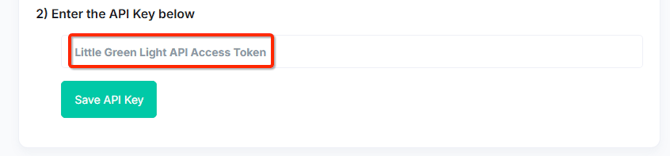
Once this connection is established, your BetterUnite account will be able to communicate with your LGL account and you'll be able to send donor and donation records to your LGL account.
Sync Data
The first step before syncing your transactions to LGL is to map your campaigns and events in BetterUnite to their corresponding campaigns and events in LGL. This ensures that when the data is transferred, it will be directed to the exact location you need.
Once you have mapped the destination locations, and save the mapping, you will see the "sync" option on each mapped campaign row.
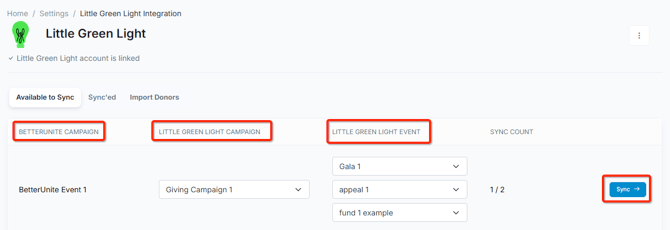
Click the "Sync" button and you will see all transactions within this BetterUnite campaign/event displayed for you to sync to LGL.
Note the various options below. The blue "Sync" button will appear on each transaction that can be sync'ed. The green status button and the corresponding LGL gift id will be displayed on each transaction that was previously sync'ed.
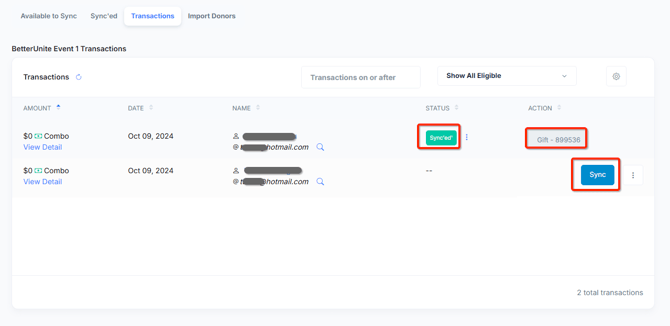
Additional Options
Below are some additional options you can consider as you work through integrations over time.
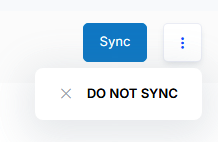
Do not Sync
You can mark any transaction as "Do not sync" to mark them as not syncable. These may address scenarios where you may already have the information in LGL, or you just prefer not to sync this particular transaction based on it's attributes.
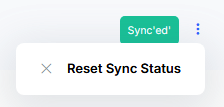
Reset Sync Status
If you need to re-sync a transaction, you can reset it's sync status and enable the sync option again
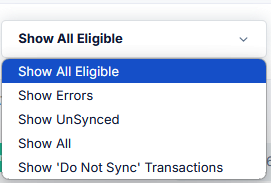
Filter Transactions and Exclusions
Note the date filters and status filters highlighted below, as well as the ability to mark $0 transactions as non-sync status in bulk.

When syncing donations (and donors) to Little Green Light from BetterUnite, the following fields are mapped:
Donor → LGL Constituent
When a donation is synced and the donor doesn't yet exist in LGL (no match by email or name), a new constituent is created with these fields.
| BETTERUNITE CONTACT | LGL CONSTITUENT | NOTES | |
|---|---|---|---|
| First Name | → | first_name | |
| Last Name | → | last_name | |
| Middle Name | → | middle_name | |
| Donor Type | → | is_org | true if DonorType ≠ Individual |
| Company Name | → | org_name | Used when donor is an org |
| Employer | → | org_name | Used when donor is an individual |
| Job Title | → | job_title | |
| Spouse Full Name | → | spouse_name | |
| Is Anonymous | → | is_anon | |
| Email Address1 | → | email_addresses[0] | Only if non-empty |
| Address Line1 + Address Line2 | → | street_addresses[0].street | Only if AddressFormatted is non-empty |
| Address City | → | street_addresses[0].city | |
| Address State | → | street_addresses[0].state | |
| Address ZipCode | → | street_addresses[0].postal_code | |
| Address Type | → | street_addresses[0].street_type_name | Enum to string |
After creation: The LGL constituent ID is saved back to Contact.LGL_ID in BetterUnite.Donation → LGL Gift
Each donation creates a gift record under the matched or newly created LGL constituent.
| BETTERUNITE DONATION | LGL GIFT | NOTES | |
|---|---|---|---|
| lglContact.Id | → | constituent_id | Resolved constituent — always required |
| Intended Donation Amount | → | received_amount | Effective amount (gross minus refunds) |
| Donation Date | → | received_date | |
| Deductible Amount | → | deductible_amount | |
| Reference Number | → | check_number | Only when PaymentType is Check; empty string otherwise |
| (constructed) | → | note | Includes campaign name, ref number, and purchased items |
| Campaign.LGL_CAMPAIGNID | → | campaign_id | From campaign mapping |
| Campaign.LGL_EVENTID | → | event_id | From campaign mapping |
| Campaign.LGL_APPEALID | → | appeal_id | From campaign mapping |
| Campaign.LGL_FUNDID | → | fund_id | From campaign mapping |
| (hardcoded 1) | → | gift_type_id | Always "Gift" — InKind not yet supported |
Note format: "Payment from BetterUnite Campaign: {name}, Check/Ref #{ref}. Purchase Details: {item1}; {item2} (qty)"
Contact Matching Logic
During Donation Sync (BU → LGL)
STEP 1
Check if Contact already has LGL_ID→
STEP 2
Search LGL by email address→
STEP 3
Fall back to name search→
STEP 4
Create new constituent if no match
If multiple partial matches are found, the user is prompted to select the correct one or create a new contact.
Send volunteer hours to Little Green Light
Approved volunteer hours can be added to the volunteer time log on each volunteer's constituent record in LGL, alongside their giving history. Volunteer names, hours and dates all carry over.
You will find this on the Volunteer Hours tab of the Little Green Light setup screen, which appears once your account is connected.
Before you start
Three things need to be in place:
- A connected LGL account. The volunteer tab appears only after your API key is saved.
- At least one volunteering category in LGL. LGL requires a category on every volunteer time record, so hours cannot be sent without one. Add categories in LGL under Settings, then reload the BetterUnite setup screen so the new categories appear.
- Hours recorded and approved in BetterUnite. Volunteers check in and out, or self-report their time, and an administrator approves the entries under Volunteer Management. Only approved entries with credited time are sent, unless you choose to include entries still awaiting review.
Set up the volunteer hours sync
The settings are open the first time you visit the tab. After you save them once they collapse, and the gear icon on the card header reopens them.
- Default volunteering category. The LGL category that hours land under for any volunteer page you have not given a category of its own. Set this, or give every page its own category, before turning the sync on.
- Include the location in the description. On by default. LGL has no location field on a volunteer time record, so this is how location travels. See the location notes below.
- Also send hours that are still awaiting review. Off by default. Hours you send before approving them are already in LGL if they are later corrected or rejected, so leave this off unless you have a reason.
- Keep volunteer hours in sync. Turns the volunteer sync on for your organization. Leave it off to keep the integration to donations only. Sending hours yourself with the buttons below works either way.
Click Save settings when you are done.
Choose a category per volunteer page
Each row of the Volunteer pages table has a Volunteering category in LGL picker. Leave it on Use the default, or choose a category for that page alone. This is how a tutoring program and a gala can report under different categories in LGL.
A page with no category of its own and no organization default cannot be sent, and its hours are reported as skipped rather than filed under a guessed category.
Send hours
There are two ways to send, both on the Volunteer Hours tab:
- Send all hours, on the card header, sends every eligible entry across all of your volunteer pages.
- Send, on a single row, sends only that volunteer page's hours.
When the run finishes you get a summary: how many entries were added, how many previously sent entries were updated, how many were skipped and why, and how many new constituents were created in LGL.
What the volunteer pages table shows
| COLUMN | MEANING |
|---|---|
| Volunteer page | The volunteer sign-up page the hours were recorded against. A "failed" badge appears here when the last attempt for some of its entries did not go through |
| Location sent | The location that will travel with this page's hours, or a note that the page has no location |
| Volunteering category in LGL | The category this page's hours land under |
| Approved | Approved entries with credited time. The pool a run draws from |
| To send | Entries not yet in LGL, or corrected since they were sent, and the total hours they represent |
How volunteers are matched to constituents
Volunteer hours are sent without stopping to ask, so the volunteer is resolved to an LGL constituent in this order:
- The constituent already linked to the contact, from this sync or from a donation sync.
- An exact email match. An email address identifies a person in a way a name does not, so this wins outright. If LGL holds more than one constituent with that address, the earliest is used, and it keeps using the same one on later runs.
- A name that matches exactly one constituent.
- Otherwise a new constituent is created, carrying the volunteer's name, email address and address.
Step 4 applies even when several constituents already share the volunteer's name, because a shared name is not proof of the same person and attaching hours to the wrong donor record is the worse mistake. The new constituent's id is saved to the BetterUnite contact, so this happens at most once per volunteer however many namesakes LGL holds.
If you would rather the hours joined an existing record, add the volunteer's email address to that constituent in LGL, or change the email address on the BetterUnite contact to match it. The next run will then link them at step 2.
Volunteer hours field mapping
| BETTERUNITE VOLUNTEER TIME | LGL VOLUNTEER TIME | NOTES |
|---|---|---|
| Resolved constituent | constituent_id | Matched or created, as described above |
| Credited minutes | hours | Divided by 60 and rounded to two decimals. This is the reviewed figure, not the raw check-in and check-out |
| Credited minutes | completed_hours | The same figure, since credited time has already been through review |
| Actual start, or the scheduled start | date | The date the volunteer worked, in the volunteer page's own time zone |
| Actual end, or the scheduled end | end_date | Sent only when the block of time ends on a later day |
| Page or default category | volunteering_category_id | Required by LGL on every record |
| Constructed text | description | Job, shift, times, location, impact figures and note. See below |
| Time entry id | external_id | Identifies the entry so the same hours are never logged twice |
The date deserves a note. It is the volunteer's local date in the time zone of their volunteer page, not the underlying timestamp. An evening shift on the west coast of the United States would otherwise be reported on the following day.
What goes in the description
LGL's volunteer time record holds a category, a date, hours and a description, and nothing else. Everything it has no field for goes into the description, in this order, with any empty part left out:
- The job name
- The shift name
- The times themselves, because LGL stores a date with no time of day
- The location, if you have that setting on
- Whether the hours were self-reported or entered by staff
- Your own impact figures for the page, such as meals served or dogs walked
- Any note on the entry
- The name of the BetterUnite volunteer page
So a description arrives looking like this:
Cleanup Crew. Saturday Morning. 9:00 AM to 12:30 PM. Riverside Park, 100 Main St, Springfield IL. meals served: 40. BetterUnite: Spring Cleanup Day
Location, and what Little Green Light can hold
This is the one place where LGL cannot hold everything BetterUnite knows, so it is worth being clear about.
- LGL has no location field on a volunteer time record. Location travels inside the description, which is why the setting exists.
- Location is held per volunteer page, not per job or per shift. It comes from the location on the page itself, so every shift on a page is sent with that page's location. If you run one page covering two sites, the hours cannot be told apart by location.
- A page with no location simply sends none. The Volunteer pages table tells you which pages those are.
Corrections and sending again
Hours are protected against being counted twice, in two independent ways. Each entry records the LGL row it became, and before adding anything the volunteer's existing LGL entries are checked for that same entry. A run you repeat therefore adds nothing the first one already sent.
If you correct an entry after it has been sent, the next run edits the existing row in LGL rather than adding a second block of hours. Correcting three hours to two leaves two hours in LGL, not five.
What is not sent
- Entries with no credited time. A volunteer still checked in, or an entry never approved, has no figure to report yet.
- Entries marked Do not sync.
- Sign-ups with no recorded time. Volunteer hours come from the hours engine, so a page where nobody checked in and nobody logged time has nothing to send, even if people signed up for shifts.
- Times of day, as data. LGL stores a date only. The times appear in the description.
- Anything as a gift. Volunteer hours go to the volunteer time log, never to the gift record, so they do not affect giving totals.
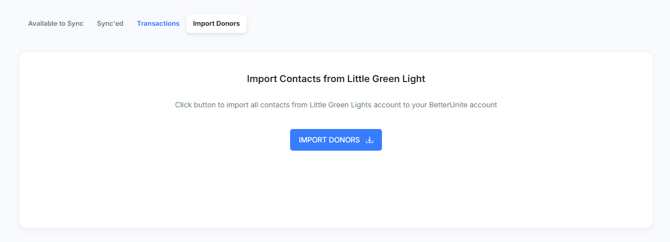
Import Contacts from LGL
This function will allow you to import in bulk all of your LGL contacts into your BetterUnite account.
When importing contacts from Little Green Light into BetterUnite, the following fields are mapped:
Contact Identity
|
LGL Field |
BetterUnite Field |
Notes |
|
id |
LGL_ID |
LGL's unique constituent ID, stored for sync tracking |
|
first_name |
First Name |
|
|
last_name |
Last Name |
|
|
is_org |
Donor Type |
If true → Organization; if false → Individual |
|
is_anon |
Is Anonymous |
Anonymous donor flag |
|
LGL Field |
BetterUnite Field |
Notes |
|
EmailCalculated (primary email) |
Email Address 1 |
Derived from LGL's email addresses list (primary) |
|
Email2Calculated (secondary email) |
Email Address 2 |
Derived from LGL's email addresses list (secondary) |
Phone Numbers
|
LGL Field |
BetterUnite Field |
|
Phone where type = "Work" |
Work Phone |
|
Phone where type = "Home" |
Home Phone |
|
Phone where type = "Mobile" |
Cell Phone |
Employment & Relationships
|
LGL Field |
BetterUnite Field |
Notes |
|
org_name |
Company Name |
Only when is_org = true |
|
org_name |
Employer |
Only when is_org = false |
|
job_title |
Job Title |
|
|
spouse_name |
Spouse Full Name |
|
Primary Address (first address in street_addresses)
|
LGL Field |
BetterUnite Field |
Notes |
|
STREET |
Address Line 1 |
|
|
City |
Address City |
|
|
State |
Address State |
|
|
postal_code |
Address Zip Code |
|
|
Country |
Address Country |
|
|
street_type_name |
Address Type |
"Home" → Home, "Work" → Work, else → Other |
Secondary Address (second address in street_addresses, if present)
|
LGL Field |
BetterUnite Field |
Notes |
|
STREET |
Address2 Line 1 |
|
|
City |
Address2 City |
|
|
State |
Address2 State |
|
|
postal_code |
Address2 Zip Code |
|
|
Country |
Address2 Country |
|
|
street_type_name |
Address2 Type |
Same mapping as primary |
Matching / Deduplication Logic
Contacts are matched to existing BetterUnite records using:
-
Primary email (case-insensitive match on EmailAddress1)
-
Full name (case-insensitive match on FullName) — used as fallback when email doesn't match
New vs. Existing Contact Behavior
-
New contacts: All mapped fields are populated on create.
-
Existing contacts: Fields are only updated if the BetterUnite field is currently blank/null. Existing values are never overwritten. The LGL_ID is always updated regardless.