-1.png?width=240&height=100&name=Heading%20(2)-1.png)
The Guests page lets you look up guest information, view and edit a guest's cart, and manage attendee details for your event.
How do you find and view a guest's details?
Navigate to the Guests page and search or scroll to locate a guest. Click the guest's name to open their details page, where you can view their cart, edit cart items, and review payment information.
- Click Guest List on the Manage Event page.
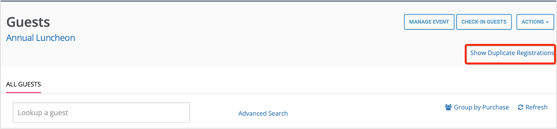
- If multiple records exist for the same contact, click the Show Duplicate Registrations link to display all duplicate entries.
- Search for your guest or scroll through the list to find them.
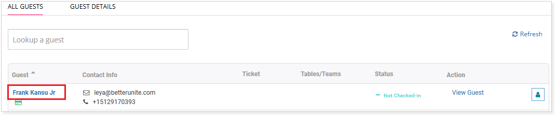
- Click the guest's name to open their details page.
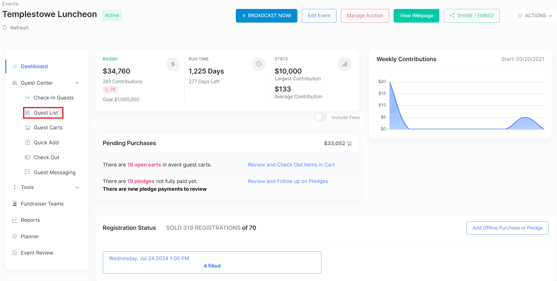
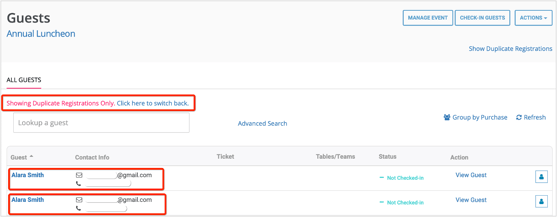
- When there are multiple guest or bidder records for the same contact, the Guests page will show a Show Duplicate Registrations link. When you click it, you’ll see all duplicate entries in the list.
- On the Guests page, you can either look up a guest or go down the list to find your guest.
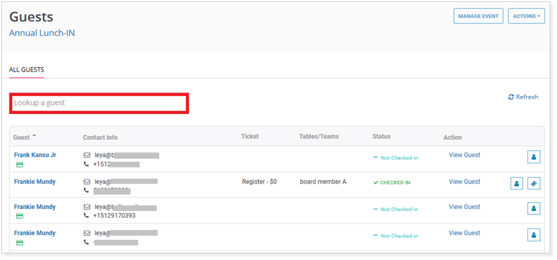
- Once you have found your guest, Click on the Guest Name to view their details.
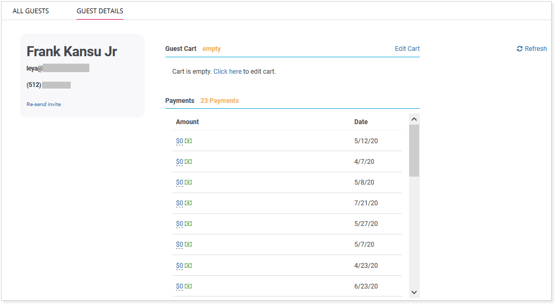
- The screenshot below shows the details page for the selected guest. Here you can view the guest's cart, edit cart items, and review payment information.
How do you add an item to a guest's cart?
You can add any available item to a guest's cart directly from their details page.
- On the guest's details page, select Click Here.
- Select Click to Add Item.
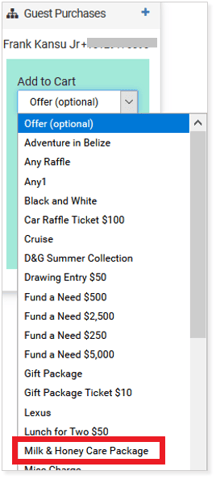
- Choose an item from the dropdown list. The item will appear in the guest's cart immediately.
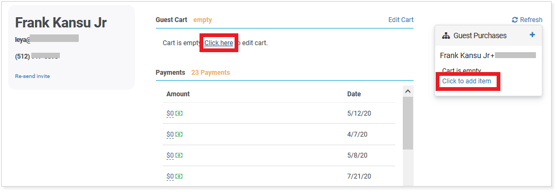
- You can choose an item from the dropdown list and add it to the Guest's cart.
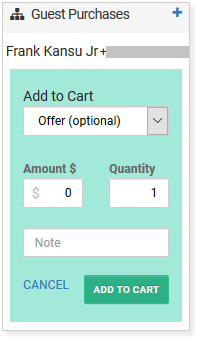
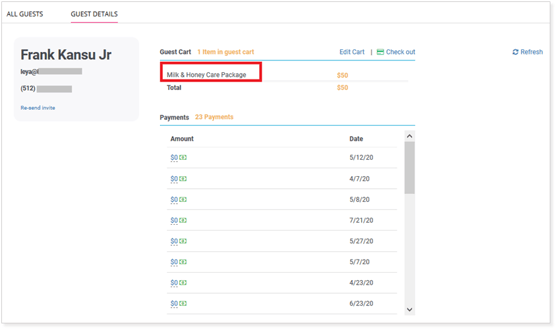
- Once added, it will show up in your Guest's cart as shown below.
- The list below shows a summary row for each guest. If a guest has a card on file, a card icon will appear beneath their name.
- Each row also shows whether the guest has checked in, whether any tickets were purchased, and whether they belong to a table or team. Click View Guest to see full details for that guest.

What do the icons in the Action column mean?
Each guest row includes two icons next to the Action column:
- The first icon opens the guest's contact record.
- The second icon opens the guest's confirmation page and ticket details.
- The first highlighted image is to see the contact record of the guest and the second highlighted image is to view the confirmation page and ticket details.

What actions can you take from the guest list?
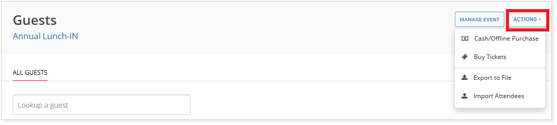
Click Actions next to any guest to access the following options:
- Cash/Offline Purchase — Record a payment made by cash or another offline method on behalf of the guest.
- Buy Tickets — Purchase tickets for the guest directly from the Guests page.
- Export File — Download a file containing guest and attendee data for the event.
- Import Attendees — Upload a file to add or update attendee records in bulk.
How do you search for guests using advanced criteria?
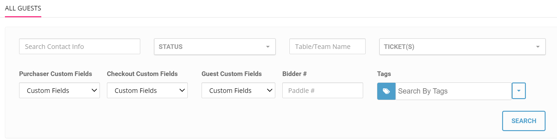
Use the Advanced Search option on the Guests page to filter by additional criteria, including first name, last name, email address, ticket type, table or team assignment, check-in status, and any custom fields configured for your event.
Need Additional Help?
We're here to assist you in any way we can. Don't hesitate to reach out to support@betterunite.com
Let's go do some good.