-1.png?width=240&height=100&name=Heading%20(2)-1.png)
The Form Dashboard
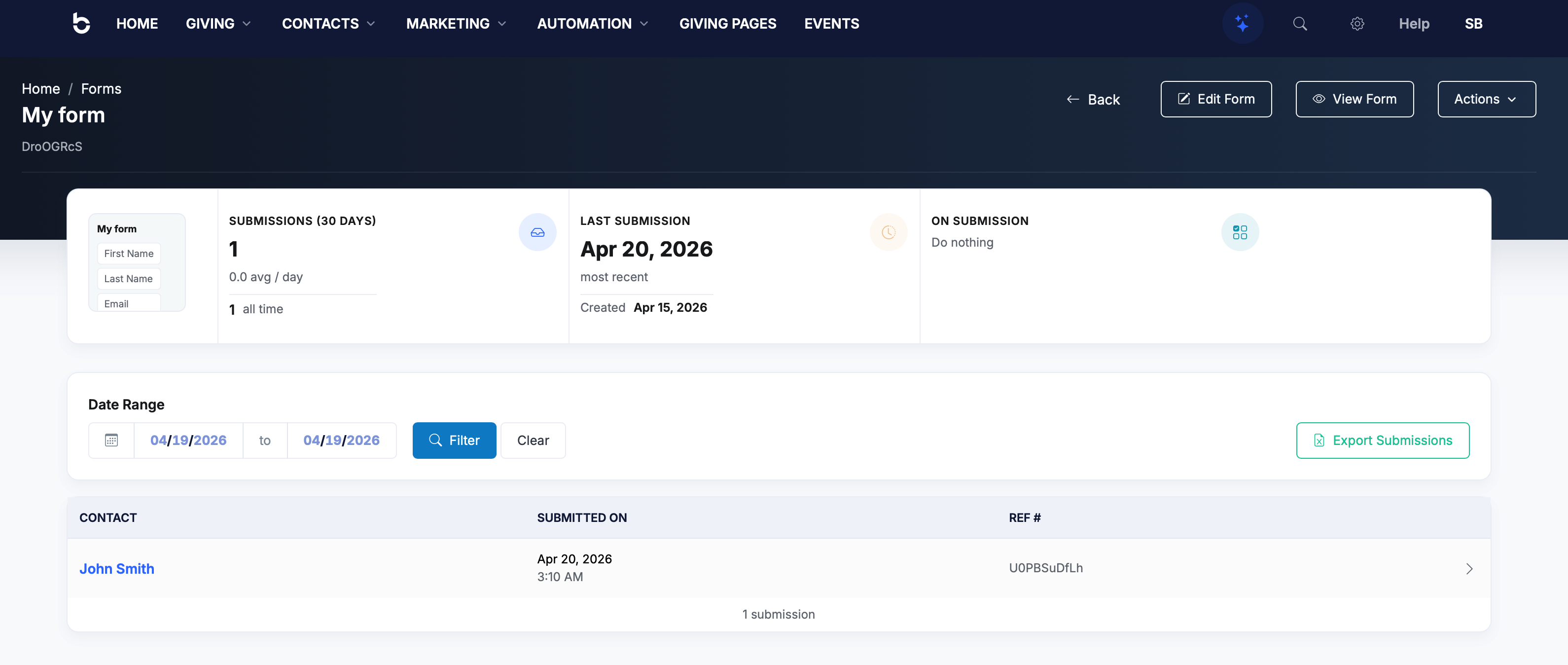
To view a form's submissions, go to Marketing > Custom Forms and click on the form you want to manage. You'll see the form dashboard with a summary at the top:
- Form preview — A small thumbnail showing what your form looks like.
- Submissions (30 Days) — The number of submissions in the last 30 days, average per day, and all-time total.
- Last Submission — The date and time of the most recent submission.
- On Submission — The action currently configured (e.g., "Do nothing" or the name of the contact group). Click the icon to go directly to the Submission Action settings.
Viewing Submissions
Below the summary, you'll find the submissions table with two columns:
- Contact — The name of the person who submitted the form. Each name is a clickable link that takes you directly to that contact's record in BetterUnite. An external link icon appears next to the name for quick access.
- Submitted On — The date and time the form was submitted.
The total number of submissions is shown at the bottom of the table. If no submissions have been received yet, you'll see a "No submissions found" message.
Viewing Submission Details
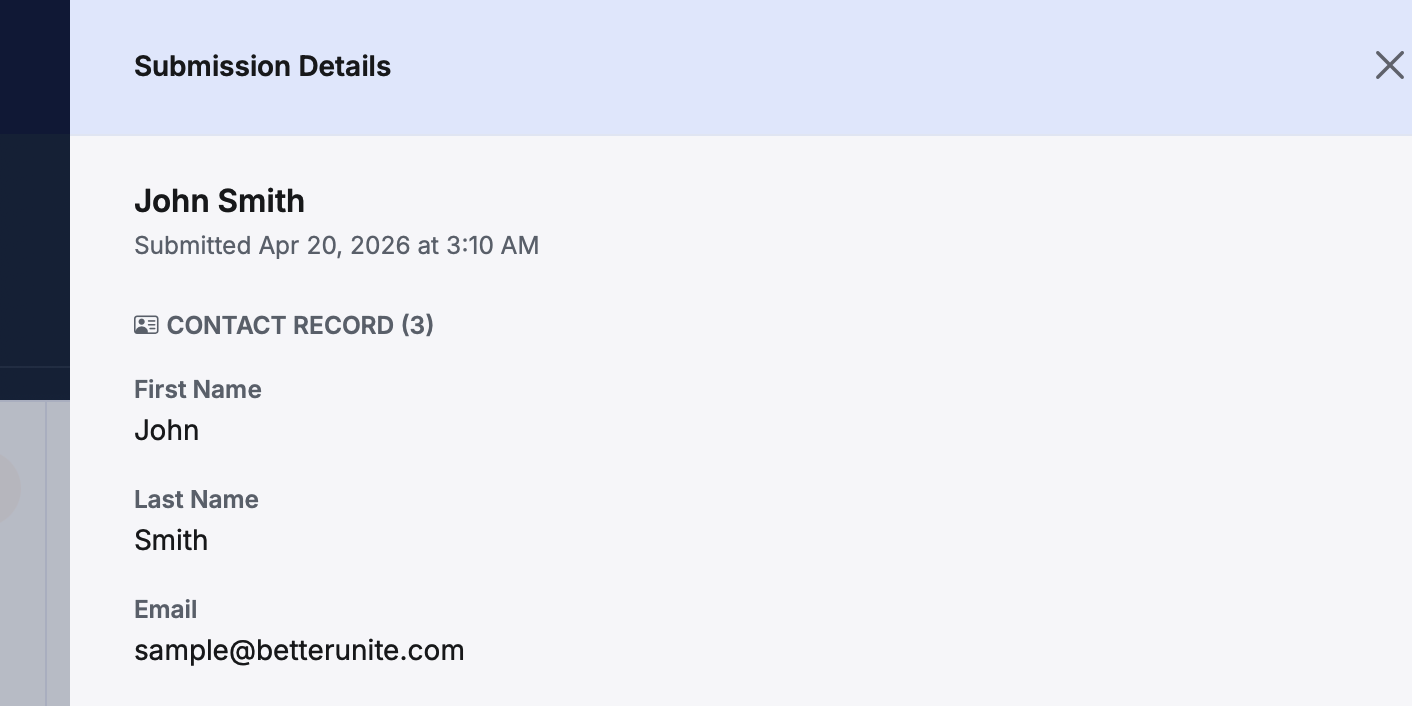
To see the full details of a submission, click on any row in the submissions table. A Submission Details panel will slide open on the right side of the screen showing:
- Contact name — A clickable link to the contact's record.
- Submitted date and time — When the submission was received.
- Contact Record — A badge showing how many fields have been recorded .
- Field values — All the data the person entered, displayed as field labels with their submitted values (e.g., First Name: John, Last Name: Smith etc.).
At the bottom of the panel, you'll find a Delete Submission button if you need to remove an individual submission. Click the X in the top-right corner to close the panel.
Viewing Form Responses on a Contact Record
Form submissions are also linked to the contact's record, so you can see a person's form activity without leaving their profile.
- Navigate to any contact record (either by clicking their name in the submissions table or finding them under Contacts).
- Click the Form Responses tab in the contact record's tab bar. A badge shows the number of form responses on file.
- You'll see a table listing each form response with the Summary (submitted field values), Submitted On date, Ref # (a unique reference ID), and Source Form (which form the response came from, with a link to that form).
- Click View on any row to open a Form Response dialog showing the full details — including the reference number, exact submission timestamp, and all field values.
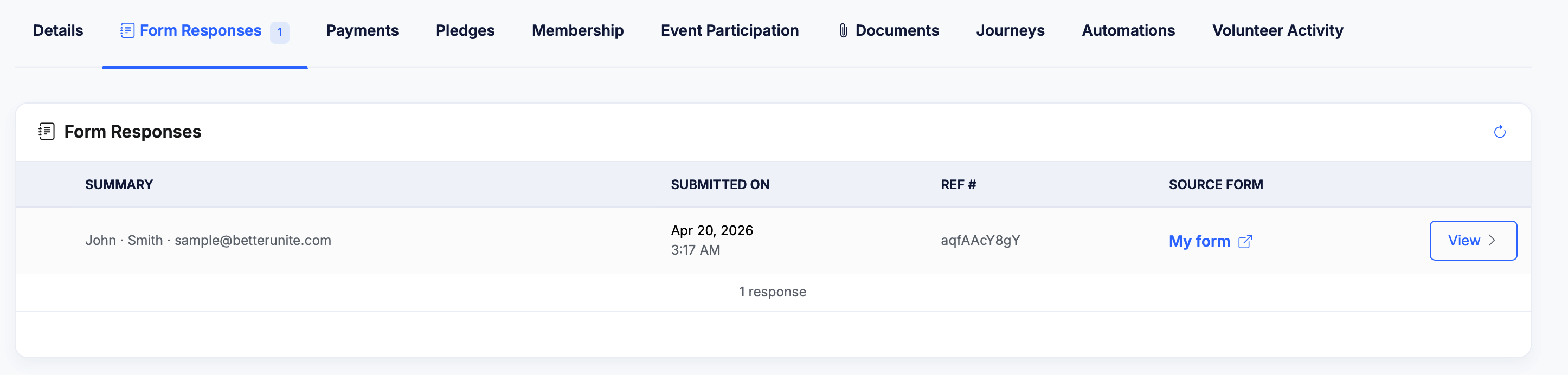
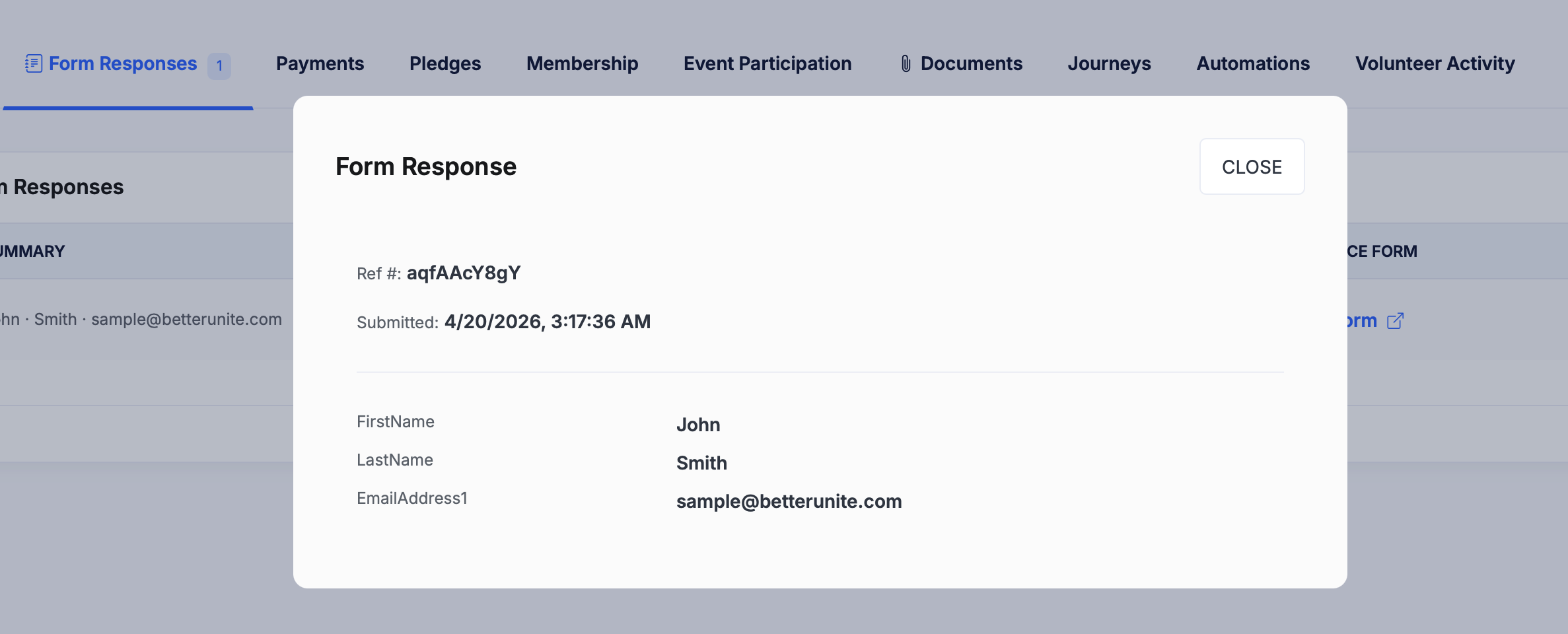
This makes it easy to see a contact's complete form history at a glance — especially useful when a contact has submitted multiple forms or the same form more than once.
Filtering by Date Range
To narrow down your submissions to a specific time period:
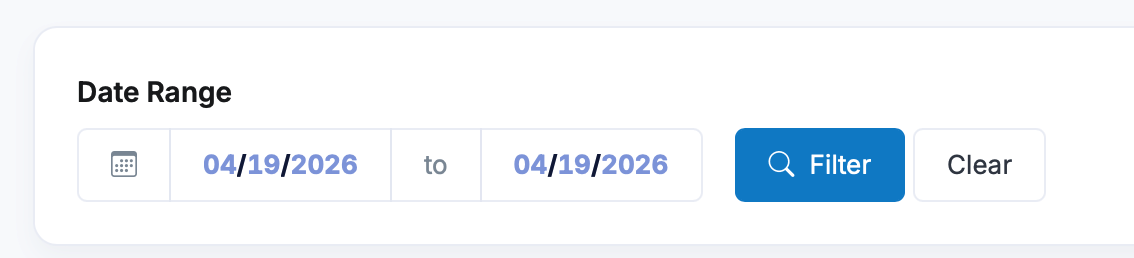
- In the Date Range section, enter a start date in the first field and an end date in the second field (mm/dd/yyyy format), or use the calendar picker.
- Click the Filter button to apply the date range.
- To remove the filter and see all submissions again, click Clear.
Exporting Submissions
You can export your form submissions to an Excel file for reporting, mail merges, or offline analysis. There are two ways to export:
- From the form dashboard: Click the Export Submissions button on the right side of the date range area. If you've applied a date filter, only the filtered submissions will be exported.
- From the Actions menu: Click the Actions dropdown in the top-right corner and select Export Submissions. This exports all submissions.

Editing Your Form
From the form dashboard, you can quickly jump back to the designer:
- Click Edit Form to open the Form Designer and make changes to the form's fields and layout.
- Click View Form to preview the live form as your visitors will see it.
Deleting a Form
If you no longer need a form, you can delete it from the Actions dropdown:
- Click Actions in the top-right corner of the form dashboard.
- Select Delete Form (shown in red).
- Confirm the deletion when prompted.
Important: Deleting a form is permanent and will also remove all associated submissions. If you might need the data later, export your submissions before deleting.