-1.png?width=240&height=100&name=Heading%20(2)-1.png)
Available on Membership Pro plans only.
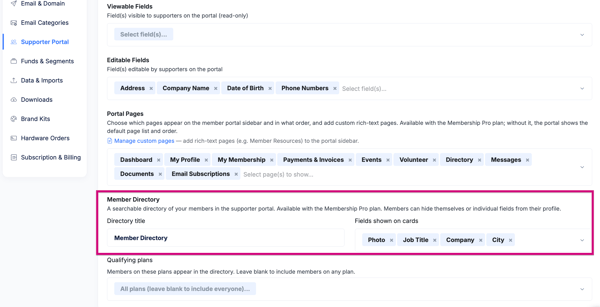
The Member Directory adds a searchable tab to your Supporter Portal where members can discover and connect with other members of your organization. You control which fields appear on each member's card, which plan tier is required to appear in the directory, and whether individual members can opt out of being listed.
Enabling the Member Directory
The Member Directory is only available on Membership Pro plans. If your organization is not on Membership Pro, this section will not appear in your portal settings.
To enable the Member Directory:
- Go to Settings > Supporter Portal.
- Locate the Member Directory section, which appears below the Portal Pages list.
- Toggle the Member Directory on to make it available in the portal. It will appear as a tab in the portal navigation alongside other portal sections.
- To control where the tab appears in the navigation order, go to the Portal Pages section and drag the Member Directory into the desired position.
Configuring the Directory
Display Name
Customize what the directory tab is labeled in the portal navigation. The default is "Member Directory", but you can rename it to fit your organization's language — for example, "Alumni Network," "Donor Community," or "Member Hub."
Directory Fields
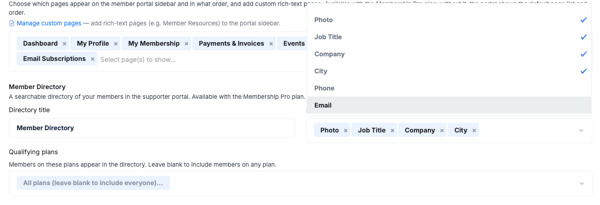
Choose which contact fields appear on each member's card in the directory. Only the fields you select here will be visible to other members.
Common choices include: first name, last name, company or employer, city, member since date, and job title.
Be intentional about what you expose — members are viewing each other's information, so only include fields members would expect to be visible to peers.
Plan Restriction
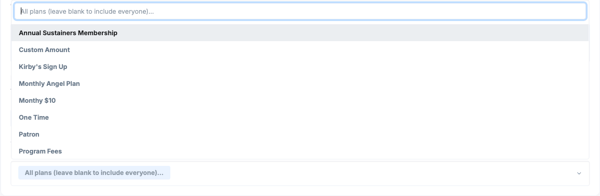
Optionally restrict who appears in the directory by plan. For example, you can configure the directory to only show members subscribed to a Gold or Premium plan, keeping lower-tier or complimentary members out of the searchable list.
If no plan restriction is set, all active members appear in the directory (subject to their individual visibility preference).
Member Visibility Control
Individual members can choose whether they appear in the directory from their Profile tab in the portal. If a member opts out, they are hidden from search results but their membership is otherwise unaffected.
Admins always see all members in the directory view regardless of a member's visibility preference.

The Directory in the Portal (Member View)
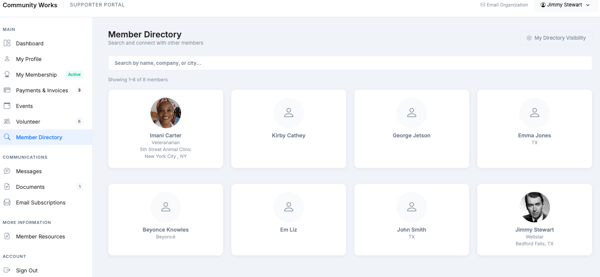
Members access the directory from the portal navigation tab. The directory shows a searchable, filterable list of other members. Each member card displays the fields configured in the directory settings.
- Members can search by name or filter by other available fields.
- A member who has opted out of the directory will not appear in search results.
Frequently Asked Questions
Can non-members see the Member Directory?
No — the directory is only visible to supporters who are logged in with an active membership. Donors and lapsed members do not see the directory tab.
Can I use the directory to let members message each other?
The directory is a discovery tool — it shows member cards but does not include direct messaging between members. Communication features run through the org (admin-to-member messages).
What happens if a member's plan is downgraded and they no longer meet the plan restriction?
If a plan restriction is set and a member's plan changes such that they no longer qualify, they will be removed from the directory automatically.
Can I have the directory visible to members but hidden from donors?
Yes — portal tab visibility applies to all portal users, but since donors do not have active memberships they won't see the directory tab regardless. If you want to restrict the directory to a specific plan tier, use the Plan Restriction setting.
How do members update the information shown on their directory card?
The fields shown on a member's directory card come from their contact record. Members can update editable fields from the Profile tab in their portal (based on the editable fields configured in portal settings). Admins can update any field from the contact record.
Need Additional Help?
We're here to assist you in any way we can. Don't hesitate to reach out to support@betterunite.com
Let's go do some good.