-1.png?width=240&height=100&name=Heading%20(2)-1.png)
Please visit the following article for more up-to-date information on this module.
https://kb.betterunite.com/how-to-merge-multiple-contacts
-
You can merge 2 contacts in the Contacts area. Click Contacts > Contacts & Donor Management top navigation area.

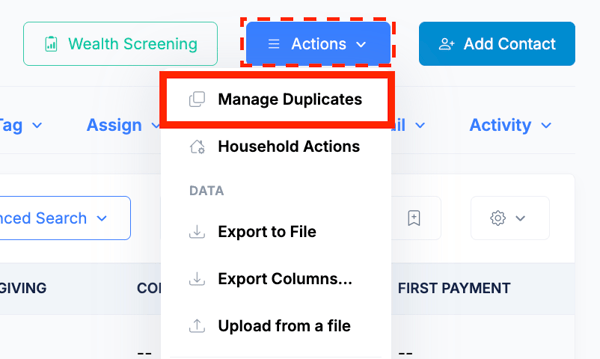
- In the Contacts area, locate the Actions button, and choose the Manage Duplicates option.
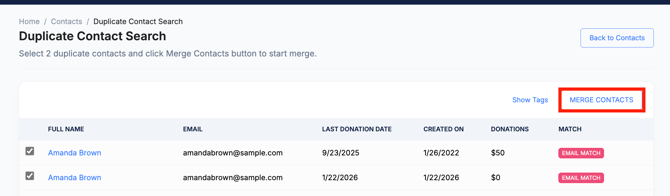
- This will open the Duplicate Contact Search area. Select on 2 duplicate contacts and click Merge Contacts button to start the merge.
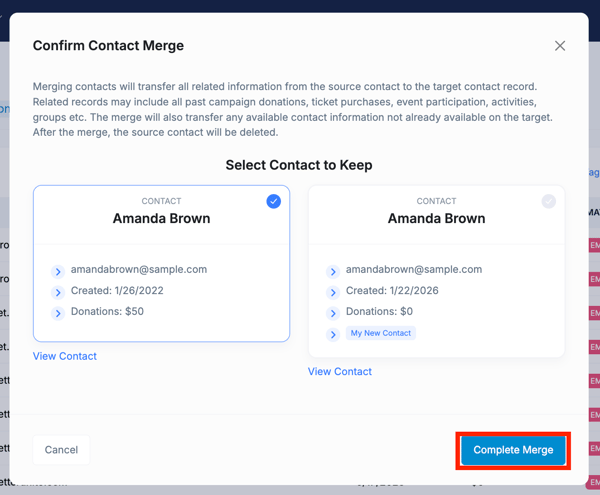
- Select the primary contact record you'd like to keep > Complete Merge.
- Note: Merging contacts will transfer all information from the duplicate record into the selected primary contact record such as transaction records, event participation, and any available contact information not already available into the selected contact record. After the merge, the unselected contact will be deleted.