
Opening the Attendance Board
- Open you volunteer campaign dashboard
- Click Attendance Board in the left menu (or click Attendance Board on the Guest Check-in page). The board opens in a new tab.
- The board opens with today's data. If your campaign has multiple shifts, use the shift dropdown to filter to a specific one.
Understanding the board layout
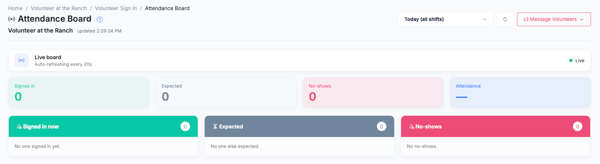
The board is organized into three sections:
KPI tiles
At the top, four summary tiles give you the numbers at a glance:
- Signed in: Volunteers currently on-site
- Expected: Registered volunteers who haven't signed in yet
- No-shows: Volunteers whose shift has started but who haven't signed in
- Attendance: The ratio of signed-in volunteers to the total due (signed in + no-shows)
Three lanes
Below the KPIs, volunteers are sorted into three columns:
- Signed in now (green): Shows each volunteer's name, sign-in time, and assigned shift. If any volunteers have already signed out, a count appears at the bottom of this lane.
- Expected (gray): Volunteers whose shift hasn't started yet or who are within their shift window but haven't signed in. Shows their scheduled start time.
- No-shows (red): Volunteers whose shift start time has passed without a sign-in. Shows the time they were due.
Contact info
Each volunteer row subtly displays their email (clickable mailto link) and phone number when available, so you can quickly reach out to no-shows or coordinate with volunteers on-site without leaving the board.
Auto-refresh
The board automatically refreshes every 20 seconds. A green pulsing dot in the header confirms the board is live.
Filtering by shift
If your campaign spans multiple shifts, use the shift dropdown to focus the board on a single shift. The KPI tiles and all three lanes update to reflect only that shift's volunteers.
Tips for using the Attendance Board
- Put it on a big screen: Display the board on a monitor or TV at your volunteer coordination desk so your team can see status at a glance.
- Use it alongside the kiosk: Run the kiosk on a tablet for sign-ins and the Attendance Board on a separate screen for monitoring.
- Follow up on no-shows: Use the contact info on each row to quickly text or call no-shows and find out if they're running late or need to cancel.
- Message volunteers: use the message action to contact everyone signed in now, everyone expected, or the no-shows.
Need Additional Help?
We're here to assist you in any way we can. Don't hesitate to reach out to support@betterunite.com
Let's go do some good.