-1.png?width=240&height=100&name=Heading%20(2)-1.png)
When you run a peer-to-peer (P2P) fundraising campaign, BetterUnite automatically sends certain emails on your behalf. You can also create custom automated emails through the Communications Hub > Peer-to-Peer Communications tab. This article explains how those custom emails interact with the default notifications that are already built in.
Default Automated Emails (Always Sent)
BetterUnite automatically sends donation notification emails whenever a payment is received on a fundraiser page. These emails are sent without any setup on your part:
- Donor Receipt — The donor receives a confirmation/thank-you email for their donation.
- Fundraiser Page Owner Notification — The owner of the fundraiser page (child campaign) is notified that a donation was received.
- Parent Campaign Organizer Notification — The organization running the parent P2P campaign is notified of the donation as well.
These default emails are always sent as long as the Notify Organizer setting is enabled on the campaign. You do not need to configure anything in the Communications Hub for these to work.
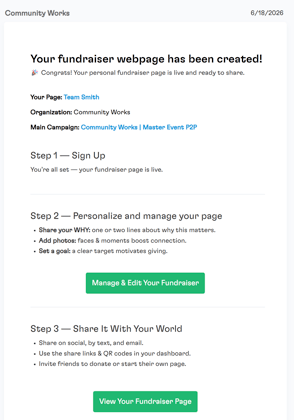
Below is an example email of a fundraiser page owner notification:
Custom P2P Automated Emails (Supplemental)
The emails you create in the Peer-to-Peer Communications tab are in addition to the default notifications above. They do not replace or override any existing automated emails.
Custom emails are triggered by fundraiser milestones and events that the default notifications do not cover. You can schedule emails for the following triggers:
| Trigger | When It Fires | Additional Options |
|---|---|---|
| Fundraiser is Created | A new team or fundraiser page is registered under your P2P campaign. | You can choose to trigger only when a New Team is Registered or when a Fundraiser Joins a Team. |
| First Donation to Fundraiser Team | The very first donation is made to a fundraiser page. | Fires once per fundraiser page. |
| Fundraiser Team Total Raised Amount | A fundraiser page reaches a specific dollar amount raised. | Set a threshold (e.g., ≥ $500 or ≤ $100). Fires once per fundraiser page when the condition is met. |
| Fundraiser Team % of Goal Reached | A fundraiser page reaches a percentage of its fundraising goal. | Set a threshold (e.g., ≥ 50% or ≥ 100%). Requires the fundraiser page to have a goal set. Fires once per fundraiser page. |
| Send Now to all Fundraiser Team Owners | Immediately sends the email to all current fundraiser team owners. | One-time send. Useful for announcements, reminders, or updates. |
Key Behaviors
Custom emails supplement — they never replace
Creating a custom email for "First Donation" does not turn off or modify the default donation notification. Both emails will be sent: the default donation receipt/notification and your custom milestone email.
Each trigger fires once per fundraiser page
Milestone-based triggers (First Donation, Total Raised, % of Goal) fire at most once per fundraiser page. For example, if you set up a "Total Raised ≥ $1,000" email, a fundraiser page that crosses $1,000 will receive the email once. Even if subsequent donations push the total higher, the trigger will not fire again for that same page.
Emails are sent to the fundraiser page owner
Custom P2P emails are delivered to the email address associated with the fundraiser page owner (the person who created the child campaign). If that contact does not already exist in your organization's contact list, BetterUnite will automatically create a contact record for them.
The system checks for milestones on a regular schedule
Milestone triggers (Total Raised, % of Goal) are evaluated periodically in the background, not in real time at the moment of each donation. There may be a short delay between when the milestone is reached and when the email is sent.
You can use email templates
When creating a custom email, you have the option to use one of your existing email templates or write the email content directly. Using a template ensures your milestone emails match your organization's branding.
Example SetupA typical P2P campaign might use the following custom emails alongside the default notifications:
- Welcome email (Trigger: Fundraiser is Created) — Thank the fundraiser for signing up and share tips for success.
- First donation celebration (Trigger: First Donation) — Congratulate the fundraiser on receiving their first donation.
- Halfway there (Trigger: % of Goal ≥ 50%) — Encourage the fundraiser to keep going.
- Goal reached (Trigger: % of Goal ≥ 100%) — Celebrate hitting the goal and suggest stretching it further.
All of these are sent in addition to the standard donation receipts and organizer notifications. Your donors and fundraisers will continue to receive those as usual.
Managing Your Automated EmailsFrom the Peer-to-Peer Communications tab, you can:
- Activate or Pause any automated email at any time.
- Edit the email content, subject line, or trigger settings.
- View Workflow Analytics to see how many emails have been sent and their delivery status.
- Delete an automated email if it is no longer needed.
Pausing an automated email stops it from firing, but it retains its settings so you can reactivate it later. Deleting an automated email is permanent.