-1.png?width=240&height=100&name=Heading%20(2)-1.png)
Once you setup your connection to your Tessitura account, and complete your initial mapping, you can begin transferring donation and donor information to Tessitura.
You can transfer donations for each campaign either as a group or individually, one at a time.
In Tessitura, donations are generally linked to a "campaign" and a "fund". You can utilize the BetterUnite integration page to set up the "target" Tessitura campaign and "fund" for each BetterUnite campaign, allowing you to align each one with a specific Tessitura campaign and fund. This ensures that all donations for a particular campaign are directed to the correct destination. This configuration can be modified at any time, with changes affecting all subsequent sync actions. See mappings article for details on exactly which data points are sync'ed and further sync logic.
After updating the mapping for a campaign, press the "Save Mapping" button to finalize your changes.
Once you've configured the mapping for a campaign, select the Sync button to access the transactions for that campaign along with your synchronization options.
1) Sync All: click this button to sync all eligible transactions in this selected campaign
2) The search icon next to the donor's name: click this icon to conduct a preliminary search for the contact in Tessitura. This will show you which "donor" record the donation will link to if you choose to sync it. If there are multiple matches, the system will display a dropdown list of potential donors for you to select from. Note: this preemptive search is optional and serves as a helpful tool if you're curious about the sync results, especially donors if that donor might be duplicated in your Tessitura account.
3) Click the "Sync" button to sync an individual donation.
4) Whether you sync a donation one at a time or in batches, each synchronized donation will show the donation record reference number from your Tessitura account, and the button will provide a direct link to view that donation record in Tessitura.
Additional Options
The synchronization details provides some additional options for you to consider in some cases.
1) "Do Not Sync" status: you can designate a donation as Do Not Sync to prevent it from being included in any bulk synchronization actions. This will also "hide" these transactions from your immediate sync view.
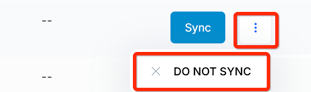
2) "Do Not Sync" all $0 transactions: In certain situations, you might choose to exclude all $0 transactions from synchronization, and you can apply this status update in bulk using this option.

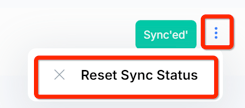
3) "Reset Sync Status": Once a donation is sync'ed, you can undo the sync status and make the donation eligible to be sync'ed again. This may be useful in some cases where you make an adjustment in Tessitura and you need to re-sync a donation you have previously sync'ed.
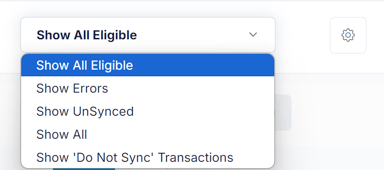
4) Filters: The dropdown menu enables you to see donations in different sync statuses. The default view, "All Eligible," includes all donations in this campaign that are not marked as "do not sync."
5) Transaction Date Range: The date is initially set to 30 days prior to today to help filter and display only recent donations. You can adjust this setting if you haven't synchronized in a while to view the complete list.

Exporting Contacts from BetterUnite to Tessitura
In addition to syncing donations, you can also export contact records from BetterUnite into Tessitura.
To export contacts:
1. Navigate to your Contacts page in BetterUnite.
2. Use filters or searches as needed to narrow down to the contacts you want to export.
3. Click the Actions menu at the top of the contact list.
4. Select the Tessitura Export option.
BetterUnite will send contact information to your Tessitura account.