-1.png?width=240&height=100&name=Heading%20(2)-1.png)
Where to Find the Scrolling Banner Tool
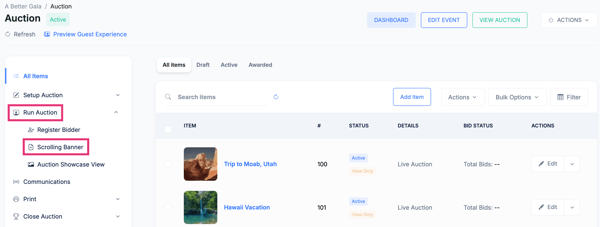
You can create and manage scrolling banner messages directly from your event dashboard:
-
Navigate to your Event Dashboard
-
Select Tools from the left-hand menu
-
Click Scrolling Banner
The Scrolling Banner tab is also available within Event Setup and within your auction for quick access.
Creating a New Ticker

-
From the Scrolling Banner page, select Add Ticker
-
Configure the ticker settings (outlined below)
-
Set the ticker Status to Active to make it visible to guests
Ticker Settings Explained
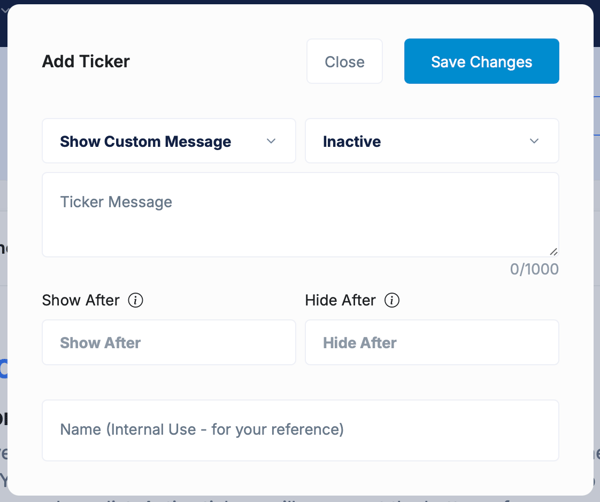
When creating or editing a ticker, you can customize how and when it appears.
Message Display Options
Choose what content appears in the scrolling banner:
-
Show Custom Message
Enter your own text, such as reminders, announcements, or auction instructions. -
Show Donors and Donations
Automatically display donor names along with their donation amounts. -
Show Donors Only
Display donor names without showing donation amounts.
Scheduling Visibility (New Settings)
You can control exactly when a ticker is visible to guests using the new timing options:
-
Show After
Set a date and time for when the ticker should begin displaying. -
Hide After
Set a date and time for when the ticker should stop displaying.
These settings are helpful for:
-
Showing reminders during bidding windows
-
Promoting checkout instructions near the end of an event
-
Displaying time-sensitive announcements without manual updates
Activating the Ticker
To make your ticker visible on the guest experience page:
-
Set the Status to Active
Inactive tickers will remain saved but will not display to guests.
Ticker Display Order
The order of tickers on the Scrolling Banner setup page determines how they appear to guests.
-
Tickers are displayed in the same order they are listed
-
You can rearrange tickers to control which messages appear first
Ticker Example
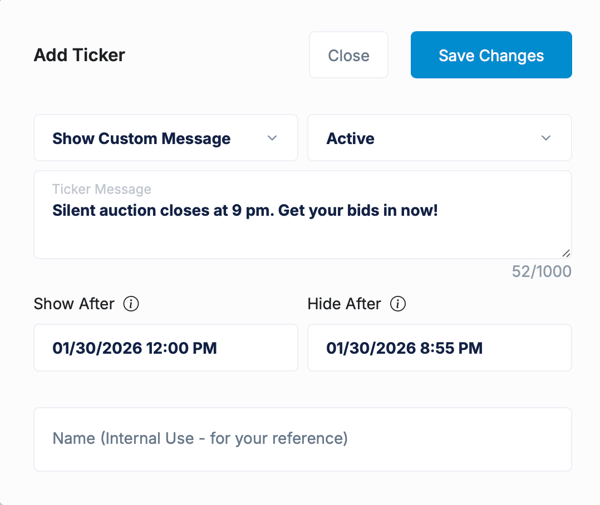
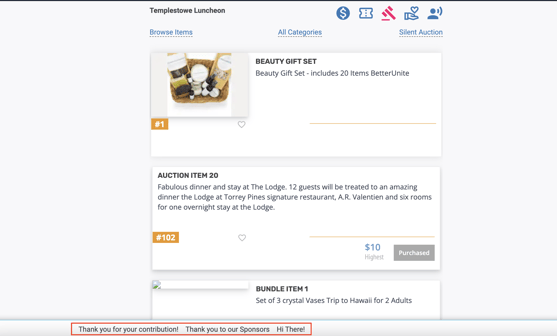
Once active, tickers will scroll across the guest experience page, rotating through your active messages based on the order you’ve set. This allows you to share multiple announcements without overwhelming guests.
Need Additional Help?
We're here to assist you in any way we can. Don't hesitate to reach out to support@betterunite.com
Let's go do some good.