
Please see below video or scroll down for step-by-step instructions.
You can test your event by "purchasing" a ticket using the Take Payment button.
- On your Campaign dashboard page you can click Take a Payment to add offline purchases. Select "Pay by Check or Cash."


- Select the ticket type you want to test and fill in the information of the person testing your ticket process. Preferably a personal email address that is not an admin within your BetterUnite account. Then select Save Contribution to send the confirmation email with the receipt and tickets to that email address.

- View the Confirmation Page to make sure it looks how you want it to and even practice putting in guest information on a ticket and/or inviting guests.
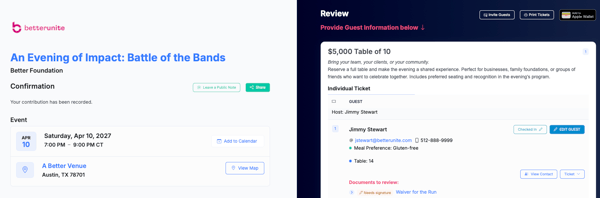
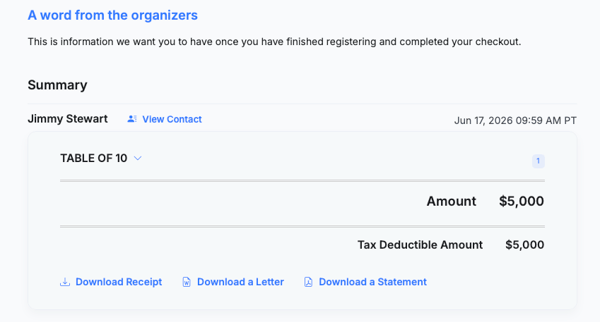
- Assign a ticket to a person by filling in their details or click "Ticket" to send it to them via text or email allowing them to fill in their own details.
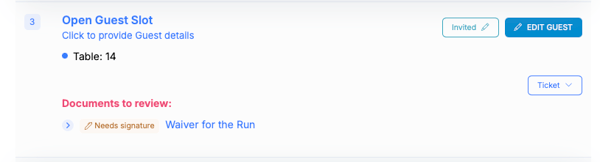
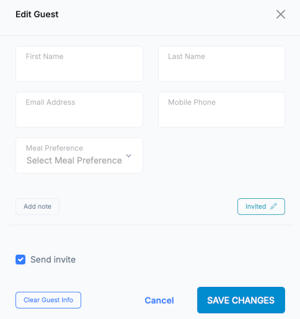
- Invite Guests
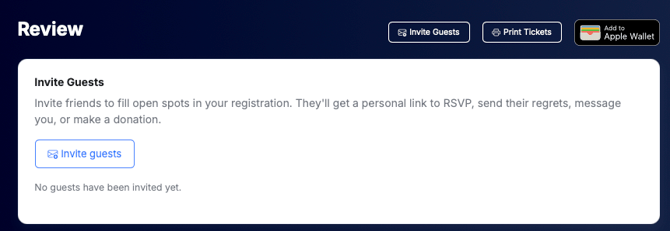
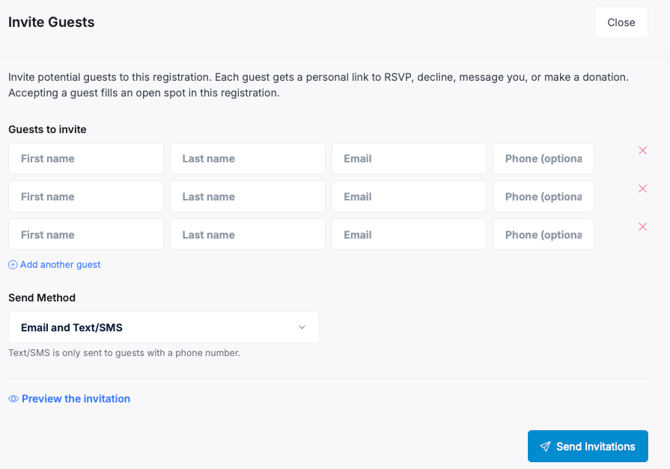
- Preview the Confirmation Email you received and the guest link you were sent.
- You can even create a test auction item to bid on if you'd like.
- Once finished with your testing, you can delete that transaction so that it is not included in your totals. Go to your campaign Dashboard>Transactions>All Transactions and find the transaction.
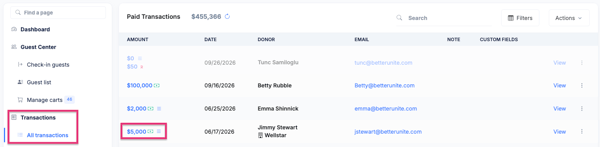
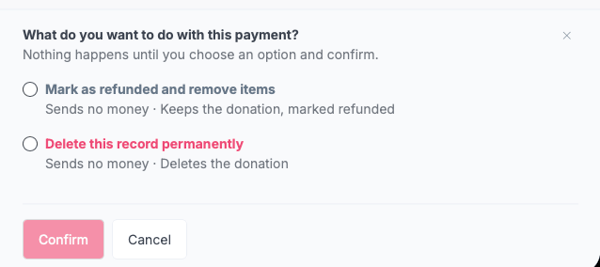
- Click on the dollar amount and select Refund Options>Delete this record permanently to erase the transaction.

Need Additional Help?
We're here to assist you in any way we can. Don't hesitate to reach out to support@betterunite.com
Let's go do some good.