-1.png?width=240&height=100&name=Heading%20(2)-1.png)
Activity management allows you to create, track, and complete tasks, meetings, phone calls, emails, and notes across your organization. Activities help ensure work is clearly documented, properly scheduled, and easy to review—whether it is upcoming, completed, or cancelled.
This article explains how activity management works at a general level, including the core functionality and the user interface elements you will interact with throughout the app.
Activities at a glance
Activities are displayed in a centralized Activity list, which provides a structured overview of all work.
Activity list view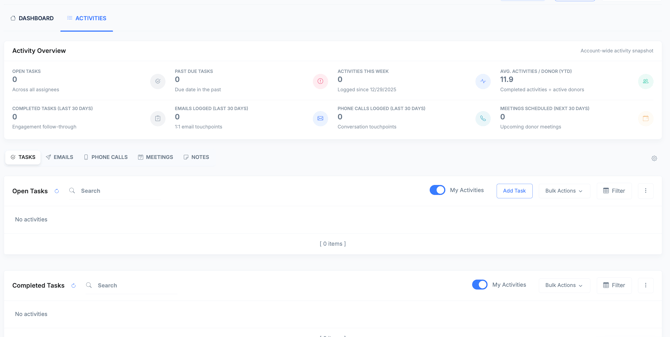
From the Activity list:
-
Each row represents a single activity
-
Columns display key fields such as Type, Title, Status, Date, Assigned to, Category, and Priority
-
Status indicators help distinguish scheduled, completed, and cancelled activities
The Activity list is the primary place where activities are reviewed and managed.
Core activity fields
All activities share a consistent set of fields, regardless of activity type.
Activity fields overview
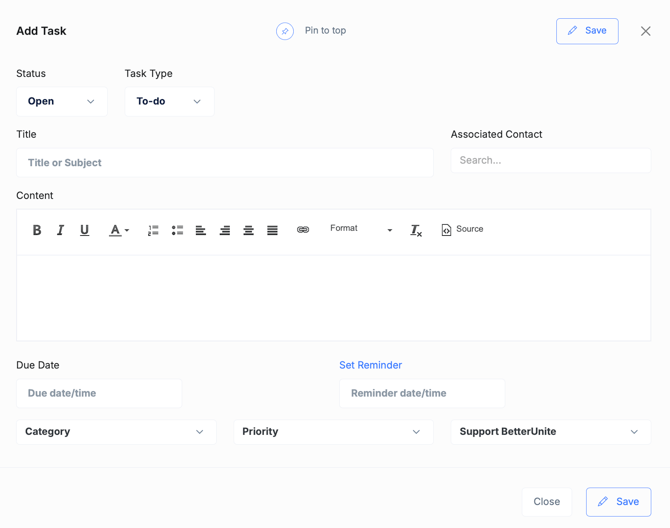
Common fields include:
-
Title – Short description of the activity
-
Status – Scheduled, Completed, or Cancelled
-
Date / time – Due date, call time, meeting time, or logged date
-
Assigned to – User responsible for the activity
-
Category – Your own custom classification
-
Priority – Indicates urgency or importance
-
Notes / content – Additional details or communication content
These fields appear both in the Activity list and in the activity editor.
Activity types
Tasks
Tasks are used to track action items that need to be completed.
Add activity – Task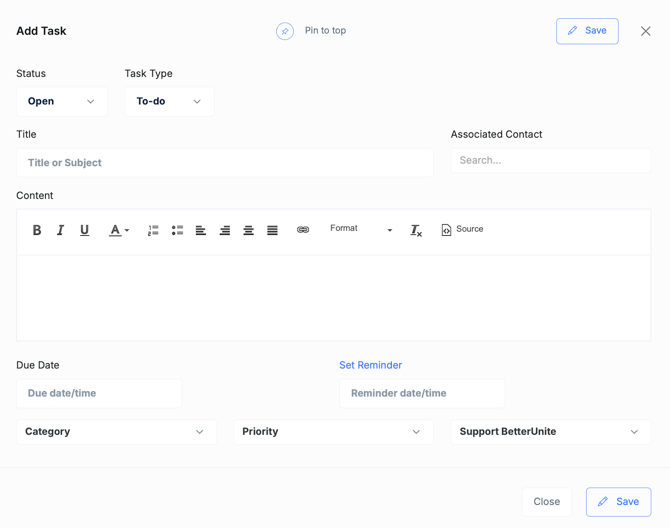
Task behavior:
-
Includes a due date
-
Task Type: To-do, Email, Phone Call
-
Does not require start or end times
-
Assigned to a single user
Tasks are commonly used for reminders, follow-ups, and internal work.
Meetings
Meetings are used to schedule time-based events.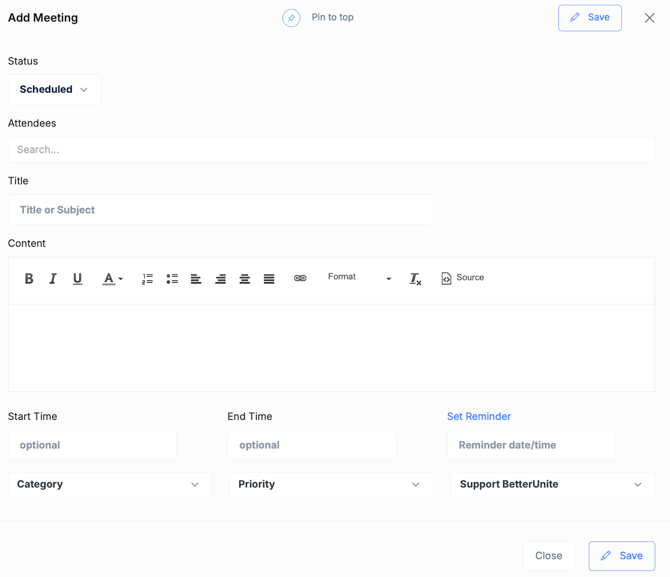
Meeting behavior:
-
Includes start time and end time
-
Allows adding attendees
-
Used for calls, appointments, and scheduled discussions
Phone calls
Phone calls are used to track inbound or outbound calls.
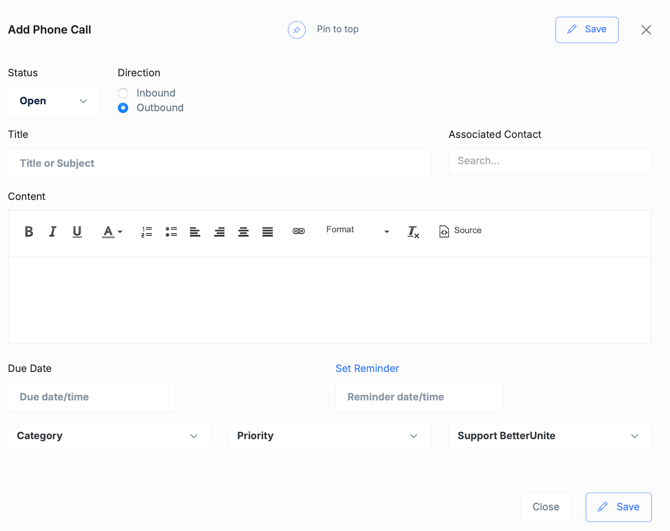
Phone call behavior:
-
Includes a call date and time
-
Can include call notes or outcomes
-
Typically marked Completed after the call occurs
Phone call activities provide a clear record of conversations and follow-ups.
Emails
Emails are used to log or send email communication as an activity.
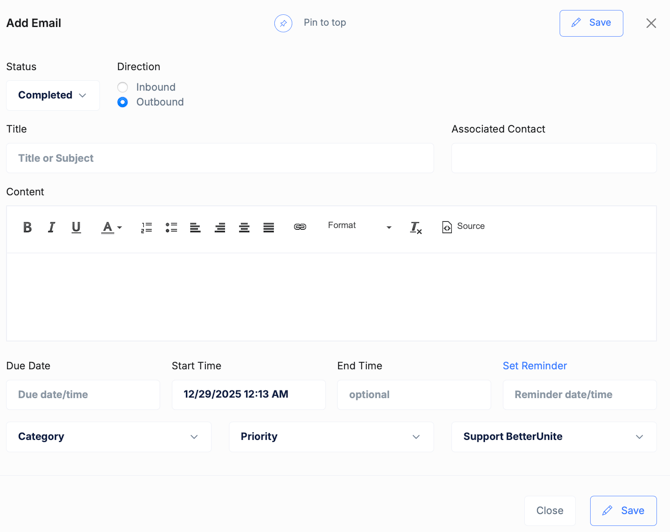
Email behavior:
-
Includes subject and message content
-
Can be associated with a related record
-
Usually marked Completed once sent or logged
Email activities help centralize communication history.
Notes
Notes are used to capture information that does not require follow-up.
Note behavior:
-
Consists of free-form content
-
Does not require scheduling or assignment
-
Saved directly as Completed
Notes are useful for documenting conversations, outcomes, or context.
Activity statuses
Every activity has a Status that reflects its current state.
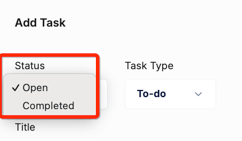
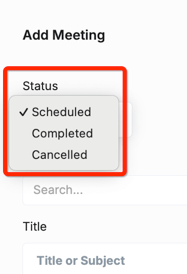
Available statuses:
- Scheduled – The activity is upcoming or pending
-
Completed – The activity has been finished or logged
-
Cancelled – The activity will not occur
Status controls whether an activity appears in open or completed views.
Create an activity
Activities are created using the individual activity type tab.
To create an activity:
-
Select the desired Add Task/Log Email/Log Phone Call/Add Meeting/Add Note option
-
Enter a title
-
Set the status
-
Configure date, time, or content fields
-
Select assigned to (if applicable)
-
Choose a category and priority
-
Add optional notes or content
-
Click Save
The activity appears immediately in the Activity list.
Edit and update activities
Activities can be updated at any time.
From the Activity list:
-
Click an activity to open it
-
Update status, content, dates, or assignment
-
Changes save automatically
Filter and view activities
The Activity list includes filtering controls to help you focus on relevant work.
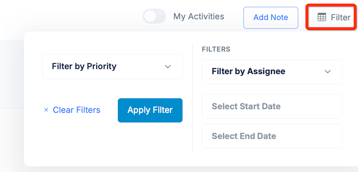
You can:
-
Toggle between Open and Completed
-
Enable My activities
-
Filter by type, status, category, or other fields
Filters affect display only and do not change activity data.
Categories and priorities
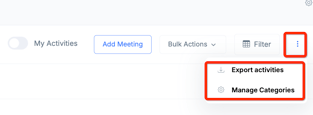
Categories and priorities help organize and prioritize activities.
-
Categories group related activities
-
Priorities indicate urgency
Both fields are visible in the Activity list and activity editor.
Manage multiple activities
Bulk actions are available from the Activity list.

You can:
-
Select multiple activities
-
Update status, assignment, or other fields at once
Completed activity history
Completed activities remain available for reference.
Completed activities:
-
Are read-only
-
Preserve full historical detail
-
Provide a complete record of work and communication