-1.png?width=240&height=100&name=Heading%20(2)-1.png)
In addition to embedding forms on external websites, you can add a Custom Form directly to any giving page or campaign page using the Page Designer Studio. This is a great way to collect sign-ups, RSVPs, or other information right alongside your campaign content — no embed codes needed.
Before You Begin
Make sure you've already created and saved the form you want to use. If you haven't yet, see Getting Started with Custom Forms to create one first.
Adding a Form Block to Your Page
- Open the giving page or campaign page you want to edit in the Page Designer Studio.
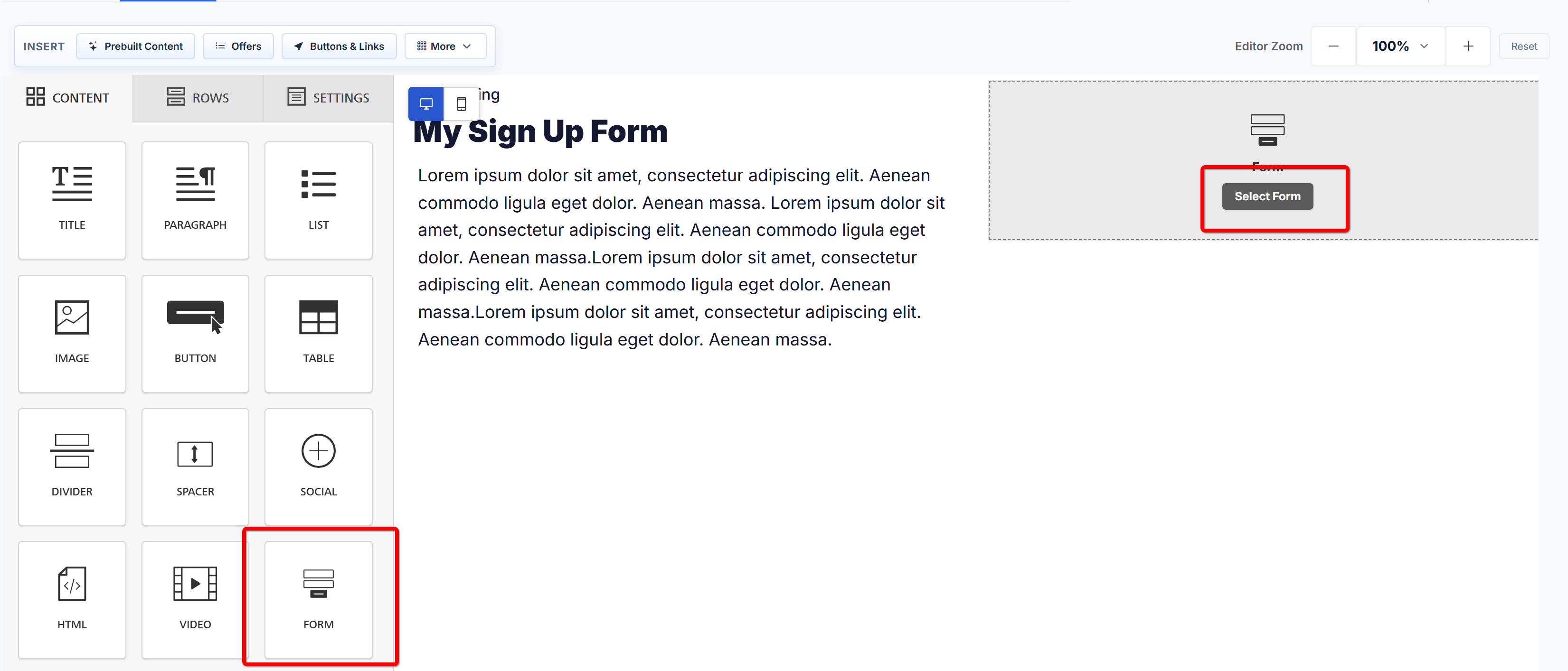
- In the left sidebar, make sure you're on the Content tab (the first tab, alongside Rows and Settings).
- Scroll down through the available content blocks — you'll see options like Title, Paragraph, List, Image, Button, Table, Divider, Spacer, Social, HTML, Video, and Form.
- Drag the Form block into your page layout and drop it where you'd like the form to appear.
Selecting Your Form
- Once you've placed the Form block on your page, click on it to select it. You'll see a Select Form button in the block.
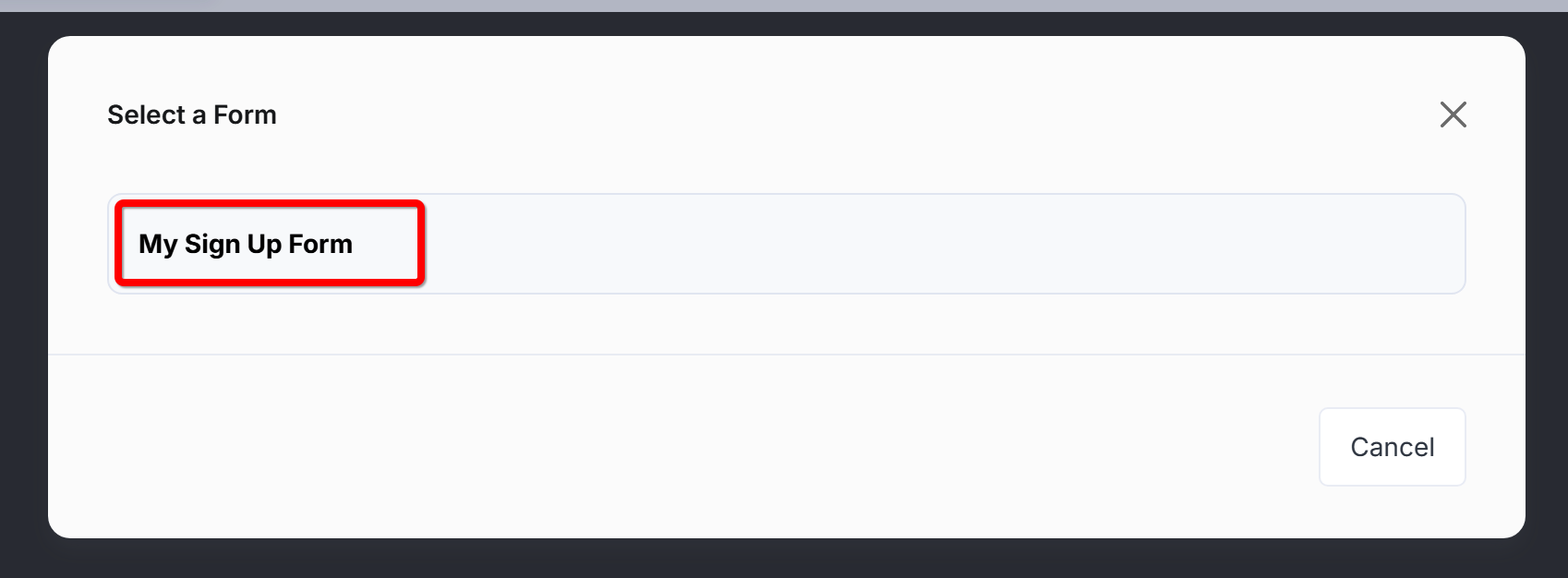
- Click Select Form. A dialog will appear listing all of your saved Custom Forms.
- Click on the form you want to add (e.g., "My Sign Up Form").
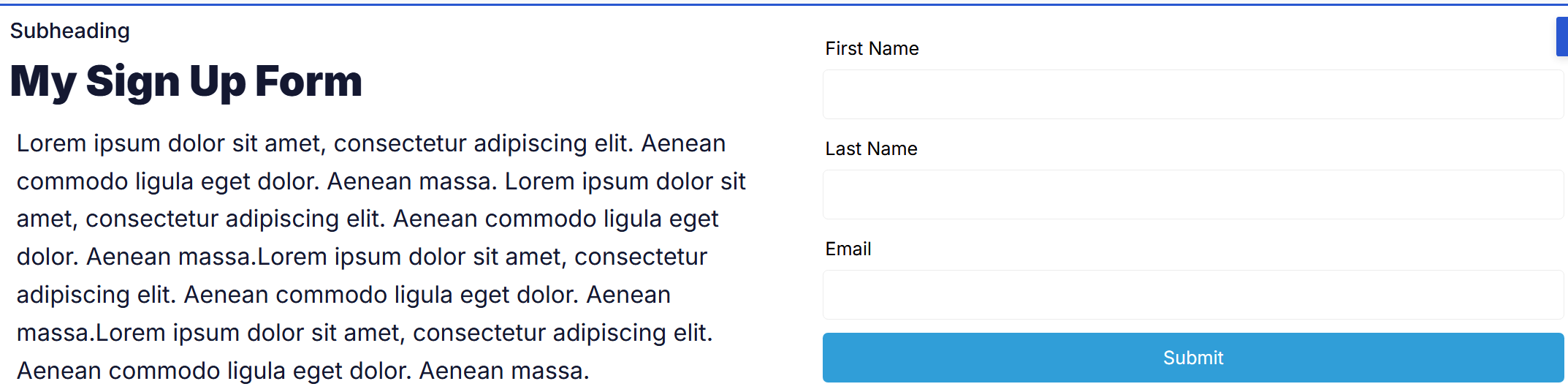
- The form will load into the page and display a live preview with all of its fields and the submit button.
Customizing the Form Block
After selecting a form, you can fine-tune how it appears on the page. Click on the form block to open its Form Properties panel on the right side, where you can:
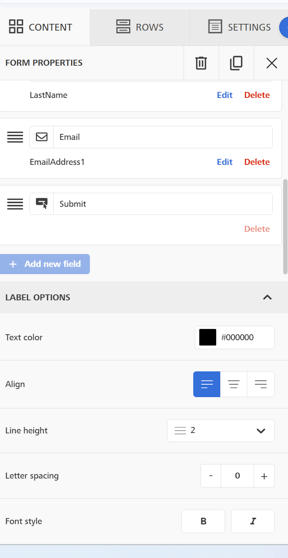
- Edit or delete individual fields — Each field in the form is listed with its label and mapped contact field name (e.g., "Email" maps to "EmailAddress1"). Use the Edit and Delete links to adjust or remove fields as needed for this page.
- Reorder fields — Use the drag handles (the three-line icon on the left of each field) to rearrange the order of fields.
- Edit the Submit button — The submit button appears at the bottom of the field list. You can change its label text.
- Add new fields — Click the green + Add new field button below the field list to include additional fields.
Label Options
Below the field list, you'll find a Label Options section that lets you style the form's field labels directly within the page context:
- Text color — Set the color of the label text (default:
#000000). - Align — Choose left, center, or right alignment for labels.
- Line height — Adjust the vertical spacing of label text (default: 2).
- Letter spacing — Increase or decrease the spacing between characters using the +/- controls.
- Font style — Toggle Bold and/or Italic for the labels.
These label options let you match the form's appearance to the rest of your page design without needing to go back and edit the form's global style settings.
How It All Works Together
When a visitor fills out the form on your giving page and clicks Submit, the submission is handled exactly the same way as any other Custom Form submission — it appears on the form's dashboard, shows up in the contact's Form Responses tab, and triggers any submission action you've configured (like adding the contact to a group).
This means you can pair a donation campaign with a volunteer sign-up form, add an RSVP form alongside event details, or collect feedback right on a thank-you page — all within a single, cohesive page.