-1.png?width=240&height=100&name=Heading%20(2)-1.png)
When running a live auction at your event, you’ll use BetterUnite’s Quick Add feature to quickly assign winning items to guests and reflect those items in their carts for checkout. This process ensures each live auction winner is properly awarded their item and charged correctly after your event.
Before You Begin
✅ Add your live auction items into your auction first.
Make sure all live auction packages have been created and uploaded in the Auction section of BetterUnite. If you haven’t done that yet, see How to Add Auction Items before proceeding.
Step-by-Step: Awarding Live Auction Items
1. Navigate to Quick Add
-
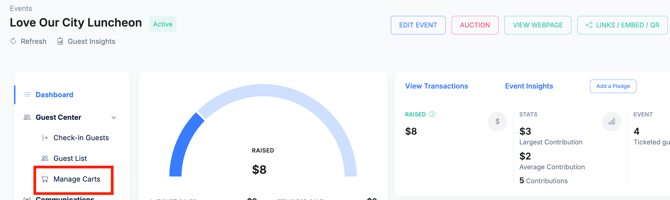
From your Event Dashboard, go to Manage Carts.
-
Within Manage Carts, select the Quick Add tab. This is where you’ll enter live auction winners and paddle raise gifts quickly.
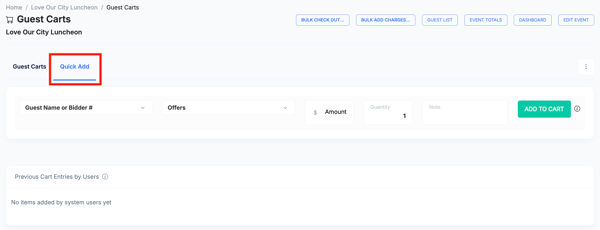
Tip: The Quick Add interface promotes fast data entry during events — ideal if you’re adding multiple winners or contributions in real time.
2. Identify the Winning Guest
-
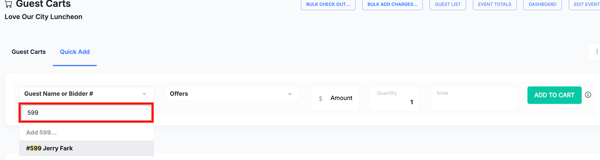
In the Quick Add screen, enter the Guest Name or Bidder Number of the person who won the live auction item.
-
The system will search and display matching names or bidder numbers.
3. Select the Live Auction Item
-
After selecting the guest, find the live auction item that was won.
If searching by item name or number is easier, type it into the search bar.

4. Adjust the Winning Amount
-
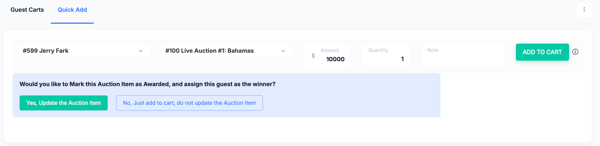
Enter the final winning bid amount.
-
Verify the dollar amount matches what was accepted during the live auction.
5. Add to Cart & Award
-
Click Add to Cart. BetterUnite
-
A prompt will ask: “Yes, Update the Auction Item?”
-
Choosing “Yes” will:
-
Mark the auction item as awarded
-
Assign it to the guest as the winner and display winner's name on the item
-
Trigger any applicable winner notifications via email or text (if configured)
-
- Choosing “No, Just add to cart, do not update Auction item, ” will:
-
Mark the auction item as awarded
- Does not display the winner's name on the item on the guest bidding page or the public auction page as the winner
-
Does not trigger the winning bidder notification
-
Often used for when there are multiple winners of the same item or when splitting an item between multiple people.
-
-
📌 Once awarded:
-
The item is removed from active bidding.
-
It is added to and shows in the guest’s cart ready for payment during checkout.
After You’ve Added Winners
Once you’ve entered all live auction winners:
Review Guest Carts
-
Switch to the Guest Carts tab at the top of the Manage Carts screen.
-
Verify each winning item appears in the correct guest’s cart.
Proceed to Checkout
-
You can check out guests one-by-one, or use the bulk checkout feature if you’re ready to finalize charges for all winners at once. See Checkout Guests for more details
FAQs / Tips
📝 Can I enter live auction winners later?
Yes — Quick Add can be used in real time during the event or after the program concludes to enter winners and contributions.
📄 Want help recording bids live?
Download and print the Scribe Sheets for Live Auction and Paddle Raise — these help your volunteers record paddle numbers and amounts during the event and tie them back to Quick Add entries.
📩 What about notifications?
If winner email/text notifications are set up for an event’s auction items, BetterUnite will send these automatically when you award the item in Quick Add.
Need Additional Help?
We're here to assist you in any way we can. Don't hesitate to reach out to support@betterunite.com
Let's go do some good.