-1.png?width=240&height=100&name=Heading%20(2)-1.png)
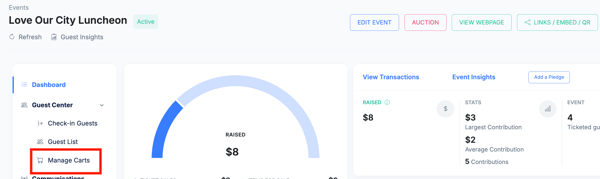
From your Event Dashboard, navigate to Manage Carts
Within Manage Carts, select the Quick Add tab. Note: you will see all open guest carts on the Guest Carts tab.
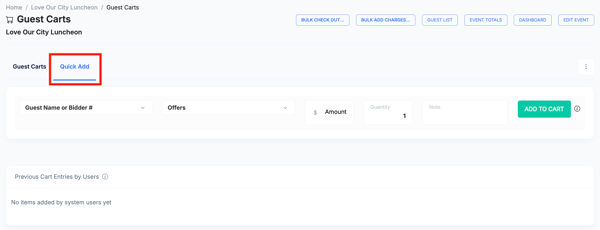
Award and Add Auction Items via Quick Add to winner/s carts
You may add your live auction winner's package to their cart by following these steps:
- Add the Guest Name or Winning Bidder's Bid Number
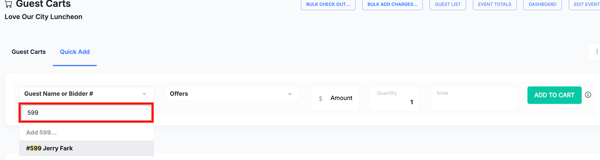
- Search and select the offer. Note that you must first upload your auction packages. Read this article for details on Adding Auction Items.

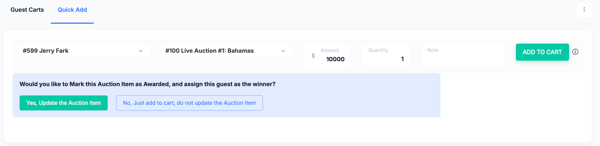
- After adjusting the winning amount, select Add to Cart
- For all live and silent auction packages, you will be prompted to select Yes, Update the Auction Item. Selecting this option will mark the auction item as awarded, designate the guest as the winner in the Auction, and trigger the winning bidder notification via email and text, if applicable.
- No, Just add to cart, do not update Auction item, does not trigger the winning bidder notification and does not display the winner's name on the item on the guest bidding page or the public auction page as the winner. **Often used for when there are multiple winners of the same item or when splitting an item between multiple people.
Need Additional Help?
We're here to assist you in any way we can. Don't hesitate to reach out to support@betterunite.com
Let's go do some good.