
Open Event Day Stats (aka Event Insights)
You can reach the page from any of these places. The link is labeled Event Day Stats in each.
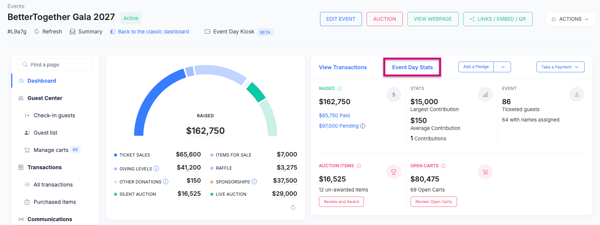
- Event dashboard: click Event Day Stats at the top of the transactions card.
- Reports: open Reports from the event dashboard and click the Event Day Stats tab. The same totals show inside the tab.
- Guest carts (Manage carts): click LIVE TOTALS to open a Live Stats panel at the bottom of the screen. Click FULL PAGE in the panel to open the full Event Insights page.
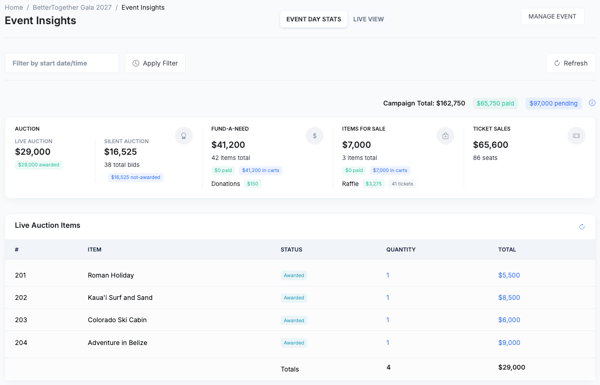
The full page opens in a new browser tab. Its title is Event Insights, and it has two tabs: EVENT DAY STATS and LIVE VIEW. The MANAGE EVENT button takes you back to the event.
Event Day Stats tab
Set the start time (optional)
By default the page shows totals for the whole event.
- Click the Filter by start date/time box and choose a date and time.
- Click Apply Filter. The item totals below now count only what was purchased from that time on. This is useful for seeing only what sold since doors opened.
- Click Clear to remove the filter. Click Refresh to reload the numbers at any time.
When a start time is applied, each item row shows the total since that time, with the overall total regardless of the start time in blue underneath.
Event total
At the top of the page you see the Campaign Total for the event, with the amount that is paid and the amount that is pending. This is the same figure as Raised on the event dashboard, and the start time filter does not change it. Pending is items still in guest carts, unpaid pledge balances and auction bids that have not been awarded yet.
At-a-glance stats
Below the total, one card shows live totals for each fundraising element your event uses. A section only appears when your event has that element.
- Auction: the total for Live Auction and Silent Auction, split into awarded and not-awarded amounts. Silent Auction also shows the number of total bids.
- Fund-a-Need: the total raised and the number of items. It shows how much is paid and how much is in carts. If guests have made donations, a Donations line shows the paid amount. A Donate Your Bid line shows bid donations. These are already included in Donations, not added on top.
- Items for Sale: the total and the number of items, with paid and in carts amounts. If you have a raffle, the Raffle amount and the number of tickets show here.
- Raffle: if you sell raffle tickets but no other items, Raffle shows on its own.
- Ticket Sales: the total and the number of seats sold.
Hover over the info icon beside the total for a reminder of what is included.
Detailed totals
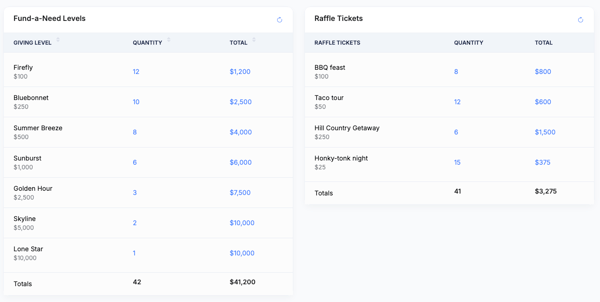
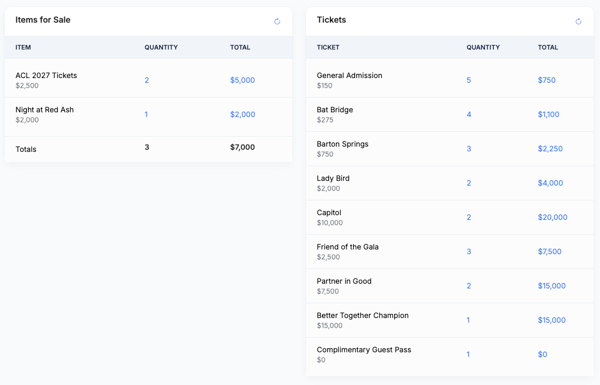
Scroll down for a card for each element. Each card lists every offer with the Quantity sold and the Total amount. Use the refresh arrow in a card's header to update just that card.
|
Card |
What it shows |
|
Live Auction Items |
Each live auction item with its number, status, quantity and total. Shows only if your event has live auction items. |
|
Silent Auction Items |
Each silent auction item with its number, status, number of bids, quantity and total. Shows only if your event has silent auction items. |
|
Fund-a-Need Levels |
Each giving level with the quantity and total. |
|
Raffle Tickets |
Each raffle item with the quantity and total. Shows only if you sell raffle tickets. |
|
Items for Sale |
Each item with the quantity and total. |
|
Tickets |
Each ticket with the quantity and total. |
A row shows two dashes (--) until the first one is sold. The bottom row of each card shows the totals.
Click a Quantity or Total number to open a Purchases panel listing who bought that item.
Live View tab
Live View is for showing on a screen at the event. It appears on events only. It shows:
- The latest donor's name and amount, which updates as gifts come in.
- Guest Attendance: guests who have viewed their guest link online, with a count of how many are online now out of the total.
- Giving: the latest gifts, with the donor, amount and time, and the total raised. The list follows the filter set on your thermometer, so it shows the same giving levels your thermometer does.
Tips
- Use the start time filter to compare the first hour of sales to the rest of the evening.
- Pending amounts are not final. They change as guests check out and as auction items are awarded.
- For detailed data you can export, run an event report. See Event Reports and Event Reports Reference Guide.
Related articles
- Event Dashboard
- Event Reports
- Event Reports Reference Guide
- Campaign Summary/Digest Emails
- Guest Checkout and Closing your Event
- Auction Reports Explained
- Quick Add and Paddle Raise
Need Additional Help?
We're here to assist you in any way we can. Don't hesitate to reach out to support@betterunite.com
Let's go do some good.