
Before you start
- Call to actions appear on the new guest page only.
- The Guest page call to action card is available on plans that include it. If yours does not, the card shows a "Not in your plan" notice instead.
- Guests see only one call to action at any moment. You can write as many as you need and schedule them one after another.
Add a call to action
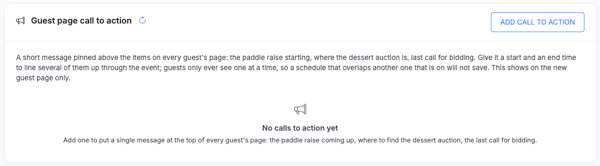
- Go to Edit event > Set up > Guest experience.
- In the Guest page call to action card, select ADD CALL TO ACTION.
- Optional: under Start with a timely message, choose a template: Auction ending soon, Matching challenge, Live auction starting, Raffle closing, Checkout reminder or Limited inventory. Leave it blank to write your own.
- Enter a Headline (up to 200 characters).
- Enter a Description (up to 4,000 characters). Bold, italics, lists and links are kept. Layout, colors and pasted-in code are removed.
- Optional: set Start Showing and Stop Showing. Times are in the event's time zone. Leave Start Showing blank to show it as soon as it is on. Leave Stop Showing blank to show it until you turn it off.
- Turn on On: show this to guests during its scheduled window to make it live. Leave it off to keep the call to action as a draft.
- Select Save Changes.
Schedule several call to actions
Give each call to action a start and stop time so they run one after another through the event, for example the paddle raise at 8:05, then the dessert auction, then a last call before bidding closes. If a new call to action overlaps the schedule of one that is already on, it will not save, and turning it on is refused.
A call to action with no start time or no stop time stays open-ended. While it is on, it blocks every other call to action, so give each one an end time when you plan to use more than one.
Check status and make changes
The list shows each call to action with when it shows and a status.
|
Status |
Meaning |
|---|---|
|
Showing now |
It is on and today's date and time fall inside its schedule. Only one can read this at a time. |
|
Scheduled |
It is on but its start time has not arrived. |
|
Finished |
It is on but its stop time has passed. |
|
Off |
It is saved as a draft or has been turned off. |
Select Edit to change the message or schedule. Select Turn off to take it down without deleting it, and Turn on to bring it back. Use the refresh arrow next to the card title to reload the list.
Tips
- Keep the headline short enough to read on a phone.
- Write for the moment: what guests should do now, and where.
- Use automatic urgency and social proof for facts that change with guest activity, such as items remaining or recent bids. Use a call to action for announcements you want to control yourself.
Related articles
- Automatic Urgency & Social Proof: Help Guests Act at the Right Moment
- Guest Experience
- Guest page
- How to Set Up a Scrolling Banner (Ticker) for an Online Auction
FAQ
Can guests see more than one call to action? No. Guests see one at a time. Overlapping schedules are refused when you save.
Why will my call to action not turn on? Another call to action covers the same period, or one with no stop time is already on. Give the earlier one a stop time or turn it off.
Does a call to action replace the automatic notices? No. The two work together. The master switch for automatic notices does not hide a call to action you wrote.
Can I draft one ahead of time? Yes. Save it with the On switch off, then turn it on when you are ready.
What formatting can I use in the description? Bold, italics, lists and links. Anything else is removed.
Do guests on the old guest page see it? No. It shows on the new guest page only.