-1.png?width=240&height=100&name=Heading%20(2)-1.png)
As a campaign administrator in BetterUnite, you can easily set up the peer-to-peer pages for your participants, edit the content, and settings of a fundraiser page or child campaign page to ensure it aligns with your organization’s goals.
For overall settings of your Peer-to-Peer pages, please see this article. The below article explains how to set up a "child" or fundraiser's page for them.
Adding or Creating a Peer-to-Peer fundraiser page as an admin
- Log in to your BetterUnite Admin Dashboard.
- Choose the Campaign that contains the P2P component that you want
- Be sure you are on the Campaign Dashboard then select Peer-to-Peer on the left-hand side.
- Select the person + icon to the right.

- Enter the title of the page. (this is public facing)
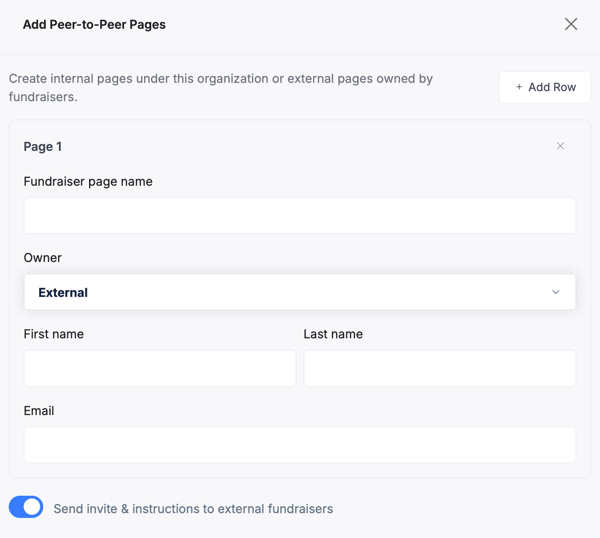
- Choose whether this will be an Internal page managed by you (the organization) or by the person you are creating the page for.
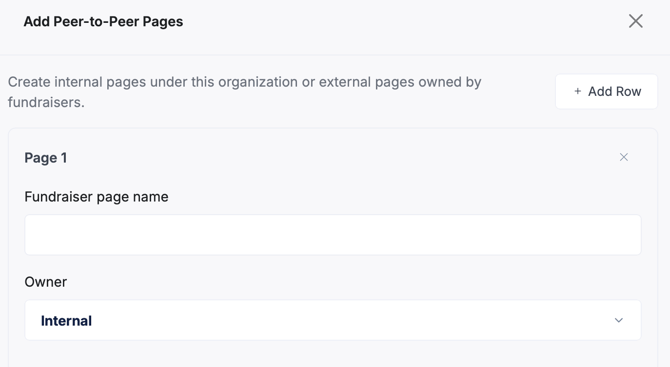
- If you are creating it for the person, you have the ability to send them an invitation to create a login and manage their page. For instructions for them on how to edit their page, see how to create a peer-to-peer page from a participant's perspective. When you send the invite, they will receive the email from the above article on how to edit and share their page.
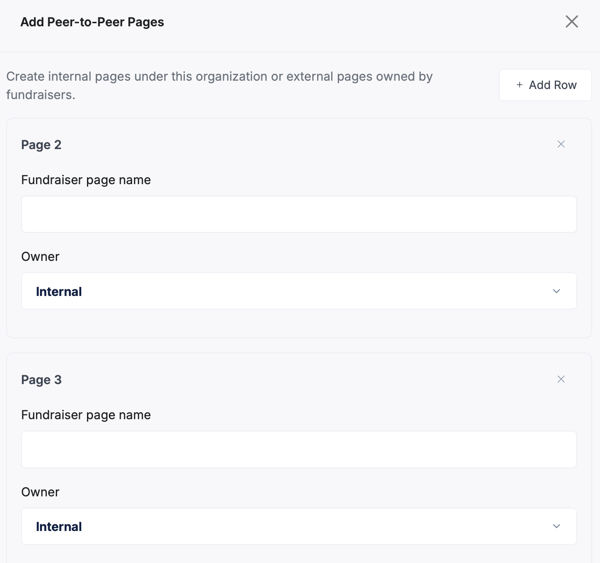
You can also create more than one page at a time by Select Add Row or you can Bulk Create Peer-to-Peer fundraiser pages using a CSV file upload.
Finding and Accessing the Fundraiser or Child Campaign Page
-
Log in to your BetterUnite Admin Dashboard.
-
Choose the Main Campaign that contains the P2P component that you want
-
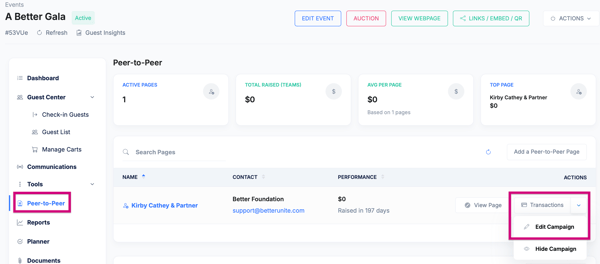
Be sure you are on the Campaign Dashboard then select Peer-to-Peer on the left-hand side to see all the fundraiser's or team pages listed
- If you would like to edit a page, select the carrot next to Transactions>Edit Campaign
-
See this article on how to edit an Internal Page and this article on how to edit an external page.
Best Practices for Admins
-
Keep messaging consistent with the parent campaign
-
Use high-quality images sized for web
-
Review fundraiser pages periodically for accuracy
-
Preview changes on both desktop and mobile when possible
Need Additional Help?
We're here to assist you in any way we can. Don't hesitate to reach out to support@betterunite.com
Let's go do some good.