-1.png?width=240&height=100&name=Heading%20(2)-1.png)
Import Donations
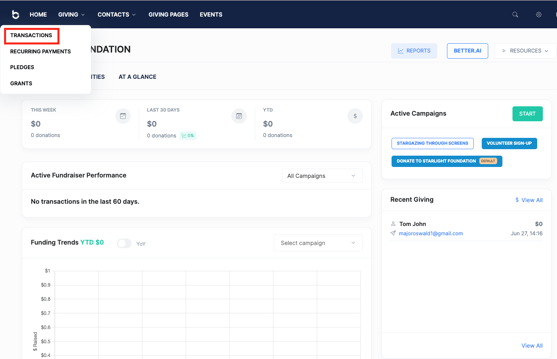
- To import donations into your BetterUnite account, navigate to the Giving menu and select Transactions. GIVING menu and selecting Transactions.
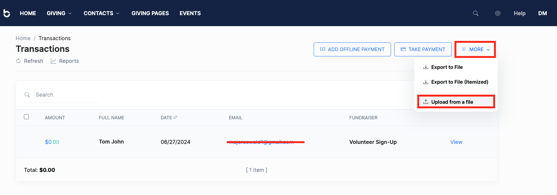
- Once you are on the transactions page, select Upload From a File option under the More button.
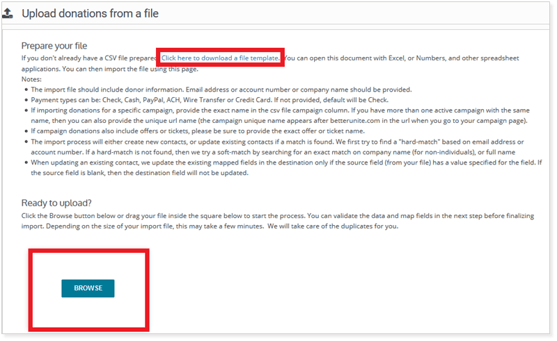
- If you already have a CSV file prepared, you can upload this document by either clicking on Browse button or dragging your file into the upload area. If you don't have a file yet, click download a file template, fill out the relevant information and upload it.
- Please be sure to read the instruction provided on this page. Note that you can include contact information in full in this file and import it all at once without needing a Donor Import first. However, we recommend completing a Donor Import first to ensure your donor records are in place, deduplicated, and cleansed.
- In the example below, the template is filled in with a sample donation entry. The fields populated include: donation amount, date, first name, last name, and email address.

- In this pop-up window, you can see the drop-down lists show existing fields on a donation record that can be mapped. This mapping exercise aims to align the columns in your file with the fields in BetterUnite donation records.
- Regardless of what your CSV column is titled, you can map it to a donation record field. If you use our template, the mapping is easier because it'll automatically match the column names.
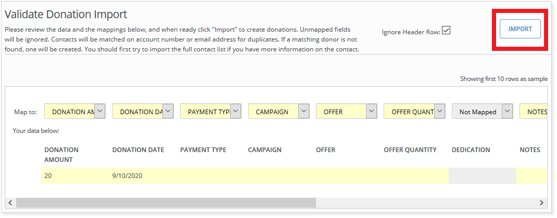
- Once you fill out the relevant information for all the donations you want to import, drag this file into the Browse Box. Then, In the pop-up window below, click Import.
- Review the results and any issues and click Done.
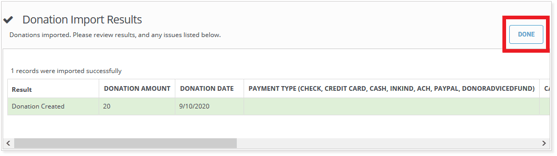
- To check over the donations you have imported, go back to your Transactions page, where you can see your newly imported donations.
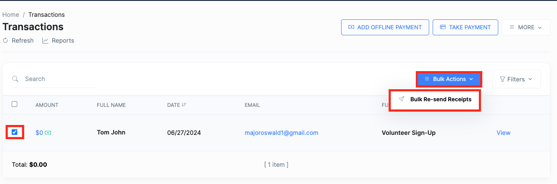
- After importing your transactions, you can bulk send receipts to these donors. Simply click on Transactions and select the transactions you'd like to send receipts for, and the Bulk Actions button appears, with the option to Re-Send Receipts. It will do the same as if you opened each payment record by clicking the view button and selecting the “Re-send Receipt” option.
For a full list of supported import fields, see review this article here.
Need Additional Help?
We're here to assist you in any way we can. Don't hesitate to reach out to support@betterunite.com
Let's go do some good.