-1.png?width=240&height=100&name=Heading%20(2)-1.png)
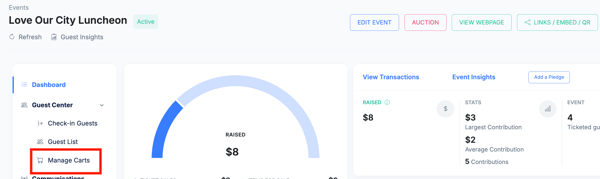
- From your Event Dashboard, navigate to Manage Carts
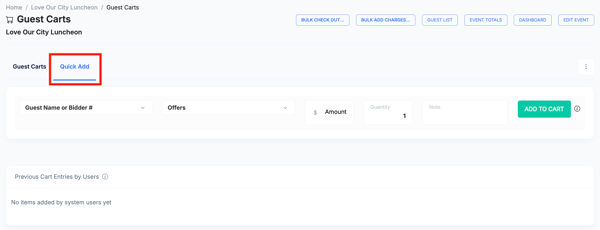
- Within Manage Carts, select the Quick Add tab. Note: you will see all open guest carts on the Guest Carts tab.
How do I award and add auction items via Quick Add to winner's carts?
For example: an auction package is a trip and it was purchased for $12,000. They want to split the package 3 ways. Follow the below steps:
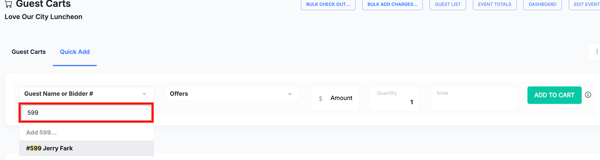
- Search and select the offer or auction item name or number. Note that you must first upload your auction packages. Read this article for details on Adding Auction Items.

- Search for the Guest Name or Bidder's Bid Number of the first person splitting the item
-
-
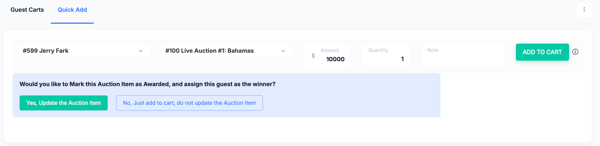
- Adjust the winning amount to the split share (for example, $4,000), then select Add to Cart.
- When prompted, choose one of the following options:
- Yes, Update the Auction Item - Marks the auction item as awarded, designates the guest as the winner, and triggers the winning bidder notification via email and test (if applicable). When splitting a package, the auction item will publicly display "Multiple" winners.
- No, Just add to cart, do not update Auction item- Does not trigger the winning bidder notification and does not display the winner's name on the guest bidding page or public auction page. Use this option to avoid confusion, especially if checking a guest out immediately or after the event.
-
- Note: You do not need to create separate auction items for each payer. You can add the same item to multiple carts for the same or different amounts.
If you have already added this item for the full amount to one cart, delete it from that cart before continuing. This makes receipting and reporting easier after the event.
Repeat the steps above for the second and third guests splitting the item (e.g., $4,000 each). The auction item will appear in each guest's cart at the split amount.
Need Additional Help?
We're here to assist you in any way we can. Don't hesitate to reach out to support@betterunite.com
Let's go do some good.