-1.png?width=240&height=100&name=Heading%20(2)-1.png)
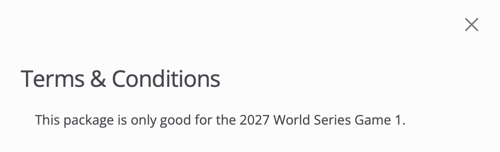
Auction item Terms & Conditions let you display legal terms, FAQs, or other relevant content directly on an individual item. You can apply the terms set in your overall auction settings or override them with item-specific terms. Terms and Conditions appear below the item description on the bidder-facing item page.
For full auction item set up instructions and details see Add Auction Items.Terms and conditions
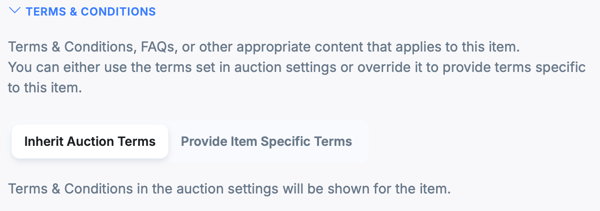
Terms & Conditions, FAQs, or other appropriate content that applies to this item. You can either use the terms set in overall auction settings or override them to provide item-specific terms.
How do I set default Terms and Conditions for the auction?
Default Terms and Conditions are configured in your overall auction settings. To set them, navigate to your auction's Settings, locate the Terms & Conditions field, and enter the text that should apply to all items by default.
How do I override Terms and Conditions for a specific item?
To provide item-specific terms that differ from the auction default:
- Open the auction item you want to edit.
- Scroll to the Terms and Conditions field on the item setup page.
- Enter the terms, FAQs, or other content specific to this item.
- Save your changes.
The item-specific terms will override the auction-level default and will appear below the item description for bidders.
Terms and Conditions will show below the item description.

Need additional help?
We're here to assist you in any way we can. Don't hesitate to reach out to support@betterunite.com