
Create a membership sign-up page so people can join a plan, then share the link.
Before you start
- Create at least one plan under Contacts > Membership Management > Plans (see Membership: Plans).
- A sign-up page shows plans to the public as offers. You can build several pages, each with different plans.
Create the page
- Go to Contacts > Membership Management > Sign-up Pages.
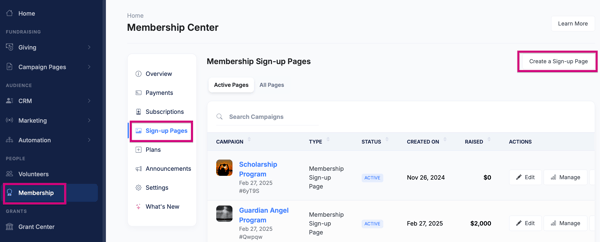
- Click Create a Sign-up Page and select the Quick Start or Full Editor route and then enter a title when asked. (If this is your first campaign, Quick Start is a great way to go, if you've created a campaign in BetterUnite before use the Full Editor to begin.)
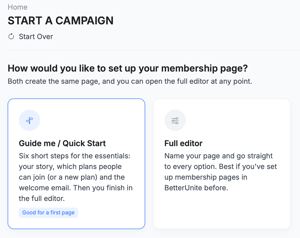
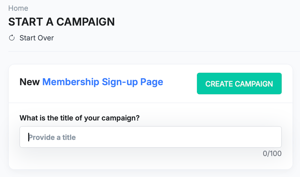
- The page opens in the Edit menu. Work from top to bottom down the Set up list.
Set up the page
- Basics: change the title and URL, add an image or video, sponsor logos and social links.
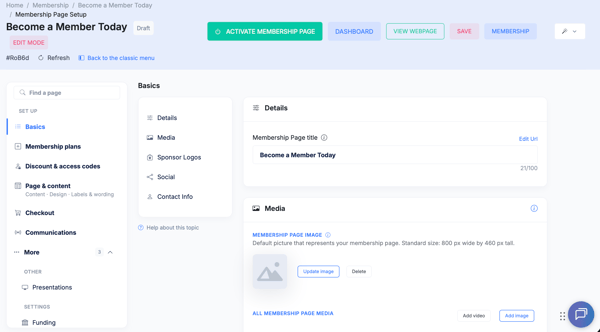
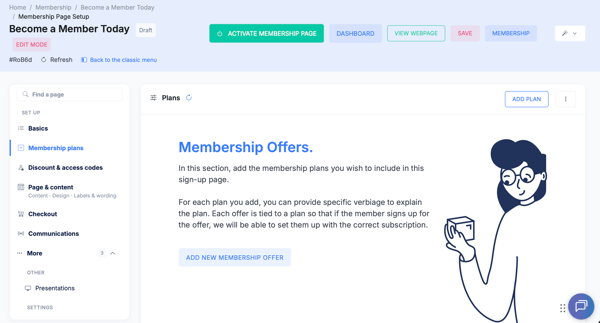
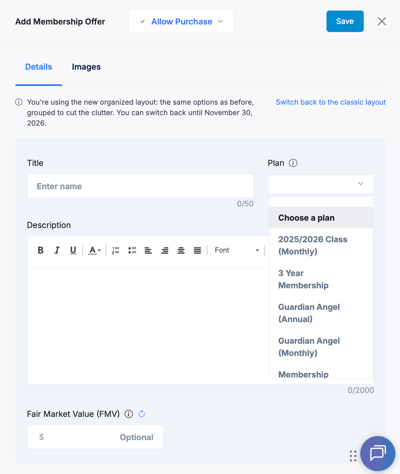
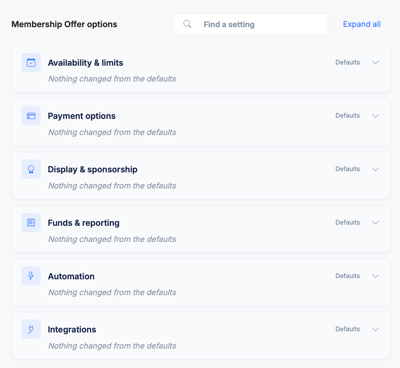
- Membership plans: click Add Plan, choose a plan, and set the title, description, image, availability and advanced options (fair market value, show purchasers to public, auto-tag contacts and payments, reference number). The title and description can differ from the plan's internal name.
- Access codes / Discount & access codes: add codes to restrict who can see a plan or to reduce the price. See Access and Discount Codes.
- Page & content: write the page text and tagline under content. Use Design for the look and Labels & wording to change button and field text (for example, "Donate" to "Join").
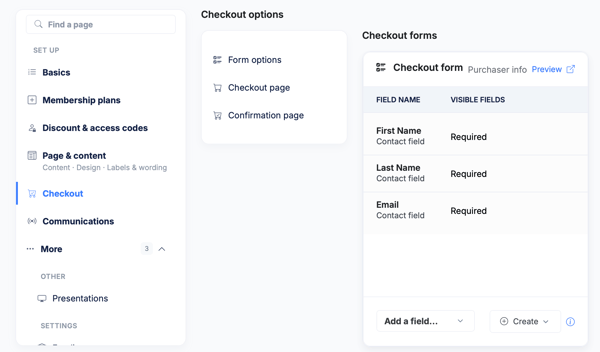
- Checkout: choose which information members must give. See Checkout Options.
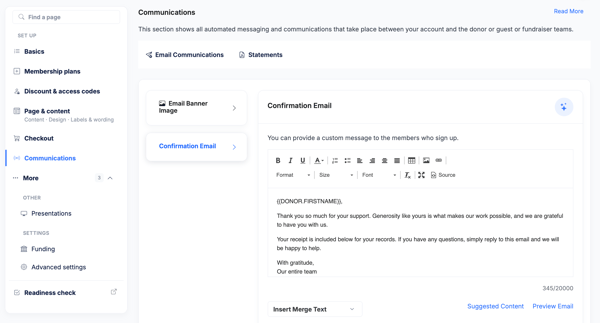
- Communications: set the banner, the confirmation email text, and who is notified of new members.
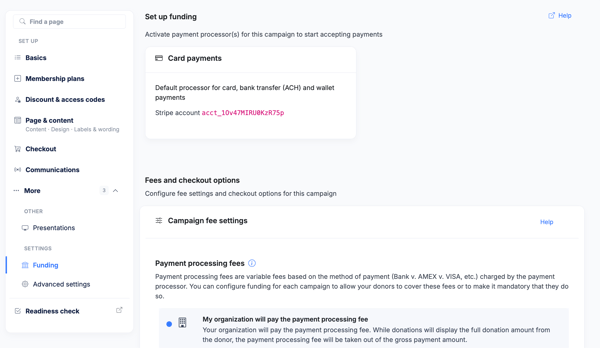
- Open More > Funding to choose the payment processor and who pays fees.
Check and activate
- Click Readiness check at the bottom of the menu (it opens in a new tab) and fix anything flagged.
- Activate the page, then share its link.

- To stop new sign-ups without deleting the page, mark the campaign as completed from its dashboard.
Related articles
- Membership: Plans
- Membership Benefits
- Household Memberships
- Access and Discount Codes
- How to Start a Campaign
Frequently asked questions
Can I have more than one sign-up page? Yes. Each page can show a different set of plans.
Can the same plan appear on several pages? Yes, with different titles and descriptions.
Does editing a page change existing members? No. Only new visitors see the changes.
Can a member join more than one plan on one page? One plan at a time.
Where do I find the link to share? On the page dashboard (Links, Embed and QR).
Need Additional Help?
We’re here to assist you in any way we can. Don’t hesitate to reach out to support@betterunite.com
Let’s go do some good.